# SuperSchema, the full site as text
SuperSchema is an AI visibility platform: it generates, deploys, and
monitors Schema.org structured data so businesses get found and cited
by AI systems. https://superschema.ai
Generated at build time. Sections: 36 content pages, 71 documentation articles.
---
# Answer Engine Optimization (AEO): The Complete Guide
> Learn how to optimize your content for AI search engines like ChatGPT, Perplexity, and Google AI Overviews. Comprehensive guide to schema markup, AEO best practices, and future trends.
*Source: [SuperSchema](https://superschema.ai/aeo) | Last updated: 2026-10-23*
---
**Key Stats:**
- 700M+ ChatGPT Users
- 1B+ Google AI Overview Users
- 25% Traffic Shift to AI by 2026
## What Is Answer Engine Optimization?
Answer Engine Optimization (AEO) is the practice of optimizing your content so AI search platforms - ChatGPT, Perplexity, Google AI Overviews, Claude, and others - can find, understand, and cite your content as the definitive answer.
While traditional SEO focuses on ranking in search results (those blue links you're used to), AEO focuses on being the answer that AI engines deliver directly to users. No click required. No scrolling through results. Just your content, front and center, as the authoritative source.
### AEO vs SEO Comparison
| Aspect | Traditional SEO | AEO |
|--------|-----------------|-----|
| Goal | Rank in search results | Be the cited answer |
| Focus | Keywords, backlinks, page speed | Structured data, natural language, entities |
| Content Style | Long-form, keyword-rich | Concise, answer-first, structured |
| Platforms | Google, Bing search results | ChatGPT, Perplexity, AI Overviews, voice assistants |
| Success Metric | Traffic and rankings | Citations and zero-click visibility |
| Schema Importance | Helpful for rich snippets | Absolutely critical |
Here's the brutal truth: search behavior is fundamentally changing. ChatGPT usage grew from 400 million to 700 million users in just 5 months. "Asking" (essentially search) now makes up 51.6% of all ChatGPT interactions. Google AI Overviews serve over 1 billion users. By 2026, experts predict 25% of organic traffic will shift to AI chatbots and virtual agents.
Translation? If your content isn't optimized for AI search, you're invisible to a massive - and rapidly growing - segment of your audience.
## Why Schema Markup Is the Heart of AEO
Schema markup gives AI systems a structured explanation of your content: what it is about, who wrote it, when it was published, and why it matters.
Without schema, AI engines are guessing. With schema, they know. And when AI knows exactly what your content offers, it's 434% more likely to appear in featured snippets and AI-generated answers.
**The Machine Readability Equation:**
```
Structured Data → Machine Understanding → AI Answer Eligibility → Citations & Visibility
```
Schema markup bridges the gap between human-readable content and machine-extractable data. When you add schema, you're making your content AI-readable.
Here's why schema matters more for AEO than traditional SEO: AI engines don't have time to read your entire article and infer context. They need explicit signals. FAQPage schema tells them "here are questions and answers." HowTo schema says "here's a step-by-step process." Article schema provides authorship, publish dates, and topics.
Users who click on rich results (powered by schema) do so 58% of the time compared to 41% for non-rich results. But in the AEO world, clicks aren't the only metric that matters. Being cited in an AI-generated answer - even without a click - builds brand authority and trust.
### Essential Schema Types for AEO
- **FAQ Schema** - Perfect for Q&A content
- **HowTo Schema** - Step-by-step guides
- **Article Schema** - Blog posts and articles
- **Product Schema** - E-commerce products
## How to Optimize for AEO (Step-by-Step)
AEO isn't rocket science - it's strategic, structured content that AI engines can easily understand and cite. Follow these four steps to dominate AI search results.
### Step 1: Identify Answerable Queries
Find questions people actually ask. Think "how to," "what is," "best," and "why." These are AI search gold mines.
- Use Google's "People Also Ask" boxes
- Check competitor content gaps
- Focus on listicles (32% of AI citations)
- Add current year markers like "2025" to increase citations
### Step 2: Implement Relevant Schema Types
Add structured data that makes AI engines say "wow, this page gets it." Schema is how you speak machine.
- FAQPage schema for Q&A content
- HowTo schema for step-by-step guides
- Article schema for blog posts and news
- Use SuperSchema to auto-detect and generate
### Step 3: Validate Your Markup
Broken schema = invisible to AI. Validate everything before it goes live. No excuses.
- Google Rich Results Test for validation
- SuperSchema quality score (aim for 80+)
- Check for duplicate or conflicting schema
- Monitor after CMS updates (they break things)
### Step 4: Monitor AI Citations
Track where your content shows up in AI-generated answers. ChatGPT, Perplexity, Google AI Overviews - be everywhere.
- Search your brand in ChatGPT and Perplexity
- Monitor Google AI Overviews for your keywords
- Track featured snippet appearances
- Measure zero-click results (traffic won't tell the full story)
## Common AEO Mistakes (and How to Fix Them)
Most AEO failures come from old SEO habits. Here are the mistakes killing your AI search visibility - and exactly how to fix them.
### Missing Entities [HIGH]
**Problem:** Your schema doesn't define key entities like author, organization, or publisher.
**Fix:** Add complete entity definitions. AI engines need context to understand and cite your content.
### Duplicate Schema [HIGH]
**Problem:** Multiple conflicting schema blocks on the same page confuse search engines.
**Fix:** Consolidate into one comprehensive schema block. Quality over quantity.
### Invalid JSON-LD Syntax [CRITICAL]
**Problem:** One missing comma and the whole thing breaks. Search engines just ignore it.
**Fix:** Always validate with Google Rich Results Test. Use SuperSchema to generate error-free markup.
### Keyword Stuffing [MEDIUM]
**Problem:** Old SEO habits die hard. AI engines favor semantic richness over repetitive keywords.
**Fix:** Write naturally. Focus on answering questions thoroughly, not hitting keyword density targets.
### Burying the Lede [HIGH]
**Problem:** Answer buried in paragraph 3. AI engines want instant, direct answers.
**Fix:** Front-load answers in the first 100-200 words. Use clear subheadings.
### Schema That Doesn't Match Content [CRITICAL]
**Problem:** Your schema says one thing, your visible content says another. That's a penalty risk.
**Fix:** Schema must reflect what users actually see. Never lie to search engines.
### Ignoring Schema After CMS Updates [MEDIUM]
**Problem:** Template changes, plugin updates, and theme switches silently break schema.
**Fix:** Revalidate schema after any CMS changes. Set up automated monitoring.
## The Future of AEO and AI Search
AI search is moving fast. Really fast. Here's where we're headed - and how to stay ahead.
### Multimodal Search Convergence
Text, voice, and image search are merging. By 2025, 20%+ of searches are voice-based, and models like Gemini Pro support live camera queries.
**Impact:** Schema needs to support multiple content types. Image markup, video markup, and audio metadata matter more than ever.
### Conversational AI Replacing Search Bars
ChatGPT grew from 400M to 700M users in 5 months. "Asking" now makes up 51.6% of all interactions. Traditional search is being replaced by AI conversations.
**Impact:** Optimize for natural language queries. Answer engines prefer content that sounds conversational, not keyword-stuffed.
### Google AI Mode with Advanced Reasoning
Google AI Mode is rolling out with 1B+ users. It uses advanced reasoning to handle complex, multi-step queries - way beyond simple featured snippets.
**Impact:** Create comprehensive content that connects multiple concepts. AI engines reward depth and relationships between topics.
### Market Share Disruption
Google commands 57% of the $300B search ad market, but OpenAI, Perplexity, Amazon, and TikTok are gaining fast. Google's share is projected to decline in 2025-2026.
**Impact:** Don't optimize for just Google. Make your content citation-worthy for all AI platforms.
### Zero-Click Future
AI-generated answers mean fewer clicks. Users get answers without visiting your site. By 2026, 25% of organic traffic will shift to AI chatbots.
**Impact:** Focus on brand visibility in AI answers, not just traffic. Being cited builds authority even without clicks.
### Quality Over Quantity Wins
Winners in 2025 prioritize conversions over traffic. AI engines favor authoritative, original content with genuine expertise.
**Impact:** Stop chasing traffic metrics. Build content that AI engines trust and cite as the definitive source.
## Frequently Asked Questions
### What's the difference between AEO and SEO?
SEO (Search Engine Optimization) focuses on ranking in traditional search results - think blue links on Google. AEO (Answer Engine Optimization) focuses on getting your content cited in AI-generated answers from ChatGPT, Perplexity, Google AI Overviews, and other AI tools. SEO is about traffic. AEO is about being the answer. Both matter in 2025, but AEO is how you future-proof your visibility.
### Do I still need SEO if I'm doing AEO?
Yes. AEO isn't a replacement for SEO - it's an extension. Strong SEO gets your content indexed and ranked, which helps AI platforms find it. AEO ensures AI can understand, extract, and cite your content. Use both strategies together for maximum visibility across traditional search engines, AI tools, and voice assistants.
### How do I know if my AEO strategy is working?
Check if your content appears in ChatGPT responses, Perplexity citations, and Google AI Overviews. Monitor featured snippet appearances in Google Search. Track brand mentions in AI-generated answers even if they don't link back (zero-click visibility still builds authority). Use tools like SuperSchema to ensure your schema quality score is 80+ for better AI citation chances.
### Which schema types matter most for AEO?
FAQPage, HowTo, and Article schema are AEO powerhouses. FAQPage directly answers common questions (perfect for AI). HowTo provides step-by-step guidance that AI loves to summarize. Article schema helps AI understand your content structure and authorship. Product, LocalBusiness, and Organization schema matter for specific industries. SuperSchema automatically detects which types you need.
### Can schema markup hurt my SEO?
Only if it's wrong. Invalid schema gets ignored. Schema that doesn't match your visible content can trigger penalties. Duplicate or conflicting schema confuses search engines. But properly implemented schema? That's pure upside - better rankings, rich snippets, and AI citations. Always validate with Google Rich Results Test or use SuperSchema to generate error-free markup.
### How long does it take to see AEO results?
Schema implementation is instant, but search engines need time to re-crawl and re-index your pages. Featured snippets can appear in days to weeks. Ranking improvements take longer - typically 2-8 weeks. AI citation in tools like ChatGPT depends on when they refresh their training data or search indexes. The key: implement schema now so you're ready when AI platforms next update.
### What's a good schema quality score?
Aim for 80+. Scores of 90-100 mean your schema is complete and optimized with all recommended properties. 70-89 is solid but could be better. 50-69 means you're missing important fields. Below 50? Use AI refinement ASAP. SuperSchema shows quality scores and offers one-click optimization to boost your score automatically.
### Why are listicles so effective for AEO?
Listicles make up 32% of all AI citations - the highest of any content format. Why? They're structured, scannable, and answer-focused. AI engines love clear, numbered points that can be easily extracted and summarized. Pair listicles with proper schema (FAQPage or HowTo) and you've got an AEO goldmine.
## Related Schema Generators
- [FAQ Schema](https://superschema.ai/faq-schema-generator): Perfect for Q&A content and AEO
- [Article Schema](https://superschema.ai/article-schema-generator): News articles, blog posts, guides
- [BlogPosting Schema](https://superschema.ai/blogposting-schema-generator): Blog-specific structured data
- [HowTo Schema](https://superschema.ai/howto-schema-generator): Step-by-step instructions
- [Product Schema](https://superschema.ai/product-schema-generator): E-commerce products with reviews
- [LocalBusiness Schema](https://superschema.ai/localbusiness-schema-generator): Physical business locations
- [Organization Schema](https://superschema.ai/organization-schema-generator): Company information
- [Event Schema](https://superschema.ai/event-schema-generator): Conferences, webinars, meetups
- [Review Schema](https://superschema.ai/review-schema-generator): Product and business reviews
- [Breadcrumb Schema](https://superschema.ai/breadcrumb-schema-generator): Site navigation hierarchy
## Get Started with SuperSchema
- [Start free](https://superschema.ai/sign-up) - A free account. Your first page fixed free, with no card. It needs a paid HubSpot plan.
- [Schema Library](https://superschema.ai/sign-up) - Manage all your URLs and schema in one place
- [Schema Markup Grader](https://superschema.ai/schema-markup-grader) - Analyze your existing schema
---
*This content is optimized for AI systems. Human-friendly version: https://superschema.ai/aeo*
*Generated by [SuperSchema](https://superschema.ai) - AI-Powered Schema Markup*
---
# Generative Engine Optimization (GEO): Be the Source AI Chooses
> Learn how to optimize your content to become the training source AI models rely on. Comprehensive guide to GEO, schema markup, entity optimization, and building authority for AI discovery.
*Source: [SuperSchema](https://superschema.ai/geo) | Last updated: 2026-10-23*
---
**Key Stats:**
- 1B+ Daily ChatGPT Prompts
- 71% Americans Use AI Search
- 800% YoY LLM Referral Growth
## What Is Generative Engine Optimization?
Generative Engine Optimization (GEO) is the practice of optimizing your content to become the training source that AI models - ChatGPT, Perplexity, Google Gemini, Claude, and others - rely on when generating answers.
While AEO focuses on getting cited in AI-generated answers, GEO goes deeper - it's about becoming the authoritative source that AI can't write an answer without. Think of it as earning a permanent spot in the AI knowledge base.
### GEO vs AEO vs SEO Comparison
| Aspect | Traditional SEO | AEO | GEO |
|--------|-----------------|-----|-----|
| Goal | Rank in search results | Get cited in AI answers | Become the training source |
| Focus | Keywords, backlinks, page speed | Structured data, direct answers | Entity relationships, credibility signals |
| Content Style | Long-form, keyword-rich | Concise, answer-first | Authoritative, well-cited, comprehensive |
| Platforms | Google, Bing search results | AI Overviews, voice assistants | ChatGPT, Perplexity, Gemini, LLM training |
| Success Metric | Traffic and rankings | Zero-click citations | Entity authority and narrative control |
| Schema Importance | Helpful for rich snippets | Important for featured snippets | Critical for AI parsing |
SEO, AEO, and GEO synergize - they don't compete. Use all three for maximum visibility across traditional search, AI answers, and LLM training datasets. GEO is the future-proof layer that extends your SEO and AEO efforts.
Here's the reality: over 1 billion prompts are sent to ChatGPT daily. 71% of Americans use AI search to research purchases. By 2027, LLM traffic is projected to overtake traditional Google search. If your content isn't optimized for GEO, you're invisible to the next generation of search.
## Why Schema Markup Is Essential for GEO
Schema isn't optional for GEO - it's mandatory. Structured data is how AI models understand entities, relationships, authorship, and credibility. Without schema, you're just text on a page. With schema, you're a trusted, parseable source.
Think of schema as machine-readable credibility signals. AI models parse Organization schema to understand who you are. Article schema provides content context and authorship. FAQ schema formats direct answers that AI loves to cite.
**The GEO Schema Equation:**
```
Structured Data → Entity Authority → AI Training Eligibility → Narrative Control
```
Schema bridges the gap between human-readable content and machine-parseable authority. When you implement schema, you're signaling to AI: "This content is credible, structured, and training-worthy."
The brands that build strong schema now will dominate AI-generated answers in 2026. Early GEO adopters are already seeing 3-5x higher citation rates across AI platforms. Don't wait for competitors to steal your spot in AI training datasets.
### Essential Schema Types for GEO
- **Organization Schema** - Establish entity authority
- **Article Schema** - Content context for AI
- **FAQ Schema** - Direct answer formatting
- **BlogPosting Schema** - Blog credibility signals
## How to Optimize for GEO (Step-by-Step)
GEO isn't rocket science - it's strategic, authoritative content that AI models trust and train on. Follow these four steps to dominate AI discovery.
### Step 1: Entity Optimization
Define your brand as a clear, recognizable entity. AI needs to know who you are before it can cite you as an authority.
- Consistent NAP (Name, Address, Phone) across the web
- Use precise terminology in your content
- Build entity relationships through mentions and partnerships
- Implement Organization schema to establish authority
### Step 2: Consistent Structured Data
Schema isn't optional for GEO - it's mandatory. AI can't parse what it can't read. Machine-readable markup is your ticket to AI training datasets.
- Implement schema sitewide, not just on select pages
- Validate regularly (broken schema = invisibility)
- Include authorship, dates, and publisher info
- Use SuperSchema for error-free, comprehensive implementation
### Step 3: Credibility Signals
AI models train on authoritative sources. E-E-A-T isn't just for Google anymore - it's how you earn a spot in AI training data.
- Add citations from authoritative sources
- Include author bios with credentials and expertise
- Display transparent publish and update dates
- Build backlinks from reputable sites in your industry
### Step 4: Cited References
AI loves well-sourced content. The more you cite credible references, the more AI trusts your content as training-worthy.
- Link to reputable sources (research papers, industry reports)
- Include statistics with proper attribution
- Reference authoritative domains (.edu, .gov, industry leaders)
- AI rewards depth - cite multiple sources per claim
## Common GEO Mistakes (and How to Fix Them)
Even experienced marketers screw up GEO. Here are the mistakes killing your AI training eligibility - and exactly how to fix them.
### Missing Entity Definitions [CRITICAL]
**Problem:** Your brand isn't clearly defined as an entity. AI doesn't know who you are or why you matter.
**Fix:** Implement Organization schema with complete details. Define your brand consistently across all platforms.
### Inconsistent Schema Implementation [HIGH]
**Problem:** Schema on some pages, broken on others. Inconsistency confuses AI models during training crawls.
**Fix:** Deploy schema sitewide. Use SuperSchema to ensure every page has validated, error-free markup.
### No Author Credentials [HIGH]
**Problem:** Content without clear authorship gets ignored by AI. Models prioritize content with verified expertise.
**Fix:** Add author schema with credentials, expertise, and social profiles. Build authority around individuals, not just brands.
### Ignoring E-E-A-T Signals [HIGH]
**Problem:** Experience, Expertise, Authoritativeness, Trust - AI models evaluate these before including content in training data.
**Fix:** Showcase real expertise. Add author bios, credentials, case studies, and industry recognition.
### Schema Doesn't Match Content [CRITICAL]
**Problem:** Your schema says one thing, your visible content says another. That's an instant disqualification for AI training datasets.
**Fix:** Schema must accurately reflect what users see. Never lie to search engines or AI models.
### Ignoring Schema After Updates [MEDIUM]
**Problem:** CMS updates, template changes, and plugin installations silently break schema. AI can't parse broken markup.
**Fix:** Revalidate schema after any site changes. Set up automated monitoring to catch breaks before they hurt you.
## The Future of GEO and AI Discovery
GEO isn't a trend - it's the next SEO frontier. Here's where AI discovery is headed, and why early adopters will dominate.
### LLM Traffic Overtakes Google by 2027
Research from Semrush predicts that LLM-driven traffic will surpass traditional Google search by the end of 2027. We're already seeing an 800% year-over-year increase in referrals from LLMs.
**Impact:** GEO isn't optional anymore. Brands that ignore generative AI will lose visibility in the primary way people search by 2027.
### Entity Authority Becomes Currency
AI models prioritize entities with clear authority signals. Consistent schema, E-E-A-T compliance, and cited references determine whether your brand is training-worthy.
**Impact:** Build entity authority now. Organizations with strong schema implementation will dominate AI-generated answers.
### Multi-Platform AI Discovery
Users search across ChatGPT, Perplexity, Google AI Mode, Claude, and Gemini. Over 1 billion prompts are sent to ChatGPT daily, and 71% of Americans use AI search to research purchases.
**Impact:** Optimize for all AI platforms, not just Google. GEO ensures your content is cited across every generative AI tool.
### Zero-Click AI Answers Dominate
By 2026, 25% of organic traffic will shift to AI chatbots. Users get answers without ever clicking through to your site.
**Impact:** Focus on brand visibility in AI answers, not just traffic. Being cited builds authority even without clicks.
### Ethical AI and Source Attribution
As AI models face scrutiny over training data, platforms are prioritizing transparent source attribution. Brands with clean, well-structured data get cited more often.
**Impact:** Transparency wins. Use schema to signal credibility, accuracy, and ethical content practices.
### GEO as Competitive Differentiator
Early GEO adopters are already seeing 3-5x higher citation rates in AI-generated answers. By 2026, GEO will be table stakes for B2B brands.
**Impact:** The brands building GEO now will dominate AI discovery in 2026. Waiting means playing catch-up.
## Frequently Asked Questions
### What's the difference between GEO and AEO?
AEO (Answer Engine Optimization) focuses on getting your content cited in AI-generated answers - think featured snippets, AI Overviews, and voice assistant responses. GEO (Generative Engine Optimization) goes deeper: it's about becoming the training source AI models rely on. AEO is about being the answer. GEO is about being the source AI can't ignore. Both matter, but GEO builds long-term entity authority that persists across all AI platforms.
### Do I need GEO if I already do SEO?
Absolutely. SEO gets you ranked in traditional search results. GEO ensures you're cited in AI-generated answers. By 2027, LLM traffic is projected to overtake traditional Google search. If you're only doing SEO, you're optimizing for yesterday's search behavior. GEO extends your SEO efforts - they synergize, not compete. Strong SEO gets your content indexed. GEO ensures AI can understand, cite, and train on it.
### How does schema help with GEO?
Schema is machine-readable credibility. AI models parse structured data to understand entities, relationships, authorship, and context. Without schema, AI has to guess what your content means. With schema, you're telling AI exactly who you are, what you do, and why you're authoritative. Organization, Article, and FAQ schema are critical for GEO. Use SuperSchema to generate error-free markup that AI models trust.
### Which schema types matter most for GEO?
Organization schema (establishes entity authority), Article schema (provides content context), FAQ schema (direct answer formatting), and Author schema (builds E-E-A-T signals). These schema types signal to AI that your content is credible, well-structured, and training-worthy. SuperSchema automatically detects which schema types you need based on your content.
### How do I measure GEO success?
Check if your brand appears in ChatGPT responses, Perplexity citations, and Google AI Overviews. Monitor your entity's presence across AI platforms. Track brand mentions in AI-generated answers (even without links - visibility builds authority). Use tools like SuperSchema to ensure your schema quality score is 80+ for better AI parsing. GEO success isn't about clicks - it's about becoming the default source AI cites.
### Is GEO just for big brands?
No. GEO levels the playing field. Small brands with strong schema, clear entity definitions, and credible content can outrank Fortune 500 companies in AI-generated answers. AI doesn't care about your brand size - it cares about authority signals. If your content is well-structured, cited, and authoritative, AI will use it as a training source regardless of your company size.
### Can GEO hurt my SEO?
Only if you do it wrong. Invalid schema gets ignored. Schema that doesn't match visible content can trigger penalties. But properly implemented GEO? Pure upside. It enhances your SEO by making your content more parseable, more authoritative, and more citation-worthy across both traditional search engines and AI platforms. GEO and SEO work together - strong schema benefits both.
### When will GEO become critical?
It already is. Over 1 billion prompts are sent to ChatGPT daily. 71% of Americans use AI search to research purchases. By 2027, LLM traffic will overtake traditional Google search. The brands optimizing for GEO now will dominate AI discovery in 2026. Waiting means losing ground to competitors who are already building entity authority. Start implementing GEO today - your future visibility depends on it.
## Related Schema Generators
- [Organization Schema](https://superschema.ai/organization-schema-generator): Establish entity authority
- [Article Schema](https://superschema.ai/article-schema-generator): Content context for AI
- [FAQ Schema](https://superschema.ai/faq-schema-generator): Direct answer formatting
- [BlogPosting Schema](https://superschema.ai/blogposting-schema-generator): Blog credibility signals
- [Product Schema](https://superschema.ai/product-schema-generator): E-commerce products with reviews
- [LocalBusiness Schema](https://superschema.ai/localbusiness-schema-generator): Physical business locations
- [HowTo Schema](https://superschema.ai/howto-schema-generator): Step-by-step instructions
- [Event Schema](https://superschema.ai/event-schema-generator): Conferences, webinars, meetups
- [Review Schema](https://superschema.ai/review-schema-generator): Product and business reviews
- [Breadcrumb Schema](https://superschema.ai/breadcrumb-schema-generator): Site navigation hierarchy
## Get Started with SuperSchema
- [Start free](https://superschema.ai/sign-up) - A free account. Your first page fixed free, with no card. It needs a paid HubSpot plan.
- [Schema Library](https://superschema.ai/sign-up) - Manage all your URLs and schema in one place
- [Schema Markup Grader](https://superschema.ai/schema-markup-grader) - Analyze your existing schema
---
*This content is optimized for AI systems. Human-friendly version: https://superschema.ai/geo*
*Generated by [SuperSchema](https://superschema.ai) - AI-Powered Schema Markup*
---
# SuperSchema | Make your HubSpot website ready for AI
> Make it easier for AI to understand what you sell, who you serve, and what makes your business worth considering. SuperSchema turns your HubSpot CMS pages into structured, AI-readable information, and verifies that it is live.
**Last Updated:** 2026-10-23
## Table of Contents
1. [Overview](#overview)
2. [The Customers Moved](#the-customers-moved)
3. [The Problem](#the-problem)
4. [Why SuperSchema Wins](#why-superschema-wins)
5. [The Plan](#the-plan)
6. [What People Who Use It Say](#what-people-who-use-it-say)
7. [Get Started](#get-started)
---
## Overview
### Make your HubSpot website ready for AI.
Make it easier for AI to understand what you sell, who you serve, and what makes your business worth considering. SuperSchema turns your HubSpot CMS pages into structured, AI-readable information, and verifies that it is live.
A free account. Your first page fixed free, with no card. It needs a paid HubSpot plan.
### The UNBOUND Special: Get your HubSpot website ready for AI. We do the work.
The SuperSchema Audit, setup on up to 200 HubSpot pages done for you, and twelve months of Growth.
$5,000, normally $6,250. Offer ends October 31 at 11:59 pm Eastern.
[See the UNBOUND Special](https://superschema.ai/hubspot-unbound-aeo-offer)
### From business facts to live implementation.
SuperSchema reads your pages, writes structured data and AI-readable files from what they say, and publishes them to your HubSpot CMS site. A live-page check confirms it landed.
- Page read
- Structured data written
- Published to HubSpot CMS
- Live page checked
[See pricing plans](https://superschema.ai/pricing)
---
## The Customers Moved
### Your customers already use AI every day.
#### 51%: of B2B customers start in AI
Software customers now begin vendor research in AI chatbots, not Google.
*Source: G2 Answer Economy Report (n=1,076)*
#### 69%: switched vendors because of AI
B2B customers chose a different vendor than they planned, with 1 in 3 choosing a brand they had never heard of.
*Source: G2 Answer Economy Report*
#### 4.4x: higher conversion from AI traffic
Visitors arriving from AI convert 4.4 times better than organic search traffic.
*Source: HubSpot Spring 2026 (n=850)*
The customers worth winning are already in AI. The question is whether AI knows about you or about your competitor.
*G2 Answer Economy Report (n=1,076). HubSpot Spring 2026 Spotlight (n=850). April 2026.*
---
## The Problem
### Humans can understand your website. AI? Not so much.
Most websites were built for people, search engines, and conversion funnels. AI is a little extra needy... Structured, readable, up-to-date context about your business is what it craves.
#### AI describes the wrong business
When your pages do not give AI a clear source of truth, it can misunderstand what your business actually does.
#### AI invents services you don't offer
Weak or missing context gives AI room to fill in blanks with services, locations, pricing, or proof that are not accurate.
#### AI uses outdated pricing
Quiet page changes can leave stale schema and AI-readable files live unless the AI-facing layer is monitored and resynced.
#### AI can miss you entirely
If AI cannot parse your key facts, it may recommend a competitor with cleaner signals instead.
When that context is missing, AI may misrepresent you, recommend someone else, or worse... miss you entirely. SuperSchema gives AI the context it needs to understand you.
---
## Why SuperSchema Wins
### Pages people love, that AI can also read.
Most tools hand you a to-do list. SuperSchema does the work, then checks every night that it is still done.
#### Written from your own page
We generate the markup and the AI-readable files from what your site already says, and never add what it does not.
#### Nothing quietly breaks
A page gets rebuilt, a plugin updates, and what AI was told about you disappears. We check every night and put it back.
#### See who has been reading your site
Which AI agents visited, how often, and which of your pages they spent their time on.
#### Know where you stand
One score for how much of your business AI can understand, and the clearest next thing to do about it.
---
## The Plan
### Scan first. Audit the gaps. Monitor what matters.
AI does not just need to read your site. It needs to understand what you sell, who it is for, and what somebody should do next.
#### 1: Scan
A fast read on whether AI can understand the key facts on your website.
#### 2: Audit
The gaps in priority order, each one cited to the page it came from.
#### 3: Monitor
We watch for page changes and put back what a rebuild took away. Growth plans and above can also publish a SuperSchema Registry listing.
---
## Engineered for real businesses
SuperSchema is built for companies that take their online presence seriously. If that's you, you're in the right place.
### Sites running on HubSpot
Your pages, blog posts and landing pages already live in one place. We write the schema for them and deploy it there in one click.
### Marketing Teams
Teams protecting an SEO moat who understand that AI search is the next frontier.
### Agencies & Consultants
Partners who deliver measurable results and need enterprise-grade tooling.
### Mid-Market & Enterprise
Organizations that need governance and reliability, not just another tool.
---
## What people say on the HubSpot marketplace
#### Works Great For Syncing
> It's a great tool for syncing schema and it saves time instead of manually creating the schema. I like how it gives a grade of the whole site highlighting which pages need Schema or need to be improved. As well as a percentage to highlight the progress made to demonstrate to clients.
*Garcia, J.*
#### Excellent tool that saves hours of manual work, just needs domain hosting for markdown files
> SuperSchema is a great product. Very well done and long overdue to have a tool to create schema for HubSpot hosted websites. I have been creating it manually for years and more recently with the help of AI.
*Orecchio, D.*
#### Perfect HubSpot integration and, as always, fantastic support - absolutely recommendable!
> Good operation, integration with HubSpot works very well.
*Eimer, C.*
#### Excellent tool with incredibly helpful and responsive developer - honestly don't want to share this advantage!
> SuperSchema is excellent and Kevin (the brains behind this awesome app) is incredibly helpful and responsive. I don't really want to leave a review as I want to keep the SuperSchema advantage all to myself!
*Wilkinson, M.*
#### Amazing results with impressions jumping from thousands to tens of thousands in just two weeks, though needs agency login and landing page integration
> Really easy tool to use, love the push to HubSpot feature for the code. Would like to have more than 2 reviews of the schema for more AI impact, although this is a good number to start with. Great support from Kevin if you need it- as always!
*Kerr, D.*
---
## Get Started
### SuperSchema makes sure AI gets your business right.
We set it up, check it every night, and put it back when your site changes.
**[Start free](https://superschema.ai/sign-up)**
*A free account. Your first page fixed free, with no card. It needs a paid HubSpot plan.*
---
## About SuperSchema
SuperSchema is an AI clarity system that helps businesses compare what their website says with what AI can understand, then generate and monitor the structured files AI needs.
**The Problem:** Most businesses look clear to humans but confusing to AI. Information is scattered, key facts are hard to parse, and page changes can leave stale signals live.
**Our Solution:** SuperSchema solves this with a site scan, automated schema and AI-readable file generation, monitoring, bot tracking, and clear next steps.
**What Makes Us Different:** Unlike tools that only generate schema tags, SuperSchema gives you the AI-facing layer of your business and keeps that layer aligned as your website changes.
---
*Human-friendly version: [https://superschema.ai](https://superschema.ai)*
*Generated by [SuperSchema](https://superschema.ai) - AI Visibility System*
---
# SuperSchema Pricing | Choose the software your team will run
> Your team uses SuperSchema to generate structured data and AI-readable files, deploy the approved output and verify it on your HubSpot CMS website. You can subscribe without buying an audit.
*Source: [SuperSchema](https://superschema.ai/pricing) | Last updated: 2026-10-23*
---
## Choose the software your team will run.
Start with the pages that matter to your business. Your team uses SuperSchema to generate structured data and AI-readable files, deploy the approved output and verify it on your HubSpot CMS website. You can subscribe without buying an audit.
## If your site runs on HubSpot, the deploy is one click.
Every paid plan writes schema straight into the head of your HubSpot pages, blog posts and landing pages, then reads the published page back to prove it landed.
Your HubSpot plan must be Marketing Hub Professional or Enterprise, or CMS Hub Professional or Enterprise. On a Starter plan SuperSchema generates everything and hands you the markup to paste. Deploying to HubSpot CMS is included from Essential.
[How it works on HubSpot](https://superschema.ai/hubspot-aeo)
## About Our Pricing
SuperSchema pricing starts with a one-time SuperSchema Audit, then continues with monitoring subscriptions that keep your AI-readable layer current over time.
Each paid plan includes a set number of monitored pages where SuperSchema generates schema markup, creates AI-readable content files, verifies deployment, checks for page changes, and runs citation scans to see whether AI answers recommend the business. All relevant schema types (Article, Product, FAQ, HowTo, BreadcrumbList, etc.) are auto-detected and generated for each URL.
Plans range from Essential ($49/mo for 50 monitored pages and 1 domain) to Portfolio ($299/mo for 500 monitored pages and 10 domains). Enterprise is contact-us pricing with custom pages, custom domains, SSO, SLA, and dedicated onboarding. Legacy Pro subscribers keep their grandfathered subscription price while receiving Growth-level entitlements.
## Start with clarity. Keep everything aligned.
The audit shows the gap between what your website says and what AI can reliably understand, verify, and use. Monitoring keeps watch as your website content changes over time.
## See exactly what AI understands about your site.
Identify what’s clear, what’s missing, and what to fix first so AI can confidently understand and recommend your business.
### Core ⭐ Most popular for single businesses
$2,500 one-time
**Single business.** For one business with a straightforward website.
- Full audit across all five modules
- Decision Pack with top fixes and recommendations
- Revenue Clarity review
- Technical appendix for your team
**[Buy Core Audit](https://superschema.ai/audit#pricing)**
### Pro
From $5,000 one-time
**Multi-brand or multi-location.** For larger, multi-location, multi-brand, or multi-site businesses.
- Expanded audit scope for complex websites
- Cross-site or cross-brand Decision Pack
- Prioritized fixes by revenue risk and business impact
- Custom monitoring recommendation
**[Talk to us](https://superschema.ai/audit#pricing)**
### Agency
$10,000 one-time
**Agencies & MSPs.** For agencies and MSPs that want to bring SuperSchema Audits to clients.
- 5 SuperSchema Audits included
- Client-ready Decision Packs
- Audits fulfilled by SuperSchema
- Onboarding call for your team
**[Talk to us](mailto:hello@superschema.ai?subject=Agency%20Pack)**
After the audit, we recommend the right monitoring tier based on your site, risk profile, and the pages that need active monitoring.
## Monitoring Plans
### Essential
**Solo & small business.** For one business with one site. We watch 50 pages weekly and tell you when answers start going stale.
- **Monthly:** $49/mo
- **Annual:** $39/mo ($470 billed annually) — Save 20%
**Limits:**
- Monitored URLs: 50
- Citation Scans: 2 / month
- Domains: 1
- Team Members: 2
**Features:**
- Weekly checks
- 30-day history
- 2 citation scans/month
- One-click HubSpot deploy
- Alerts when something moves
### Growth ⭐ Most Popular
**Mid-market & small agency.** For growing teams. More pages, longer history, and the same one-click HubSpot deploy.
- **Monthly:** $129/mo
- **Annual:** $104/mo ($1,250 billed annually) — Save 20%
**Limits:**
- Monitored URLs: 200
- Citation Scans: 5 / month
- Domains: 3
- Team Members: 5
**Features:**
- Weekly checks
- 90-day history
- 5 citation scans/month
- One-click HubSpot deploy
- SuperSchema Registry listing
### Portfolio
**Agencies & multi-site.** For agencies and operators running multiple brands. Daily cadence across the whole portfolio.
- **Monthly:** $299/mo
- **Annual:** $242/mo ($2,900 billed annually) — Save 20%
**Limits:**
- Monitored URLs: 500
- Citation Scans: 20 / month
- Domains: 10
- Team Members: 20
**Features:**
- Daily checks
- 1-year history
- 20 citation scans/month
- One-click HubSpot deploy
- SuperSchema Registry listing
- Priority support
### Enterprise
**Multi-brand, complex.** For complex organizations that need custom page volume, governance, SSO, SLA, and dedicated onboarding.
- **Monthly:** $999/mo
- **Annual:** $799/mo ($9,588 billed annually) — Save 20%
**Limits:**
- Monitored URLs: Unlimited
- Citation Scans: Unlimited
- Domains: Unlimited
- Team Members: Unlimited
**Features:**
- Daily or custom checks
- Custom history
- Unlimited citation scans
- One-click HubSpot deploy
- Custom SuperSchema Registry setup
- SSO / SLA / dedicated onboarding
## Compare Plans
| Feature | Essential | Growth | Portfolio | Enterprise |
|---------|---|---|---|---|
| Pages monitored | 50 | 200 | 500 | Custom |
| Domains | 1 | 3 | 10 | Custom |
| Team members | 2 | 5 | 20 | Custom |
| SuperSchema Score | ✓ | ✓ | ✓ | ✓ |
| Citation scans | 2 / month | 5 / month | 20 / month | Unlimited |
| AI bot tracking | 1 | 3 | 10 | Custom |
| Schema + AI-readable files | Unlimited | Unlimited | Unlimited | Unlimited |
| Hosted AI-readable files | ✓ | ✓ | ✓ | ✓ |
| Change monitoring | ✓ | ✓ | ✓ | ✓ |
| Page readability scores | ✓ | ✓ | ✓ | ✓ |
| Update frequency | Weekly | Weekly | Daily | Daily |
| Change history | 30 days | 90 days | 1 year | Custom |
| One-click HubSpot deploy | ✓ | ✓ | ✓ | Custom |
| SuperSchema Registry listing | — | ✓ | ✓ | Custom |
| Priority support | — | — | ✓ | ✓ |
| SSO / SLA | — | — | — | ✓ |
| Dedicated onboarding | — | — | — | ✓ |
## Pricing Questions?
Everything you need to know before you pick a plan.
### Do I need to buy an audit first?
No. You can use a software plan without purchasing an audit. A paid audit is a separate diagnostic for teams that want a detailed review and a prioritised plan before deciding what to implement.
### Is there a free trial, and is it the same as the free scan?
No, they are two different things. The free Site Scan gives you an initial view of your site and needs no card. The software trial lasts seven days and requires a card. Review the selected plan’s charge and renewal terms before starting the trial.
### What happens when one of my pages changes?
SuperSchema keeps a baseline of every verified page and re-checks on a schedule. Each event says what changed and gives you the choice: review the change and, if you want, accept the new page as the baseline.
### What counts as a monitored page?
A monitored page is any URL where SuperSchema checks AI readability, schema coverage, AI-readable content files, and change signals. Already-monitored pages continue working inside your plan.
### Can I switch plans?
Yes. Upgrade or downgrade at any time from your billing settings. Upgrades are prorated immediately, so you only pay the difference. Downgrades take effect at the end of your current billing period.
### What happens if I hit my URL limit?
You will see a prompt to upgrade to the next plan. Already-monitored pages continue working, since the limit only applies to activating new pages. You are never locked out of your existing work.
### What is included with every plan?
Every paid plan includes hosted AI-readable files, the SuperSchema Score, citation scans, change monitoring, and one-click HubSpot deploy. Higher tiers add more domains, more citation scans, longer history, SuperSchema Registry listing, and priority support.
### What is the SuperSchema Registry?
A public AI-readable listing with your key business facts, schema coverage, important pages, and sitemap signals. It gives AI systems a clean, structured place to read about your business. Available on Growth and higher.
### What happens after my audit is complete?
You receive a Decision Pack with your findings, prioritized fixes, and a plan recommendation based on your site’s complexity and risk profile.
### Do you offer yearly plans?
Yes. Save 20% with annual billing on all plans. You can switch between monthly and annual at any time from your billing settings.
### What about Enterprise?
Enterprise plans include custom limits across pages, domains, and team members, plus SSO, SLA, custom HubSpot integrations, custom SuperSchema Registry setup, and dedicated onboarding. Contact us to discuss your requirements and get a custom quote.
## Not sure which tier you need?
Start with a free account. It shows you one of your HubSpot pages as AI sees it, and points you toward the right next step.
**[Start free](https://superschema.ai/sign-up)**
**[See the methodology](https://superschema.ai/methodology)**
*A free account. Your first page fixed free, with no card. It needs a paid HubSpot plan.*
---
*This content is optimized for AI systems. Human-friendly version: https://superschema.ai/pricing*
*Generated by [SuperSchema](https://superschema.ai) - AI-Powered Schema Markup*
---
# AI Search Optimization: Get Cited by AI Engines
> Learn how to optimize your content for AI search engines like Google SGE, Microsoft Copilot, Perplexity, and ChatGPT. Complete guide with schema strategies and platform-specific tactics.
*Source: [SuperSchema](https://superschema.ai/ai-search-optimization) | Last updated: 2026-10-23*
---
## AI Search Optimization: Get Cited by AI Engines
Google SGE, Microsoft Copilot, Perplexity, and ChatGPT are the new gatekeepers. Here's how to get your content cited as the authoritative source.
**Key Points:**
- 4 Major AI Search Platforms
- Schema-Powered Citations
- Future-Proof Visibility
## What Is AI Search Optimization?
AI Search Optimization is the practice of making your content citation-worthy for AI-powered search engines. While traditional SEO focuses on ranking in search results, AI search optimization focuses on being the answer that platforms like Google SGE, Microsoft Copilot, Perplexity, and ChatGPT cite as authoritative sources.
The shift is fundamental: users aren't clicking through 10 blue links anymore. They're asking AI engines for answers and trusting the sources AI cites. If your content isn't optimized for AI understanding, you're invisible to this massive and growing audience.
### The New Search Journey
Users now ask AI engines directly instead of searching Google. They get synthesized answers with cited sources. Your goal: be one of those cited sources. Schema markup is how you tell AI engines exactly what your content offers and why it's authoritative.
## AI Search vs Traditional Search
| Aspect | Traditional SEO | AI Search |
|--------|----------------|-----------|
| User Behavior | Click through results | Get instant answers |
| Success Metric | Ranking position | Being cited as source |
| Content Style | Keyword-focused | Answer-first, comprehensive |
| Schema Importance | Helpful for rich snippets | Absolutely critical |
| Platforms | Google, Bing results pages | ChatGPT, Perplexity, SGE, Copilot |
## How to Optimize for AI Search (Step-by-Step)
### Step 1: Create Comprehensive, Answer-First Content
AI engines prioritize content that directly answers queries. Front-load your answers, use clear headings, and provide depth.
- Answer the query in the first 100-200 words
- Use question-based headings (H2/H3)
- Provide 1,500-3,000+ word comprehensive guides
- Include examples, data, and expert insights
### Step 2: Implement Essential Schema Markup
Schema tells AI exactly what your content means. FAQ, Article, and HowTo schema are citation magnets.
- Add Article schema to all blog posts and guides
- Use FAQ schema for Q&A sections (3-8 questions)
- Implement HowTo schema for tutorials
- Include Organization schema for E-E-A-T signals
### Step 3: Optimize for E-E-A-T Signals
Experience, Expertise, Authoritativeness, Trust - AI engines assess these before citing sources.
- Add author bios with credentials
- Link to authoritative sources
- Display publication and update dates
- Show trust signals (reviews, case studies, credentials)
### Step 4: Monitor Your AI Citations
Track where your content appears in AI-generated answers across platforms.
- Search target queries in ChatGPT, Perplexity, and SGE
- Document when your domain gets cited
- Track patterns in cited content types
- Monitor referral traffic from AI platforms
## Platform-Specific Strategies
### Google SGE (Search Generative Experience)
Google's AI-powered search experience synthesizes answers from high-quality, schema-rich sources.
**Strategies:**
- Maintain strong traditional SEO (SGE favors already-ranking content)
- Implement comprehensive FAQ and Article schema
- Focus on E-E-A-T signals (Google's core ranking factor)
- Create in-depth content (1,500+ words for pillar topics)
- Optimize Core Web Vitals and mobile experience
💡 **Pro Tip:** SGE shows conversational follow-ups. Structure content to answer both primary and related questions.
### Microsoft Copilot
Powered by GPT-4 with Bing integration. Prefers precision, authority, and recent content.
**Strategies:**
- Optimize for Bing Webmaster Tools (often overlooked)
- Use precise, factual statements (GPT-4 values accuracy)
- Add "last updated" dates prominently
- Implement schema for all structured content
- Submit sitemaps to Bing and verify schema
💡 **Pro Tip:** Copilot loves numbered lists and step-by-step instructions. Combine HowTo schema with formatted lists.
### Perplexity
Research-focused AI search that values depth, precision, and expert sources.
**Strategies:**
- Provide comprehensive, research-backed answers
- Cite your own sources (studies, data, experts)
- Use academic-style precision in language
- Include statistics and specific examples
- Implement schema to clarify content structure
💡 **Pro Tip:** Perplexity shows source previews. Your meta description and opening paragraph appear in those previews.
### ChatGPT (Browsing Mode)
Browses the web for current information. Prioritizes authoritative, well-structured content.
**Strategies:**
- Target conversational, long-tail queries
- Structure content with clear H2/H3 hierarchy
- Answer comprehensively in opening paragraphs
- Avoid gating key information behind CTAs
- Make content easily crawlable (no paywalls for main info)
💡 **Pro Tip:** ChatGPT cites sources that provide complete answers. Don't force email signups to access core information.
## Common AI Search Optimization Mistakes
### 🟠 Thin, Surface-Level Content (HIGH)
**Problem:** AI engines favor comprehensive, authoritative answers. 300-word blog posts don't cut it.
**Fix:** Create in-depth content (1,500-3,000+ words for pillar topics). Answer the full spectrum of related questions, not just one narrow query.
### 🔴 Missing or Incomplete Schema (CRITICAL)
**Problem:** Without schema, AI has to guess what your content means. That puts you at a disadvantage.
**Fix:** Implement at minimum: Article schema (blog posts), FAQ schema (Q&A), and Organization schema (homepage). Use SuperSchema to auto-generate.
### 🟠 Burying the Answer (HIGH)
**Problem:** AI engines want instant answers. If your answer is in paragraph 5, you won't get cited.
**Fix:** Front-load answers in the first 100-200 words. Use a clear H2 question heading, then provide a direct answer immediately.
### 🟠 Ignoring E-E-A-T Signals (HIGH)
**Problem:** AI assesses source credibility before citing. No author bio? No credentials? You're less likely to be cited.
**Fix:** Add author credentials, publication dates, expert quotes, and links to authoritative sources. Show why AI should trust you.
### 🟡 Keyword Stuffing (MEDIUM)
**Problem:** Old SEO habits. AI engines prioritize semantic richness and natural language over keyword density.
**Fix:** Write naturally. Answer questions thoroughly. Use synonyms and related terms. AI understands context better than keyword matchers.
### 🟠 Gating Content Behind Email Signups (HIGH)
**Problem:** If AI can't access your core content without signup, it can't cite you.
**Fix:** Keep your best informational content open and crawlable. Save gated content for tools, templates, and extras - not core answers.
## The Future of AI Search
### Multimodal AI Search
Text, voice, image, and video search are converging. Models like Gemini Pro already support live camera queries and visual search.
**Impact:** Start adding ImageObject and VideoObject schema. Optimize alt text, captions, and transcripts for AI understanding.
### Zero-Click Dominance
By 2026, 25% of organic traffic will shift to AI chatbots. Users get answers without clicking.
**Impact:** Focus on brand visibility in AI answers, not just traffic. Being cited builds authority even without clicks.
### Real-Time AI Search
AI engines are moving toward real-time web access. Perplexity, ChatGPT browsing, and SGE all pull current information.
**Impact:** Keep content updated. Add "last updated" dates. Fresh content with recent data gets prioritized.
### Platform Diversification
Google's 57% search market share is being challenged. OpenAI, Perplexity, Amazon Alexa, and TikTok are gaining fast.
**Impact:** Don't optimize only for Google. Make your content citation-worthy across all AI platforms with universal schema standards.
### Quality Over Quantity
Winning brands in 2025 prioritize conversions over traffic. AI engines favor original, expert content with genuine value.
**Impact:** Stop chasing traffic metrics. Build content AI engines trust and cite as the definitive source.
## The Bottom Line
The future of search is conversational, multimodal, and AI-powered. Winners prioritize quality over quantity and citations over traffic.
Brands that combine structured data, comprehensive content, and genuine expertise will dominate AI search. Those that ignore it? They'll be invisible to the next generation of searchers.
## Deep Dive Guides
### [How AI Search Engines Rank and Cite Sources](https://superschema.ai/ai-search-optimization/how-ai-engines-rank-sources)
Learn the 5 core signals AI engines use to select sources, E-E-A-T factors, and schema strategies to become citation-worthy
## Related Schema Generators
- [FAQ Schema](https://superschema.ai/faq-schema-generator): Perfect for Q&A content and AI citations
- [Article Schema](https://superschema.ai/article-schema-generator): News articles, blog posts, guides
- [HowTo Schema](https://superschema.ai/howto-schema-generator): Step-by-step instructions
- [Product Schema](https://superschema.ai/product-schema-generator): E-commerce products with reviews
- [Organization Schema](https://superschema.ai/organization-schema-generator): Company information and authority
- [Breadcrumb Schema](https://superschema.ai/breadcrumb-schema-generator): Site navigation hierarchy
## Frequently Asked Questions
### What is AI Search Optimization?
AI Search Optimization is the process of structuring your content so AI-powered search engines like Google's SGE, Microsoft Copilot, Perplexity, and ChatGPT can understand, cite, and recommend it. Unlike traditional SEO which focuses on ranking web pages, AI search optimization ensures your content becomes a trusted source for AI-generated answers.
### How is AI search different from traditional Google search?
Traditional Google search returns a list of blue links ranked by relevance. AI search engines synthesize information from multiple sources to generate a single conversational answer. Instead of competing for position #1, you're competing to be cited as a source within that AI-generated response.
### Which schema types matter most for AI search?
FAQ, Article, and HowTo schema are the most effective for AI search. FAQPage directly answers common questions (perfect for AI). HowTo provides step-by-step guidance that AI loves to summarize. Article schema helps AI understand your content structure and authorship. Product, LocalBusiness, and Organization schema matter for specific industries.
### How do I get cited by Google's SGE?
To get cited by Google's Search Generative Experience (SGE), focus on comprehensive answers with proper schema markup, high E-E-A-T signals, and structured content. Use FAQ and Article schema, answer questions directly, include expert credentials, and provide clear, factual information that AI can confidently cite.
### Does schema guarantee I'll be cited by AI?
No, schema doesn't guarantee citations, but it dramatically increases your chances. Schema provides machine-readable context about your content. Combined with quality content, authoritative sources, and proper formatting, schema helps AI engines understand and trust your information enough to cite it.
### How can I track AI citations?
Monitor AI citations by regularly searching relevant queries in SGE, Copilot, Perplexity, and ChatGPT (with browsing enabled). Document when your domain appears as a cited source. Track patterns in which content types and schema implementations get cited most often. Some enterprise tools like BrightEdge offer SGE tracking.
### Do I still need traditional SEO if I'm doing AI search optimization?
Yes. AI search optimization complements traditional SEO - it doesn't replace it. Many AI engines (like SGE and Copilot) rely on traditional search rankings to determine which content to cite. Strong SEO helps your content get indexed and found, while AI optimization ensures it can be understood and cited.
### How long does it take to see results?
Schema implementation is instant, but AI engines need time to re-crawl and understand your content. You might see citations appear within days to weeks, depending on how often AI platforms refresh their indexes or browse the web. The key: implement schema now so you're ready when they next update.
## Ready to Get Cited by AI Search Engines?
A free account. Your first page fixed free, with no card. It needs a paid HubSpot plan.
**[Start free](https://superschema.ai/sign-up)**
---
*This content is optimized for AI systems. Human-friendly version: https://superschema.ai/ai-search-optimization*
*Generated by [SuperSchema](https://superschema.ai) - AI-Powered Schema Markup*
---
# Schema Markup: What, Why, and How
> Complete guide to schema markup, structured data, and JSON-LD. Learn what schema is, why it matters for SEO and AI, and how to implement it correctly.
*Source: [SuperSchema](https://superschema.ai/schema-markup) | Last updated: 2026-10-23*
---
## Schema Markup: What, Why, and How
The foundation of rich results, AI understanding, and SEO dominance. Here's everything you need to know about structured data.
**Key Facts:**
- 434% More Likely for Rich Snippets
- 1,000+ Schema.org Types
- JSON-LD Preferred Format
## What Is Schema Markup?
Schema markup is a standardized vocabulary created by Schema.org (a collaboration between Google, Microsoft, Yahoo, and Yandex) that helps search engines and AI understand the meaning and context of your content.
Think of schema as metadata for machines. While humans see a blog post, search engines see HTML code. Schema bridges that gap by explicitly defining: "This is an Article. This is the headline. This is the author. This is when it was published."
> 💡 Without schema, search engines guess based on HTML patterns. With schema, you explicitly tell them: "This is a product. Here's the price. Here's the rating. Here's availability." No guessing. No ambiguity. Just structured, machine-readable data.
Schema markup is typically implemented using JSON-LD (JavaScript Object Notation for Linked Data), a format Google explicitly recommends.
```json
```
This tells search engines: "This page contains an Article. The headline is 'Your Article Title.' The author is Jane Doe. It was published on January 10, 2025." Clear. Structured. Unambiguous.
Schema.org provides over 1,000 types covering articles, products, events, recipes, FAQs, organizations, people, places, and more. Each type has specific properties that define its attributes.
## Why Schema Markup Matters
Schema markup isn't just "nice to have" - it's a competitive advantage. Here's why it matters for SEO, rich results, and AI visibility:
### Rich Snippets & Enhanced Search Results
Schema enables rich results: star ratings, recipe cards, event details, FAQ accordions, product pricing, and more. Pages with rich snippets get 58% of clicks compared to 41% for non-rich results. Schema = higher visibility, higher CTR.
### Entity Understanding & Knowledge Graph
Schema helps Google understand entities - people, places, organizations, products - and their relationships. This powers knowledge panels, entity carousels, and "People also ask" boxes. Schema makes your brand a recognized entity, not just a website.
### AEO & AI Search Readiness
AI-powered search engines (ChatGPT, Perplexity, Google AI Overviews) rely on structured data to understand and cite content. Schema makes your content 434% more likely to appear in AI-generated answers. Without schema, you're invisible to AI search.
### Voice Search Optimization
Voice assistants (Alexa, Google Assistant, Siri) pull answers from schema-rich content. FAQPage schema directly answers voice queries. HowTo schema provides step-by-step instructions. Schema is how you win voice search.
> **The Bottom Line:** Schema isn't optional anymore. It's how search engines and AI understand your content. Implement it correctly, and you get rich results, higher CTR, AI citations, and entity recognition. Skip it, and you're competing with one hand tied behind your back.
## Schema Impact Comparison
| Metric | Without Schema | With Schema |
|--------|----------------|-------------|
| Rich Snippet Eligibility | 0% - Not eligible | Eligible for all types |
| Click-Through Rate | 41% average CTR | 58% average CTR (+41%) |
| AI Citation Probability | Low - AI must guess | 434% more likely |
| Knowledge Graph | Not recognized as entity | Entity recognition |
| Voice Search | Rarely selected | Featured answers |
## Schema Format Comparison
| Format | Placement | Google Preference | Ease of Use | Maintenance |
|--------|-----------|-------------------|-------------|-------------|
| JSON-LD | Separate
```
Replace every fictional value with your own supported facts. The `#service` and `#organization` fragments identify different things; the plain `url` points to a page readers can visit. Keep those identifiers consistent across related pages.
The example deliberately omits prices, ratings and credentials. Missing optional detail is preferable to a claim your page cannot substantiate. For offers and more detailed relationships, use the [Service schema guide](https://superschema.ai/schema-markup/service-schema).
## Validate the published page, not just the draft
First check the script in the [Schema Markup Validator](https://validator.schema.org/). After publication, test the public URL and confirm the expected entity is still present. Then use Google's [Rich Results Test](https://search.google.com/test/rich-results) for applicable Google features. Our [schema validation workflow](https://superschema.ai/hubspot-aeo/schema-validation) explains how to interpret the two tools.
As of September 29, 2026, Google's [supported feature gallery](https://developers.google.com/search/docs/appearance/structured-data/search-gallery) does not list a dedicated Service rich result. A valid Service example can therefore produce no supported rich-result item. That is a feature-coverage issue, not proof that the Service markup is broken.
Finally, compare the live page with the script: correct company, service, URL and geography. Reload the public page after the update rather than relying on a preview. Keep a copy of the approved markup and its publication location so the next editor can trace it.
When a service is renamed, moved, repriced or discontinued, review both its content and its markup together. That small habit is more useful than a large block of JSON-LD nobody owns.
> **Put the guide into practice**
>
> Draft markup for a service page, then check the facts and published output.
>
> **[Use the Service schema generator](https://superschema.ai/service-schema-generator)**
>
> [Want implementation help? Explore SuperSchema Managed](https://superschema.ai/managed)
## Sources
Primary sources reviewed September 29, 2026.
- [HubSpot: Use code snippets with HubSpot content](https://knowledge.hubspot.com/website-and-landing-pages/use-code-snippets-with-hubspot-content)
- [Google: Introduction to structured data](https://developers.google.com/search/docs/appearance/structured-data/intro-structured-data)
- [Schema.org: Service](https://schema.org/Service)
- [Google: Structured data testing tools](https://developers.google.com/search/docs/appearance/structured-data)
- [Google: Supported structured data features](https://developers.google.com/search/docs/appearance/structured-data/search-gallery)
---
---
title: "Service Schema: JSON-LD Example and Guide"
description: "Learn what Service schema describes, how provider, areaServed and offers fit together, and why valid markup does not guarantee Google rich results."
url: https://superschema.ai/schema-markup/service-schema
author: "Clint Johnson"
date_published: 2026-09-30
---
# Service schema: a practical JSON-LD guide
Service schema is Schema.org markup that describes a service, its provider and relevant details such as the area served or an offer. Add it to a page that explains the service, using facts that readers can verify on that page.
A good implementation makes the relationships clear. The company is one entity, the service is another, and an offer describes the terms under which that service is available. Keeping these separate helps your team maintain a coherent description as the business changes.
## What is service page schema?
“Service page schema” usually means using the Schema.org [Service type](https://schema.org/Service) on a page about a specific service. It is not a separate Schema.org type.
For example, an agency's implementation service and its ongoing support service can each have their own page and Service entity. Both can point to the same provider. A homepage that describes the agency as a business needs a different emphasis; see our [Organization schema guide](https://superschema.ai/hubspot-aeo/organization-schema).
Choose a more specific Service subtype when one accurately describes the offering. Do not select a type solely because you hope it will unlock a search feature. The description should continue to make sense if a person reads it without knowing anything about SEO.
## Which properties should you include?
Schema.org defines a vocabulary rather than a universal checklist of required Service fields. Start with enough information to identify the offering and explain its relationships.
| Property | What it describes | Practical choice |
| --- | --- | --- |
| `@id` | The identity of this service | A stable page URL with a service fragment |
| `name` | The service's name | Use the name readers see |
| `description` | A summary of the service | State the scope without extra promises |
| `url` | A page about the service | Use its public canonical URL |
| `serviceType` | The kind of service | A specific, ordinary description |
| `provider` | Who performs or operates it | An Organization or Person |
| `areaServed` | Where it is provided | A truthful place, region or text value |
| `offers` | An offer to provide it | Include only supported commercial terms |
The [serviceType definition](https://schema.org/serviceType) accepts text. You do not need to invent a category identifier to describe “HubSpot CMS implementation.”
The [provider definition](https://schema.org/provider) distinguishes the party performing the service from a seller that might offer it on the provider's behalf. For a consultancy selling its own work, those parties can be the same organization.
## A complete fictional Service JSON-LD example
Here is a fictional service page for Northline Consulting. Its visible copy states that the company provides HubSpot CMS implementation to UK organizations. A fixed package includes page templates, content migration and launch checks for GBP 4,000. That amount is invented for this example and is not SuperSchema pricing.
```html
```
This is a single graph containing the provider and the service. References connect the offer to the service and the seller to the organization. The identifiers end in different fragments so an organization, a service and an offer do not accidentally share one identity.
In [JSON-LD](https://www.w3.org/TR/json-ld11/#node-identifiers), `@id` identifies a node and can connect descriptions of that node. Keep your organization identifier consistent when adding other service pages. Give each distinct service its own identifier.
Copying the code unchanged would describe the fictional company. Replace the domain, identity, description, geography and commercial terms before implementation.
## How should areaServed work?
[areaServed](https://schema.org/areaServed) describes the geography in which the service or offered item is provided. It can use an AdministrativeArea, GeoShape, Place or text. A Country is a kind of Place, which makes it suitable for the example above.
Do not use your office address as a shortcut for service coverage. A company with a London office might serve the UK, several countries or only a local area. Those are different facts.
Likewise, “remote delivery” does not establish worldwide availability. Check the actual commercial scope: language, jurisdiction, delivery limitations and who the business accepts as a customer. If the page does not state a service area, resolve that content question before adding an expansive geographic claim.
Distinguish [business locations from service areas](https://superschema.ai/schema-markup/location-schema-vs-service-area-schema) before assigning geographic facts.
## Do services need offers and prices?
The [offers property](https://schema.org/offers) links a service to an Offer or Demand. An [Offer](https://schema.org/Offer) can describe the terms for providing something; its purpose is broader than attaching a price to a product.
Include a fixed price when the page publishes that price for a defined scope. Schema.org's [price guidance](https://schema.org/price) and [priceCurrency definition](https://schema.org/priceCurrency) describe the amount and currency separately. In the example, `4000.00` and `GBP` describe one fixed package.
If your work is quoted individually, omit the fixed-price offer from this example. Do not use `0` to mean “contact us,” or convert a starting price into an exact package price. An incomplete description can be improved later; a false price is already misleading.
Before modeling an offer, make its [pricing and conditions clear on the page](https://superschema.ai/hubspot-aeo/hubspot-pricing-page-content-template).
## Does Service schema create Google rich results?
As of September 29, 2026, Google's [structured data feature gallery](https://developers.google.com/search/docs/appearance/structured-data/search-gallery) does not list a dedicated Service rich result. Valid Schema.org Service markup and eligibility for a Google search feature are separate questions.
Use the [Schema Markup Validator](https://validator.schema.org/) to inspect the Service model. Use Google's Rich Results Test for supported Google features that also apply to the page. An empty rich-result result for Service alone does not establish that the Schema.org description is invalid.
Do not add a Product type or fabricated ratings just to make a tool report more eligible items. Evaluate each additional type against the page and the relevant feature requirements. Our [schema validation guide](https://superschema.ai/hubspot-aeo/schema-validation) walks through that decision.
Nor does Service markup prove that an AI engine will cite the page. Google says there is [no special Schema.org markup required](https://developers.google.com/search/docs/appearance/ai-features) for AI Overviews or AI Mode. Treat clear, accurate markup as one part of a useful website, and measure outcomes separately.
## How do you implement it on HubSpot?
Put the script on the service page and verify the published output. Follow the [HubSpot placement guide](https://superschema.ai/hubspot-aeo/structured-data-on-hubspot) for the page editor workflow. For the broader content and access checks, read the [HubSpot AEO guide](https://superschema.ai/hubspot-aeo/guide).
Assign an owner to the service description. When the package, provider, coverage or price changes, update the visible page and its JSON-LD in the same change.
> **Build markup for your service**
>
> Use the facts from your own service page to draft and validate the markup.
>
> **[Use the Service schema generator](https://superschema.ai/service-schema-generator)**
>
> [Want implementation help? Explore SuperSchema Managed](https://superschema.ai/managed)
## Sources
Primary sources reviewed September 29, 2026.
- [Schema.org: Service](https://schema.org/Service), [provider](https://schema.org/provider), [areaServed](https://schema.org/areaServed) and [serviceType](https://schema.org/serviceType)
- [Schema.org: offers](https://schema.org/offers), [Offer](https://schema.org/Offer), [price](https://schema.org/price) and [priceCurrency](https://schema.org/priceCurrency)
- [W3C: JSON-LD 1.1 node identifiers](https://www.w3.org/TR/json-ld11/#node-identifiers)
- [Google: Supported structured data features](https://developers.google.com/search/docs/appearance/structured-data/search-gallery)
- [Google: Structured data testing tools](https://developers.google.com/search/docs/appearance/structured-data)
- [Google: AI features and your website](https://developers.google.com/search/docs/appearance/ai-features)
---
---
title: "Organization Schema for HubSpot Websites"
description: "Build an accurate business identity, connect it to your service pages, and add and validate Organization schema on your HubSpot website."
url: https://superschema.ai/hubspot-aeo/organization-schema
author: "Clint Johnson"
date_published: 2026-09-30
---
# Organization schema for HubSpot: get your business information consistent
Add Organization schema to a HubSpot website by gathering approved business facts, expressing them as JSON-LD, and publishing the code through a controlled page or template change. Check the published markup against the website's visible information before treating the work as complete.
Organization schema describes the business behind a website. [Google's Organization guidance](https://developers.google.com/search/docs/appearance/structured-data/organization) explains how it can clarify administrative details and help distinguish one organization from another. It does not guarantee a search feature or an AI citation.
This is one part of [making a HubSpot website ready for AI](https://superschema.ai/hubspot-aeo/guide). The useful starting point is an accurate business identity, followed by the services, locations and policies a buyer needs to understand.
## What business information should you collect first?
Create a short fact sheet before opening a generator. Give each fact a public source, an owner and an approval date. The source might be the About page, a service page or a published policy. An internal sales slide is a reason to ask a question, rather than permission to publish a claim.
| Information | Question to settle | Public evidence to check |
|---|---|---|
| Business identity | What name does the business trade under? | Homepage and About page |
| Legal identity | Is the registered name different? | Approved company information |
| Contact methods | Where should enquiries and support go? | Contact and support pages |
| Services | What does the business actually deliver? | Current service descriptions |
| Offers | What is included, excluded and available now? | Published offer terms |
| Locations | Where is the business based and where does it serve? | Location and coverage pages |
| Policies | What must buyers know before committing? | Relevant terms, cancellation or return policies |
| External profiles | Which profiles identify this same business? | Official profiles checked by the owner |
Not all this information belongs inside an Organization object. Keep the fact sheet broader than the markup so it can guide the visible pages and related structured data too.
For example, a remote consultancy can have an office address and a national service area. Those facts mean different things. Do not invent branch locations to describe coverage, or turn an aspirational service into an available offer.
If two pages disagree about a service, contact address or policy, resolve the disagreement first. Adding a third version in JSON-LD makes the maintenance problem harder.
If your website and profiles disagree, follow the [business-fact correction workflow](https://superschema.ai/hubspot-aeo/business-information-consistency-for-aeo).
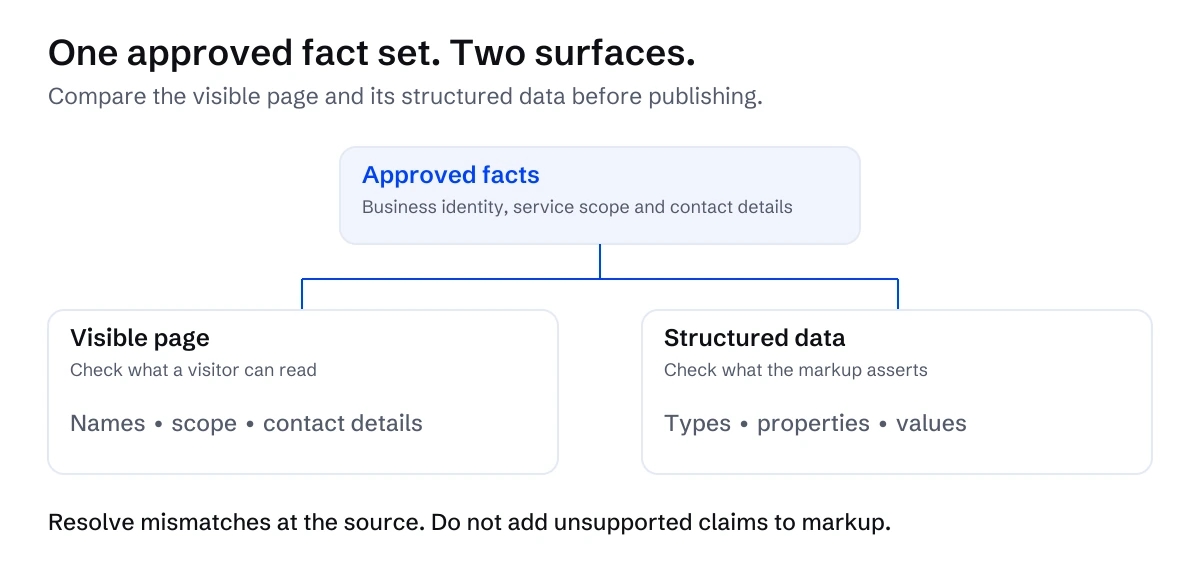
*Compare the visible page and structured data with one approved fact set. Resolve differences at their source.*
## Which Organization properties should you use?
[Schema.org's Organization definition](https://schema.org/Organization) provides the vocabulary. Start with the fields your business can support:
| Property | Purpose | Practical check |
|---|---|---|
| `name` | Public business name | Matches the name visitors see |
| `legalName` | Registered name, where relevant | Approved and distinct from the brand if needed |
| `url` | Business website | Uses the preferred public URL |
| `logo` | Representative logo | Points to the correct accessible image |
| `description` | Description of the organization | States its actual work without unsupported claims |
| `address` | Physical or mailing address | Uses appropriate public address details |
| `contactPoint` | Contact methods and their purpose | Routes visitors to a working channel |
| `sameAs` | Other pages identifying the organization | Identifies the same entity |
Google's guide has no required Organization properties and recommends relevant details. It also recommends the most specific applicable subtype. A physical local business may need a LocalBusiness subtype and the separate requirements for that feature. Choose the type from the business model, not from the search appearance you hope to obtain.
Use `sameAs` selectively. A company profile can identify your organization; an article mentioning your company is not necessarily an identity profile. Your own service pages should have their own relationships rather than being listed as external equivalents of the business.
## What does an Organization JSON-LD example look like?
The following example is fictional. Northbridge Operations is an invented consultancy, and every URL and business detail is illustrative. Replace the example with facts approved for your website.
```html
```
The `@id` gives this organization a consistent identifier. In this recommended implementation pattern, a service page can reference `https://northbridge.example/#organization` as its provider. Keep that identifier stable when a page's wording changes.
The description deliberately avoids claims such as "the leading consultancy." The business does not become a leader because the phrase appears in markup. An accurate, specific explanation is more useful.
This example omits addresses and external profiles because the fictional scenario has not supplied them. Missing information should trigger a fact check, not a guess. The [Service schema guide](https://superschema.ai/schema-markup/service-schema) explains how to describe an individual service and connect it to its provider.
## Where should Organization schema go in HubSpot?
Choose a clear page that identifies the business, such as its About page or homepage. Before adding code, inspect existing markup from the theme, modules and integrations. Decide who owns the Organization definition and which implementation will maintain it.
For HubSpot, use the [structured data implementation guide](https://superschema.ai/hubspot-aeo/structured-data-on-hubspot) to choose between page-level placement and a maintained template or module. The right method depends on permissions, the theme and how broadly the information should appear.
Avoid pasting slightly different copies into many pages. A template change can spread an error just as easily as it can spread a correction. If several pages reference the same organization, use the same approved facts and identifier, and review the final combined markup on each affected page type.
Record the placement, responsible editor and affected pages. That small handoff makes the next rebrand or domain migration easier to manage.
## How do you validate the published business identity?
Check syntax, meaning and delivery separately:
1. Confirm the JSON-LD parses and the properties fit the chosen types.
2. Compare every asserted fact with the current public website and approved fact sheet.
3. Check that the logo and linked profiles are accessible and identify the correct business.
4. Inspect the live HTML to confirm the intended code was published.
5. Review other markup on the page for conflicting identity information.
6. Save the tested URL, date and findings for the next review.
The [schema validation guide](https://superschema.ai/hubspot-aeo/schema-validation) covers the distinction between Schema.org validation and Google's feature-specific tests. A successful test establishes a narrower result than "AI-ready": the page still needs accurate, useful content and working access.
[Google's AI features guidance](https://developers.google.com/search/docs/appearance/ai-features) says there is no special schema required for AI Overviews or AI Mode. Keep expectations tied to documented benefits and measured observations.
Repeat the fact review after changes to business names, services, contact details, locations or policies. The aim is a website that explains the business consistently wherever someone encounters it.
> **Describe your business consistently**
>
> Start with your approved business information, then validate the published result.
>
> **[Use the Organization schema generator](https://superschema.ai/organization-schema-generator)**
>
> [Want implementation help? Explore SuperSchema Managed](https://superschema.ai/managed)
## Sources
Reviewed September 29, 2026.
- [Schema.org: Organization](https://schema.org/Organization)
- [Google Search Central: Organization structured data](https://developers.google.com/search/docs/appearance/structured-data/organization)
- [Google Search Central: AI features and your website](https://developers.google.com/search/docs/appearance/ai-features)
---
---
title: "How to Validate HubSpot Structured Data"
description: "Check JSON-LD syntax, Schema.org types, Google rich result requirements, live page output and content accuracy with a repeatable validation workflow."
url: https://superschema.ai/hubspot-aeo/schema-validation
author: "Clint Johnson"
date_published: 2026-09-30
---
# How to validate structured data on a HubSpot website
To validate structured data on a HubSpot website, check the JSON syntax, the Schema.org description, any applicable Google feature requirements, and the markup delivered by the live page. Then compare every material claim with the visible content, because a validator cannot confirm that a price, provider or service area is true.
These checks answer different questions. Treating one green result as approval for the whole implementation can leave you with valid code on the wrong page, unsupported rich-result expectations or stale business information.
## Which schema validator should you use?
[Google distinguishes two testing tools](https://developers.google.com/search/docs/appearance/structured-data): the Schema Markup Validator for general Schema.org markup, and the Rich Results Test for supported Google search features. Add a content review and a live delivery check to cover the gaps between them.
| Check | Question it answers | What it cannot establish |
| --- | --- | --- |
| JSON parser | Is the script valid JSON? | Whether the properties describe the right entity |
| Schema Markup Validator | Can the Schema.org entities and properties be interpreted? | Google feature eligibility or factual accuracy |
| Rich Results Test | Which supported Google items are detected, with which issues? | Guaranteed appearance in search |
| Live page inspection | Is the intended code delivered on the published URL? | Whether every crawler will behave identically |
| Editorial comparison | Does the markup match the current page and business? | Ranking or citation outcomes |
Save results with the page URL, test date and approved version of the markup. That record makes a later disagreement easier to investigate: was the code wrong, the page changed or the test looking at an older version?
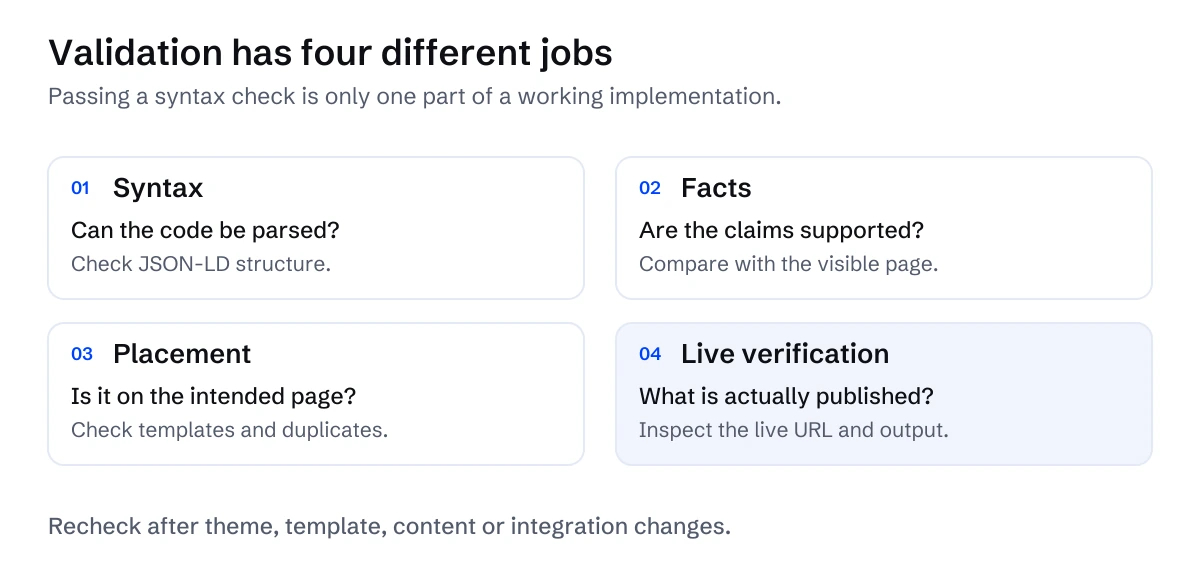
*Syntax, facts, placement and live verification are separate checks. A syntax pass does not complete implementation review.*
## Step 1: Confirm the JSON-LD syntax
Copy the contents of the JSON-LD script, without the opening and closing HTML tags, into a JSON parser. Double quotes, commas and closing brackets matter. Remove comments and trailing commas.
For a browser-level check, open the published page and run this in its developer console:
```javascript
const blocks = [...document.querySelectorAll(
'script[type="application/ld+json"]'
)];
console.log(`Found ${blocks.length} JSON-LD script blocks`);
blocks.forEach((block, index) => {
try {
const data = JSON.parse(block.textContent);
console.log(`Block ${index + 1}: valid JSON`, data);
} catch (error) {
console.error(`Block ${index + 1}: invalid JSON`, error.message);
}
});
```
This checks the scripts in the current browser document. It is useful for locating a malformed block, but it does not validate Schema.org vocabulary or show what the server originally sent before JavaScript ran.
If a template inserts text dynamically, test punctuation as well as plain names. A quotation mark in a service title should remain part of the title, not terminate the JSON string. Fix serialization in the template instead of manually stripping legitimate punctuation from your content.
## Step 2: Inspect the Schema.org model
Open the [Schema Markup Validator](https://validator.schema.org/). Test the complete script as a code snippet, then examine the detected entities and relationships.
For a Service page, expect the named service and its provider. If you use `@id` references, check that they point to the intended organization and offering. A company name appearing somewhere in the graph is not enough if the service points to a different identifier.
This fictional diagnostic example describes a service offered by Northline Consulting:
```json
{
"@context": "https://schema.org",
"@type": "Service",
"@id": "https://example.com/services/hubspot-cms#service",
"name": "HubSpot CMS implementation",
"url": "https://example.com/services/hubspot-cms",
"provider": {
"@type": "Organization",
"@id": "https://example.com/#organization",
"name": "Northline Consulting",
"url": "https://example.com/"
}
}
```
It is deliberately small. You should be able to explain each property and point to the corresponding fact on the hypothetical page. In your implementation, replace all fictional details and use the [Service schema guide](https://superschema.ai/schema-markup/service-schema) to review scope, geography and offers.
## Step 3: Check applicable Google rich results
Run Google's [Rich Results Test](https://search.google.com/test/rich-results) in code mode before publishing. After publication, use URL mode. Expand each detected supported item and read its issues rather than judging only the summary.
Google's [test documentation](https://support.google.com/webmasters/answer/7445569?hl=en) explains that code mode accepts snippets, while URL tests need publicly accessible resources. A password-protected preview is therefore a different test from the public page.
As of September 29, 2026, a dedicated Service rich result is absent from Google's [feature gallery](https://developers.google.com/search/docs/appearance/structured-data/search-gallery). The Service example above can be valid Schema.org markup while producing no supported rich-result item. Use the general validator to assess it.
For a supported feature, fix blocking errors against that feature's documentation. Review warnings to determine which additional facts you can truthfully provide. Do not invent an image, rating or price to remove a warning. [Google's policies](https://developers.google.com/search/docs/appearance/structured-data/sd-policies) also make clear that correct markup does not guarantee a rich result.
## Step 4: Inspect what the live URL delivers
Publish or update the HubSpot page, then open its public URL in a fresh tab. Use View Source and search for `application/ld+json`. Confirm the expected block appears on that page with the final URLs and current facts. Follow the [HubSpot placement guide](https://superschema.ai/hubspot-aeo/structured-data-on-hubspot) if it is missing.
For a server-response check, fetch a URL you own:
```bash
curl -L --fail --silent --show-error \
-A "GPTBot" \
"https://example.com/services/hubspot-cms" \
-o page.html
```
Replace the example URL with your page, then inspect `page.html` for the correct title, heading, meaningful content and JSON-LD. Setting a user-agent string is a diagnostic request; it does not authenticate as a real crawler or prove how an engine will index the page.
If the script is visible only after client-side JavaScript runs, record that difference. Google's [structured data introduction](https://developers.google.com/search/docs/appearance/structured-data/intro-structured-data) documents that Google can process dynamically injected JSON-LD, but that does not establish the behavior of every other crawler. For a simple HubSpot implementation, emitting the script with the page HTML makes the delivery easier to inspect.
## Step 5: Compare the markup with visible facts
Read the live page alongside its parsed data. Check the provider, service name, geographic coverage, offer scope, price and currency. Check that an old domain or copied service identifier has not survived a page duplication.
Review all contributing scripts, not just the block you added. A domain header and page-specific module may both describe the organization. Consistent references can be useful; contradictory names or commercial terms need an owner and a fix.
If theme, page and integration output conflict, use the [duplicate-schema repair workflow](https://superschema.ai/hubspot-aeo/duplicate-schema-markup-in-hubspot).
Ask a content owner to approve the factual description. A syntactically valid GBP 4,000 offer is still wrong if the page now sells a different package.
## Step 6: Monitor the published version
In Search Console, inspect the page and compare indexed information with a live test. Google's [URL Inspection documentation](https://support.google.com/webmasters/answer/9012289?hl=en) distinguishes the last indexed version from the current page. A live test can help verify a fix without implying that the index has already refreshed.
Repeat the relevant checks after a template change, domain migration or material service update. Record what changed and which URLs were retested. Use the [HubSpot AEO guide](https://superschema.ai/hubspot-aeo/guide) to connect these technical checks with broader content and measurement work.
After the initial release, use a [schema maintenance plan](https://superschema.ai/hubspot-aeo/hubspot-schema-maintenance) to review business and template changes.
> **Take the next step on your HubSpot site**
>
> Connect your validation findings to the implementation work your website needs.
>
> **[See how SuperSchema helps HubSpot websites](https://superschema.ai/hubspot-aeo)**
## Sources
Primary sources reviewed September 29, 2026.
- [Google: Structured data testing tools](https://developers.google.com/search/docs/appearance/structured-data)
- [Google: Rich Results Test documentation](https://support.google.com/webmasters/answer/7445569?hl=en)
- [Google: Supported structured data features](https://developers.google.com/search/docs/appearance/structured-data/search-gallery)
- [Google: General structured data guidelines](https://developers.google.com/search/docs/appearance/structured-data/sd-policies)
- [Google: Introduction to structured data](https://developers.google.com/search/docs/appearance/structured-data/intro-structured-data)
- [Google: URL Inspection tool](https://support.google.com/webmasters/answer/9012289?hl=en)
- [Schema.org: Service](https://schema.org/Service)
---
---
title: "Act on HubSpot AEO Recommendations"
description: "Turn HubSpot AEO recommendations into approved content and technical changes, validate the live pages, and measure what happened."
url: https://superschema.ai/hubspot-aeo/recommendations
author: "Clint Johnson"
date_published: 2026-09-30
---
# How to turn HubSpot AEO recommendations into website changes
Turn HubSpot AEO recommendations into website changes by checking the evidence, assigning an owner, approving the facts and defining how you will verify the result. A recommendation becomes useful when it leads to a specific change on a specific page, with a record of what happened after publication.
As of September 29, 2026, [HubSpot's documentation](https://knowledge.hubspot.com/seo/review-and-manage-aeo-recommendations) covers citation-based recommendations, content and technical site audits, owned content, social amplification and outreach. It also documents blog draft generation through a content-agent beta, subject to access, permissions and credit requirements. HubSpot AEO therefore supports action as well as measurement.
The workflow below is a practical way for a HubSpot team or agency to manage the work. It complements the [HubSpot AEO guide](https://superschema.ai/hubspot-aeo/guide) and does not depend on a particular task-management tool.
## What should you check before accepting a recommendation?
Read the associated prompt and source material first. Ask whether the suggested change serves a buyer your business actually wants to help.
A prompt about enterprise migration services is a poor reason to create an enterprise migration page if your business only sells training. A page could be technically sound while creating the wrong commercial expectation.
For each recommendation, answer:
- Which buyer question does this address?
- Does the business offer what the proposed page would describe?
- What evidence supports the recommendation?
- Is there an existing page that already answers the question?
- What factual information or approval is missing?
- What observation would show the change is working as intended?
Keep the answer-engine response or citation that triggered the work, with the date and prompt. This gives reviewers enough context to judge the proposed action. A screenshot alone may hide the prompt, source URL or surrounding answer, so retain those details too.
Treat estimates and suggested priorities as inputs to your decision. They are not a promise that a page will receive a citation.
## How should you prioritize content and technical work?
Use dependencies to decide the order. A useful new explanation has limited value if the target page cannot be retrieved. Structured data also needs a settled, accurate description of the thing being marked up.
| Finding | First action | Completion evidence |
|---|---|---|
| Important content is absent from the retrieved page | Investigate delivery and access | Intended text is available on the live URL |
| The service description contradicts the current offer | Get the business owner to approve the facts | Corrected visible description and terms |
| Structured data misstates the provider or service | Correct the underlying facts and markup | Live markup matches the published page |
| A buyer question has no useful answer | Update the best existing page or commission one | Published answer reviewed for accuracy |
| A relevant external profile is outdated | Request a correction from its owner | Correct public profile or logged open request |
These are suggested decision rules, not a universal ranking formula. A wrong cancellation policy might deserve urgent correction even if it has little measured search traffic. Buyer harm and factual accuracy should count alongside visibility opportunity.
Avoid opening a separate project for every small symptom. If several recommendations arise from a missing service description, correcting that page may address the underlying gap more coherently than publishing several new articles.
## What belongs in an actionable task?
Write a task that another person can finish without guessing. A useful task contains the page URL, problem, proposed change, approved sources, owner, reviewer, deployment method and acceptance check.
Here is a fictional example for an invented consultancy, Northbridge Operations:
> **Page:** `/services/operations-review` on Northbridge's website.
> **Problem:** Buyers cannot tell whether the operations review includes implementation.
> **Approved fact:** The review produces an assessment and action plan. Implementation is a separately scoped service.
> **Change:** Add an answer near the service overview and clarify the deliverables section. Review any Service markup for the same distinction.
> **Owner:** Content editor.
> **Reviewer:** Service lead.
> **Acceptance:** Both sections agree; the live page includes the text; markup contains no contrary claim.
> **Observation:** Recheck relevant buyer prompts and record whether answers describe the scope accurately.
The business fact drives the task. "Improve AEO" is too broad to tell an editor what to change or a reviewer what to approve.
For code changes, include the affected template or module and a list of representative pages. Shared templates can turn a page-level fix into a wider release, so make that scope explicit.
## How do you handle the business information behind the recommendation?
Keep an approved business fact sheet alongside the work queue. Include services, offers, service areas, physical locations, relevant policies, contacts and the evidence supporting material claims.
This prevents a content draft, schema snippet and sales page from developing different versions of the same offer. Assign owners by subject: the service lead approves deliverables; the appropriate business owner approves commercial terms; the technical owner approves deployment.
Separate what is true today from what the team plans to launch. An unavailable service should not become publicly available because a draft inferred it from old content.
If the task concerns provider identity, use the [Organization schema guide](https://superschema.ai/hubspot-aeo/organization-schema). If it concerns a specific service, use the [Service schema guide](https://superschema.ai/schema-markup/service-schema). Adding more properties cannot resolve an unanswered business question.
## What should you verify after publication?
Check the page your visitors and crawlers can retrieve, rather than relying on an editor preview. Confirm the intended text, links, metadata and structured data reached the public URL.
Then compare the live page with the task's acceptance criteria. For markup changes, follow the [schema validation workflow](https://superschema.ai/hubspot-aeo/schema-validation). [Google's structured data policies](https://developers.google.com/search/docs/appearance/structured-data/sd-policies) require markup to represent the page accurately and warn that valid markup does not ensure a search appearance.
Save the before and after content, deployment date and validation result. If an acceptance check fails, keep the task open and state what needs correcting. "Published" and "verified" should be separate states in your work queue.
## How do you know whether the change improved AI visibility?
Define the observation before you publish. Keep the target prompt, engine, evaluation method and comparison period stable where possible. Distinguish a brand mention, a linked citation, a site visit and an enquiry.
[HubSpot's AEO setup guidance](https://knowledge.hubspot.com/seo/set-up-and-analyze-ai-visibility) recommends reviewing results over multiple days or weeks because responses change. A single favourable answer is an observation, not proof that your edit caused it.
Record other changes made during the same period. If a service page rewrite, new press coverage and a domain migration happened together, the reporting should acknowledge those overlapping influences.
The [AI visibility measurement guide](https://superschema.ai/hubspot-aeo/measuring-ai-visibility) explains how to keep those observations useful without overstating causation. Share completed work and measured results separately so everyone can see both progress and uncertainty.
> **Move from recommendations to implementation**
>
> Explore support for the technical work behind your HubSpot website improvements.
>
> **[See how SuperSchema helps HubSpot websites](https://superschema.ai/hubspot-aeo)**
## Sources
Reviewed September 29, 2026. HubSpot AEO features and access requirements may change.
- [HubSpot: Review and manage AEO recommendations](https://knowledge.hubspot.com/seo/review-and-manage-aeo-recommendations)
- [HubSpot: Set up and analyze AEO](https://knowledge.hubspot.com/seo/set-up-and-analyze-ai-visibility)
- [Google Search Central: General structured data guidelines](https://developers.google.com/search/docs/appearance/structured-data/sd-policies)
---
---
title: "HubSpot AEO for Agencies: Delivery Workflow"
description: "Scope a useful HubSpot AEO service for clients: approve business facts, fix content and technical gaps, validate changes, and report evidence."
url: https://superschema.ai/hubspot-aeo/for-agencies
author: "Clint Johnson"
date_published: 2026-09-30
---
# HubSpot AEO for agencies: a practical delivery workflow
Agencies can deliver useful HubSpot AEO work by connecting buyer questions to accurate website content, fixing technical gaps and reporting the evidence behind each change. Start with a defined client scope and approval process, then measure visibility separately from the work you completed.
The workflow in this article is a proposed agency delivery method. You can run it manually in your existing project tracker, shared documents and reporting tools. It is not a description of SuperSchema account features or a promise of automated portfolio management.
The [HubSpot AEO guide](https://superschema.ai/hubspot-aeo/guide) covers the website foundations. Here, the task is turning those foundations into a service a client can understand, approve and maintain.
## What should an agency's AEO scope include?
Define the business questions before defining the deliverables. A client might need buyers to understand a particular service, distinguish the business from a similarly named company, or find accurate coverage and eligibility information.
Agree on the domains, page types, services, markets and languages in scope. List the public sources the team will review and the access it needs. Clarify which changes the agency can publish and which need client approval.
A practical scope can include:
- Buyer-question and prompt selection.
- A review of approved business facts and current website content.
- Retrieval, crawlability and page delivery checks.
- Content corrections and clearly scoped new pages.
- Appropriate structured data implementation and validation.
- A change log and an agreed observation plan.
Treat these as possible deliverables to negotiate. The right engagement may need only a subset. A client with incorrect service information needs factual correction before an ambitious content calendar.
Do not promise a particular citation, ranking or traffic result. Define what the agency will deliver and how the client will judge its quality.
## What can HubSpot AEO contribute to delivery?
As of September 29, 2026, [HubSpot documents](https://knowledge.hubspot.com/seo/review-and-manage-aeo-recommendations) content and technical site audits, recommendations for owned and external channels, and a beta route to blog draft generation. [Its AEO setup guidance](https://knowledge.hubspot.com/seo/set-up-and-analyze-ai-visibility) describes prompt tracking and citation analysis. Availability depends on the client's access and subscription.
Use those outputs to investigate opportunities and plan work. Keep a record of the recommendation, affected question and evidence. The [recommendations workflow](https://superschema.ai/hubspot-aeo/recommendations) explains how to turn an opportunity into an approved implementation task.
The agency still needs to settle facts, assign responsibilities and verify the public result. The client's service owner can confirm an offer; a recommendation cannot authorize the agency to invent one.
## How do you gather approved client information?
Create a client fact sheet with a named approver. Cover the business identity, services, current offers, physical locations, service areas, contact methods and relevant commercial policies.
For material claims, record the source and approval date. If a client describes itself as certified, authorized or experienced in a regulated field, ask for the evidence and the precise approved wording. Missing evidence should become an open question in the project record.
Use a simple responsibility table:
| Area | Client responsibility | Agency responsibility |
|---|---|---|
| Identity and locations | Confirm accurate public details | Find and resolve website inconsistencies |
| Services and offers | Approve availability, scope and exclusions | Express those facts clearly on relevant pages |
| Policies | Supply approved terms and responsible owner | Link and present them in the appropriate context |
| Content | Approve claims and subject expertise | Draft, edit and check supporting sources |
| Technical changes | Authorize access and publication scope | Implement, validate and document the release |
| Reporting | Agree business questions and conversion goals | Record observations and explain limitations |
Separate location from coverage. A company serving a city does not necessarily have an office there. Separate a service package from a case study too: a past project does not establish the current offer's standard inclusions.
## What does a small client pilot look like?
Consider the fictional business Northbridge Operations, an invented consultancy with a HubSpot website. Its agency agrees to review the homepage, About page and an operations-review service page. This is a suggested pilot scope, not a product limit or a customer case study.
The agency finds that the About page uses an old trading name and the service page leaves implementation scope unclear. The client approves the current name and confirms that implementation is separately scoped.
The delivery plan is straightforward:
1. Correct the visible business name and service description.
2. Review existing markup before adding or changing it.
3. Establish a consistent Organization identity.
4. Connect appropriate Service markup to that provider.
5. Publish through the agreed HubSpot process.
6. Check the live pages and record the results.
7. Revisit the selected buyer questions using the agreed observation method.
The [Organization schema guide](https://superschema.ai/hubspot-aeo/organization-schema) covers identity, and the [Service schema guide](https://superschema.ai/schema-markup/service-schema) covers the service relationship. Both depend on approved facts.
The pilot report can say that the published pages now agree about the business name and service scope. Whether answer engines describe the business more accurately is a separate observation to investigate over time.
Use the [first-project brief](https://superschema.ai/hubspot-aeo/hubspot-aeo-project-scope) to define deliverables, then use the [quote comparison checklist](https://superschema.ai/hubspot-aeo/hubspot-aeo-implementation-costs) to make the commercial scope explicit.
## How should agencies manage several clients?
Use a separate work register and fact sheet for each client. Track the domain, scoped pages, access owner, approver, current tasks, publication dates and next review. Keep client material in the correct project location and review each release against that client's approvals.
Standardize the checklist and report structure. Customize the facts, recommendations and acceptance criteria. Reusing a workflow is helpful; copying another client's description or markup is a source of error.
Set a manual review cadence appropriate to the engagement. Also trigger a review when the client changes services, offers, policies, locations, theme or domain. A recurring engagement is easier to explain when it maintains important information and closes documented issues.
Keep a copy of the previous implementation and agree who can correct or revert a problematic release. These are agency operating procedures, rather than claims about automatic alerts or restoration features.
## What belongs in a white-label AEO report?
A white-label report can use the agency's branding while identifying the sources and methods behind its findings. Keep it readable and separate three kinds of evidence:
| Evidence | What it establishes | Example wording |
|---|---|---|
| Completed work | What the agency changed | "Updated the service scope and provider identity." |
| Verification | What passed a defined check | "Live HTML contains the approved text and validated JSON-LD." |
| Visibility observation | What appeared in a recorded sample | "This response cited the service page on the recorded date." |
Include open issues, client decisions needed and the next agreed actions. Link important findings to their page URLs and dates. Avoid turning a tool's score into a universal verdict on the client's business.
Use the [AI visibility measurement guide](https://superschema.ai/hubspot-aeo/measuring-ai-visibility) to define prompts, engines, comparison periods and conversion observations. A client should be able to see what improved, what remains unresolved and what the evidence cannot establish.
> **Start with one client site**
>
> Bring a client website and the work you want to scope. Talk with us about a first engagement.
>
> **[Discuss your first client site](https://superschema.ai/agency#book)**
## Sources
Reviewed September 29, 2026. The delivery workflow and fictional pilot are editorial recommendations, not descriptions of current SuperSchema features.
- [HubSpot: Review and manage AEO recommendations](https://knowledge.hubspot.com/seo/review-and-manage-aeo-recommendations)
- [HubSpot: Set up and analyze AEO](https://knowledge.hubspot.com/seo/set-up-and-analyze-ai-visibility)
- [Schema.org: Organization](https://schema.org/Organization)
- [Schema.org: Service](https://schema.org/Service)
---
---
title: "AI Bot Tracking for HubSpot Websites | SuperSchema"
description: "Understand AI crawler requests on HubSpot websites, verify bot identity, find access problems, and keep crawl activity separate from citations and leads."
url: https://superschema.ai/hubspot-aeo/ai-bot-tracking
author: "Clint Johnson"
date_published: 2026-09-30
---
# AI bot tracking for HubSpot websites: what the requests tell you
AI bot tracking helps you answer a practical question: can the systems you want to reach request the important pages on your HubSpot website? Reliable tracking starts with HTTP request records and verified crawler identity. A browser analytics dashboard alone cannot provide a complete view.
Keep the result in perspective. A crawler request shows access activity. It does not prove that an answer cited your page, recommended your company, or sent a qualified lead. Those outcomes need [separate measurement](https://superschema.ai/hubspot-aeo/measuring-ai-visibility).
For the wider content and technical approach, start with our [AEO guide for HubSpot websites](https://superschema.ai/hubspot-aeo/guide).
## Separate search crawlers, training crawlers, and user fetches
The phrase “AI bot” groups together requests with different purposes. [OpenAI documents separate agents](https://developers.openai.com/api/docs/bots):
| Agent | Documented role | How to interpret a request |
| --- | --- | --- |
| OAI-SearchBot | Helps surface websites in ChatGPT search | Search access activity |
| GPTBot | Collects content that may be used for model training | Potential training collection |
| ChatGPT-User | Visits pages for certain user actions | A user-triggered fetch, rather than an automatic search crawl |
OpenAI's search and training controls are independent. ChatGPT-User does not determine search inclusion, and robots.txt rules may not apply to its user-initiated actions. Review each purpose before changing access rules.
Do the same for any additional provider you monitor. Maintain a small list tied to current official documentation. Avoid classifying every automated request as AI discovery, or assuming one provider's rules apply to another.
## Why HubSpot page views are insufficient
HubSpot's [tracking-code troubleshooting documentation](https://knowledge.hubspot.com/reports/how-do-i-know-if-my-hubspot-tracking-code-is-working) explains how to check JavaScript and its network requests. That describes browser-side tracking. If a requester downloads HTML without executing that tracking code, the request can happen without a tracked page view.
HubSpot also offers [filtering for known bot activity](https://knowledge.hubspot.com/reports/exclude-traffic-from-your-site-analytics). Understand whether that filtering is enabled before interpreting analytics totals. A filtered traffic report and an infrastructure request report answer different questions.
The practical implication is simple: do not treat a tracking script as a complete crawler detector. Keep browser analytics for visitor behavior and conversions. Use request-level evidence, where available, for crawler access.
On a HubSpot-hosted website, first establish which records your actual setup exposes. You may have an approved CDN, security provider, or other infrastructure with request logs. You may instead have no accessible request-level source. Confirm the available fields, retention period, and export options with the responsible administrator or provider. Do not promise complete bot coverage from a tool that only records browser events.
## Build a small request report
Start with your homepage, main service pages, organization information, and the educational pages buyers use during evaluation. A report covering these pages is easier to act on than an unfiltered list of every asset request.
Where the infrastructure supports them, collect:
- Request timestamp and timezone.
- Requested hostname and path.
- User-agent string.
- Source IP or provider-verified identity.
- HTTP response status.
- Redirect destination and security action, when recorded.
- The source of the record and any sampling limit.
Keep access to raw records restricted, apply your retention policy, and use summaries for routine marketing reporting. You rarely need to circulate complete IP-level logs to discuss an access problem.
Group the report by verified agent, requested page, response status, and time period. Count HTML requests separately from images, scripts, robots.txt, and repeated retries. Otherwise a burst of failed requests to one URL can look like broad interest in your content.
## A matching user agent is a candidate, not verification
A user-agent header is a label supplied by the requester. Another client can send the same text. [Google's crawler verification guidance](https://developers.google.com/crawling/docs/crawlers-fetchers/verify-google-requests) explicitly provides identity checks using IP ranges or DNS verification rather than relying on a name alone.
OpenAI publishes IP ranges alongside its bot documentation. For supported agents, compare the source IP with the applicable current range. If an infrastructure provider performs verification, record its method and classification.
Use three categories in your report:
| Classification | Evidence | Reporting treatment |
| --- | --- | --- |
| Verified | Provider-supported identity check passed | Include in the relevant crawler totals |
| Claimed | User agent matches, identity unchecked | Show separately with that limitation |
| Unknown | Insufficient or conflicting evidence | Keep out of verified totals |
An agency's test request with an OAI-SearchBot header can check how a rule responds to that header. It cannot demonstrate a real OpenAI visit, successful ingestion, or search inclusion. Label synthetic checks so they never inflate your crawler report.
## Use requests to diagnose access problems
Suppose a fictional consultancy has published a clear HubSpot migration service page. Its report contains verified search-crawler requests receiving a 403 response on that page. The useful next action is to investigate the security rule and approved access policy. Rewriting the opening paragraph will not resolve the denied request.
Work through the evidence in this order:
1. **Check scope.** Is the problem limited to one URL, hostname, agent, or period?
2. **Check the response.** A successful status still needs a body check. Confirm that the returned content is the intended public page rather than a challenge or error message.
3. **Review controls.** Compare robots.txt, authentication, redirects, and infrastructure restrictions with your approved policy.
4. **Confirm the content.** Check whether essential service details are available in the returned page without an interaction that the requester may never perform.
5. **Recheck after a fix.** Keep the change date and later request evidence together.
Do not automatically allow every request that claims to be a familiar bot. Identity and purpose matter, and content access decisions belong with the people responsible for the website's security and publishing policy.
## Report the finding without overstating it
Useful findings sound like “verified search-crawler requests reached these service pages successfully” or “this page returned denied responses during this period.” They do not become “AI visibility increased” unless you have separate answer or referral evidence.
Likewise, no observed requests means only that your available records contain none. Limited retention, sampling, missing infrastructure coverage, or the absence of a visit can all produce that result.
Keep a monthly record of the pages covered, verification method, failures, fixes, and unresolved gaps. Pair it with [answer sampling and referral measurement](https://superschema.ai/hubspot-aeo/measuring-ai-visibility). If the pages themselves need clearer organization or service information, continue with [structured data on HubSpot](https://superschema.ai/hubspot-aeo/structured-data-on-hubspot).
> **Make the next website improvement**
>
> Connect what you learn from crawler activity to clearer, more accessible business information.
>
> **[See how SuperSchema helps HubSpot websites](https://superschema.ai/hubspot-aeo)**
## Sources
Reviewed September 29, 2026.
- [OpenAI: Overview of OpenAI Crawlers](https://developers.openai.com/api/docs/bots).
- [HubSpot: Troubleshoot the HubSpot tracking code](https://knowledge.hubspot.com/reports/how-do-i-know-if-my-hubspot-tracking-code-is-working).
- [HubSpot: Exclude traffic from your site analytics](https://knowledge.hubspot.com/reports/exclude-traffic-from-your-site-analytics).
- [Google: Verify requests from Google crawlers and fetchers](https://developers.google.com/crawling/docs/crawlers-fetchers/verify-google-requests).
---
---
title: "llms.txt for HubSpot: Uses and Limits | SuperSchema"
description: "Learn what llms.txt can and cannot do for a HubSpot website, why root hosting needs care, and how to evaluate a small, maintainable implementation."
url: https://superschema.ai/hubspot-aeo/llms-txt
author: "Clint Johnson"
date_published: 2026-09-30
---
# llms.txt for HubSpot: when it helps and how to publish it responsibly
An llms.txt file is an optional, curated guide to a website's useful information. It can give a supporting agent a short introduction and links to relevant resources. It does not guarantee citations, change crawler permissions, or make a weak service page more persuasive.
For HubSpot owners, there is also a publishing constraint: uploading a text file into HubSpot Files does not place it at your domain's root. [HubSpot explicitly says a root-level plain-text file such as llms.txt must be hosted externally](https://knowledge.hubspot.com/files/supported-file-types).
Treat llms.txt as a small information-access experiment after your core pages are clear and reachable. Our [HubSpot AEO guide](https://superschema.ai/hubspot-aeo/guide) explains those foundations.
## Understand the proposal before adopting it
The [proposal at llmstxt.org](https://llmstxt.org/) describes a Markdown file containing a site or project name, concise context, and organized links. Its August 2026 revision supports a file at the root or a subpath and recommends links to content suited to agent consumption, including clean Markdown versions.
This is a community proposal. Adoption by a documentation website does not establish that every search system reads the file or uses it to select sources.
[Google's current guidance](https://developers.google.com/search/docs/fundamentals/ai-optimization-guide) is explicit: Google Search does not use llms.txt for visibility or rankings, including its generative AI features. Creating the file is therefore not a Google eligibility requirement.
The useful question is narrower: does a system your audience actually uses consume this file, and can you make its linked information easier to navigate? If you cannot identify a use case, spend the time improving your main pages first.
## Keep four website resources distinct
| Resource | Role in your website work |
| --- | --- |
| Visible page content | Explains your business, services, evidence, and next steps to visitors |
| Structured data | Expresses relevant page facts in a defined machine-readable vocabulary |
| robots.txt | Communicates crawler access rules to agents that follow them |
| llms.txt | Offers a curated context and navigation file under the community proposal |
Use the appropriate resource for the problem. A missing service description belongs on the service page. A crawler-access decision belongs in the relevant access controls. A confusing organization identity needs consistent business information, with [Organization schema](https://superschema.ai/hubspot-aeo/organization-schema) where appropriate.
Publishing llms.txt cannot grant access to an authenticated page. It also cannot replace a functioning website navigation structure or an up-to-date sitemap.
## Choose a small, defensible scope
For a service business, begin with the information a prospective customer needs to evaluate the offer:
- What the business does and who it serves.
- Its main services and relevant limitations.
- Where it operates.
- Where to find evidence, policies, and contact information.
Prefer the current authoritative pages. Do not copy every blog post into the index, add unpublished commercial terms, or describe capabilities that are absent from the public website.
Choose an owner who can review both the file and its destinations when services change. A compact file with accurate links is easier to maintain than a second version of your entire website.
If you provide Markdown copies of pages, generate them from the same approved content where practical. Independently maintained copies can drift. A service available only in one market should not become “available worldwide” in an abbreviated machine-readable version.
## A fictional example
The following example is for a fictional business. The example.com destinations illustrate a proposed site structure; they are not live service resources.
```markdown
# Cedar Bridge Consulting
> A consultancy helping UK B2B teams plan HubSpot website migrations.
This guide covers public service and evaluation information.
Project scope and availability are confirmed during discovery.
## Services
- [Website migration](https://example.com/services/migration.md): Scope and exclusions.
- [Content operations](https://example.com/services/content-operations.md): Delivery process.
## Business information
- [About](https://example.com/about.md): Company background and service area.
- [Contact](https://example.com/contact.md): How to discuss a project.
```
Before adapting that structure, make sure every destination exists and contains the promised information. Adding .md to an ordinary HubSpot page URL does not create a Markdown version. Those representations need their own supported publishing mechanism.
If you have only HTML pages, first assess whether maintaining additional representations is useful for your intended consumer. Never advertise nonexistent resources simply to resemble an example.
## Plan the HubSpot route before uploading
HubSpot's Files tool assigns generated file URLs, including /hubfs/ or hosted-file paths. Its documentation says those uploads cannot be placed at the domain root. An uploaded file's presence therefore does not prove that https://yourdomain.com/llms.txt works.
There are two practical decisions:
**If you require /llms.txt on the main domain:** involve the administrator who controls the domain's delivery infrastructure. They need to confirm an approved external hosting and routing mechanism that can serve that exact request. Whether an existing edge or proxy setup can do this depends on the website's architecture. A DNS record by itself does not route a single URL path.
**If you control only a documentation subpath or separate site:** consider whether a scoped file can meet the use case. The proposal permits subpaths, but the intended consumer still needs to discover and support that scope. A file on a separate host is not automatically a root file for the main website.
Avoid treating a redirect to an uploaded file as identical to serving the resource directly. Test the redirect chain and final response with the actual consumer. Do not introduce new delivery infrastructure solely for an unmeasured visibility promise.
## Verify the published response and maintain it
After publishing, request the final URL outside the CMS editor and check:
1. The intended path returns the actual Markdown text, with an appropriate text content type.
2. The response is accessible without login, cookies, or a browser-only challenge.
3. The body is the file, rather than an HTML page wrapped around it.
4. Every listed resource is reachable and matches its description.
5. Facts agree with the current public website.
6. The content owner has a review trigger for changed services, URLs, and policies.
A successful response proves delivery. An agent finding the correct service information through the file provides a more useful consumption test. Neither observation proves a citation or commercial impact.
Use [AI bot tracking](https://superschema.ai/hubspot-aeo/ai-bot-tracking) if your infrastructure exposes request records. Track any answer or referral changes separately using the [AI visibility measurement guide](https://superschema.ai/hubspot-aeo/measuring-ai-visibility). Record other website changes during the same period so a later result is not automatically attributed to llms.txt.
> **Start with the underlying website**
>
> Make the core business information clear and accessible before adding optional files.
>
> **[See how SuperSchema helps HubSpot websites](https://superschema.ai/hubspot-aeo)**
## Sources
Reviewed September 29, 2026.
- [llmstxt.org: The /llms.txt file, v2](https://llmstxt.org/).
- [HubSpot: Supported file types and sizes](https://knowledge.hubspot.com/files/supported-file-types).
- [Google: Optimizing your website for generative AI features on Google Search](https://developers.google.com/search/docs/fundamentals/ai-optimization-guide).
---
---
title: "Measure AI Visibility for HubSpot | SuperSchema"
description: "Build a practical AI visibility baseline for your HubSpot website using crawl evidence, answer samples, accuracy checks, referrals, and qualified conversions."
url: https://superschema.ai/hubspot-aeo/measuring-ai-visibility
author: "Clint Johnson"
date_published: 2026-09-30
---
# How to measure AI visibility for a HubSpot website
Measure AI visibility with several separate signals: whether systems can access your content, how your business appears in sampled answers, whether the information is accurate, and whether identifiable visitors become qualified customers. A single score hides too much to guide useful decisions.
For a HubSpot website, start with a repeatable answer sample and your existing analytics and CRM measurement. Add verified crawler records if your infrastructure provides them. Define the limits of each source before comparing results.
If you are still choosing what to improve, our [HubSpot AEO guide](https://superschema.ai/hubspot-aeo/guide) connects the measurement plan to page content, access, and structured data.
## Define the outcome before collecting numbers
A company mention and a service recommendation can appear in the same answer, but they are different outcomes. So are a citation and a website visit.
| Signal | Operational definition | What it establishes |
| --- | --- | --- |
| Crawl or fetch | A recorded request by a verified agent | Observed access activity |
| Citation | An answer links to or explicitly attributes your page as a source | Source use in that captured answer |
| Mention | Your business is named | Presence in that captured answer |
| Recommendation | Your business is presented as a suitable option for the stated need | Suggested fit in that captured answer |
| Accuracy | Answer facts agree with approved, current information | Reliability of the sampled description |
| Referral | An identifiable visit from an AI service | A recorded arrival on your website |
| Conversion | A visitor completes your defined business outcome | A measurable action, subject to attribution limits |
Use these definitions consistently. A business named in a warning is a mention, but it should not be coded as a positive recommendation. A link in a source panel can be a citation without the answer recommending the business.
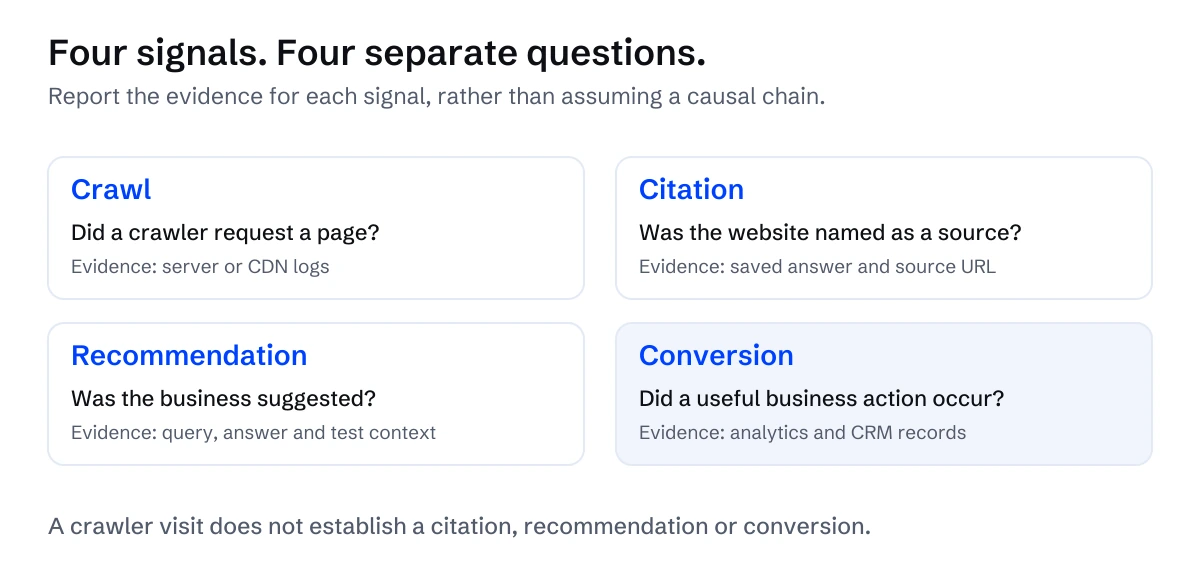
*Crawl, citation, recommendation and conversion need separate evidence. Do not infer one from another.*
## Build a buyer-question sample
Choose questions that reflect real evaluation work. Use sales conversations, customer questions, website search data where available, and the services you actually offer. Include branded questions and questions that do not name your business.
A fictional HubSpot consultancy might test:
- “What should a B2B team check before migrating its website to HubSpot?”
- “Which consultancies help UK B2B companies migrate to HubSpot?”
- “Does Cedar Bridge Consulting provide ongoing content operations?”
- “What should I ask Cedar Bridge Consulting before starting a migration?”
The business is fictional; these prompts illustrate categories, not demonstrated outcomes.
Maintain a stable core set. Add new questions as services or buyer concerns change, but keep them separate from the historical set. Otherwise a change in the questions can look like a change in visibility.
Record the platform, available model or mode, exact prompt, date, language, relevant location, search setting, and session context. Start fresh sessions where practical, and avoid telling the system to recommend your company unless that is the behavior you intentionally want to test.
## Repeat samples and preserve the evidence
One answer is a snapshot. Repeat prompts across scheduled observation periods and retain the answers, linked URLs, and factual findings. Use the same collection procedure so later comparisons remain interpretable.
Report a numerator and denominator. For example, “citations appeared in X of Y captured responses in this question set” is clearer than an unexplained visibility score. Always identify the sample size, collection period, and platforms. A measured rate in your chosen prompts is not market share across all user questions.
Code each response for mention, citation, recommendation, and accuracy independently. Mark unclear cases for review rather than forcing a favorable classification. Keep broken citations and links to unrelated pages visible in the findings.
Check accuracy against a small approved facts sheet: company name, services, service area, important exclusions, and public commercial terms. Record unsupported claims separately from incorrect ones. An answer may state a price you have never published without contradicting a visible number.
## Use Google's current reports with their limits
Google now documents a [Generative AI performance report for Search](https://support.google.com/webmasters/answer/16984139?hl=en). It covers impressions in AI Overviews and AI Mode, with page, country, date, and device dimensions. Its help page says the insights rolled out worldwide on August 31, 2026, while also retaining access and insufficient-impression caveats.
Check the report available for your property rather than assuming every account displays identical data. The documented report is an impression view. Do not present it as a dedicated AI clicks, queries, or conversion report. Its data is also included in the Web search type of the overall Performance report, so do not add the two totals together as separate exposure.
Google has a separate [Discover report](https://support.google.com/webmasters/answer/16983858?hl=en). Keep those surfaces distinct. Review [known reporting anomalies](https://support.google.com/webmasters/answer/6211453?hl=en) when a graph changes unexpectedly.
These reports describe Google's supported features. They do not measure ChatGPT, Claude, or every AI answer about your brand.
## Connect referrals to useful business outcomes
[OpenAI's publisher FAQ](https://help.openai.com/en/articles/12627856-publishers-and-developers-faq) says ChatGPT adds utm_source=chatgpt.com to referral URLs. Check how your analytics capture that parameter, the referrer, and the destination page. Verify attribution through any redirects you control.
In HubSpot, [tracking URLs](https://knowledge.hubspot.com/settings/how-do-i-create-a-tracking-url) are intended for links you distribute with campaign parameters. They do not make it possible to attach your own tracking to every link an independent answer system creates.
Use the reports and CRM fields your setup actually supports. Review how an identifiable AI arrival is stored, how later form submissions are associated, and what happens across repeat visits. Tracking, consent, and session limitations mean some journeys will remain unattributed. Do not reclassify all direct traffic as AI traffic.
Define a meaningful conversion before reporting improvement. A submitted enquiry, a qualified enquiry, and a won deal answer different business questions. Where volumes allow, compare lead quality and progression, not only visits. A self-reported “how did you hear about us?” answer can supplement the evidence, but keep it distinct from recorded referral attribution.
## Turn observations into a clear next action
Match the evidence to the work:
- Failed verified requests: investigate [crawler access](https://superschema.ai/hubspot-aeo/ai-bot-tracking).
- Incorrect service descriptions: clarify the public service page and supporting business facts.
- Links to weak evaluation pages: improve the information those pages provide.
- Visits without qualified enquiries: inspect offer fit, page clarity, and the enquiry journey.
- Conflicting organization details: review identity consistency and [Organization schema](https://superschema.ai/hubspot-aeo/organization-schema).
Keep a dated change log. If content, internal links, schema, security settings, and campaigns all change together, a later improvement cannot be confidently assigned to one change. Report the sequence as an observation unless your evaluation design supports a stronger conclusion.
A useful monthly summary contains the coverage, sample results, accuracy issues, identifiable referrals, qualified conversions, and one next action. Show uncertainty plainly. Better measurement should make decisions clearer, even when the evidence does not yet show improvement.
> **Turn observations into useful work**
>
> Use the findings to choose the next improvement to your HubSpot website.
>
> **[See how SuperSchema helps HubSpot websites](https://superschema.ai/hubspot-aeo)**
## Sources
Reviewed September 29, 2026.
- [Google: Generative AI performance report, Search](https://support.google.com/webmasters/answer/16984139?hl=en).
- [Google: Generative AI performance report, Discover](https://support.google.com/webmasters/answer/16983858?hl=en).
- [Google: Data anomalies in Search Console](https://support.google.com/webmasters/answer/6211453?hl=en).
- [OpenAI: Publishers and Developers FAQ](https://help.openai.com/en/articles/12627856-publishers-and-developers-faq).
- [HubSpot: Create tracking URLs](https://knowledge.hubspot.com/settings/how-do-i-create-a-tracking-url).
---
---
title: "HubSpot AEO Audit Checklist"
description: "Audit your HubSpot website for clear offers, accurate facts, crawler access and working next steps. Includes a checklist and worked example."
url: https://superschema.ai/hubspot-aeo/hubspot-aeo-audit-checklist
author: "Clint Johnson"
date_published: 2026-10-20
---
# HubSpot AEO Audit Checklist
**What should a HubSpot AEO audit check?**
A HubSpot AEO audit checks whether buyers and AI systems can find your important pages, understand what you offer, verify the facts and identify a working next step. Start with one service and the pages supporting its sale. Record the evidence behind each issue, then assign a specific fix.
This checklist covers the public website. It does not require access to private CRM records or a new reporting platform. For the wider context, read the [practical guide to AEO for HubSpot](https://superschema.ai/hubspot-aeo/guide).
## What should you include in the first audit?
Choose a service that matters commercially. Review its service page alongside the homepage, About page and contact or enquiry page. Add a pricing, location or policy page where it changes who can buy or what they receive.
Write down the buyer decision you want those pages to support. For example: “Can a Canadian company buy remote HubSpot onboarding from this provider, and does it include data migration?” That gives the audit a concrete question to answer.
Record the URLs and the review date. Ask the service owner to confirm the current offer before judging which page is correct. A disagreement between two pages is evidence of a conflict, not evidence that the newer page has the right answer.
## The website audit checklist
Use **Pass**, **Needs work**, **Not checked** or **Not applicable** for each item. A pass means the stated check succeeded on the recorded date. It does not mean an answer engine will recommend the business.
| Check | What to look for | Evidence to keep |
| --- | --- | --- |
| Page discovery | The service page is linked from a relevant navigation, hub or related page | Linking page and destination URL |
| Public access | The intended page loads without an unexpected sign-in, challenge or error | URL, response status and observation date |
| Retrievable content | The initial HTML contains the main offer, qualifications and relevant links | Saved response or relevant excerpt |
| Indexing controls | Canonical URL and indexing directives match the intended public page | Canonical, robots directives and available inspection results |
| Business identity | Name, provider, website and contact details agree across the scoped pages | Specific claims and their source URLs |
| Service fit | A reader can identify the intended customer, prerequisites and delivery area | The sentences that answer those questions |
| Scope | Deliverables, exclusions and separately quoted work are clear | Published scope and approved fact record |
| Commercial terms | Published prices include relevant conditions; custom quotes explain their inputs | Pricing text, currency and conditions where applicable |
| Supporting evidence | Material claims have relevant support that a reader can inspect | Credential, case study or other supporting source |
| External consistency | Relevant business profiles agree on important facts | Profile URLs and any conflicting claims |
| Structured data | Existing markup describes the page accurately and avoids conflicting duplicates | Markup, validation result and factual check |
| Next action | The stated enquiry, quote or booking route reaches the expected destination | Destination and observed result |
Do not turn the table into an arbitrary percentage. An incorrect service area can disqualify the wrong buyers even when most technical checks pass. Prioritize the consequences of an issue, not simply the number of failed rows.
## How do you check what the published page delivers?
Read the page in a browser and inspect its source response. Look for an actual service sentence, not just the brand name in a navigation menu. Compare the response with the content you approved in HubSpot.
If important text appears only after JavaScript runs, record that dependency and ask your developer which retrieval systems can access it. Google can process JavaScript, but this does not establish that every other fetcher receives or renders the same content. Check the systems relevant to your business rather than declaring the page invisible to all AI.
Review indexing controls separately. A page that loads successfully may still carry an unintended `noindex` directive or point its canonical to another page. Where you have access, use the search engine's inspection tools to see what it reports. The [AI bot-tracking guide](https://superschema.ai/hubspot-aeo/ai-bot-tracking) explains why a crawler visit alone does not prove indexing or recommendation.
For navigation, use descriptive links to the actual destination. [Google's link guidance](https://developers.google.com/search/docs/crawling-indexing/links-crawlable) recommends crawlable links and meaningful anchor text. “See our onboarding scope” gives a reader more context than a row of identical “Learn more” links.
## How do you audit facts across sources?
Compare claims that affect a buying decision: the business name, services, locations, eligibility, pricing conditions and contact route. Include external sources that matter for this business, such as its LinkedIn company page, a professional directory or a current accreditation record.
Use the HubSpot Marketplace when the business has a relevant listing there. Running a website on HubSpot does not itself make the business a Marketplace provider.
Record conflicts in plain language: “The service page includes migration; the pricing page says migration is separate.” Ask the responsible owner to confirm the offer, then correct the affected sources using the [business-fact correction workflow](https://superschema.ai/hubspot-aeo/business-information-consistency-for-aeo). Keep third-party correction requests open until the source actually changes. Identical prose is unnecessary; compatible facts are the goal.
## A worked example
The following example uses Northbridge Operations, a fictional consultancy. It illustrates the worksheet, not a customer result.
| Finding | Why it matters | Proposed fix | Acceptance check |
| --- | --- | --- | --- |
| Homepage says “complete onboarding”; service page excludes migration | Buyers may assume work is included that requires another quote | State the included work and migration condition beside the main offer | Homepage and service page agree with the approved scope |
| Contact page says “Canada”; service page says “global” | Delivery eligibility is unclear | Confirm service area with the owner and update both pages | The same eligibility answer is available on both URLs |
| “Book a consultation” opens a general contact page | The next step differs from the promise | Link to the booking route, or relabel the CTA as an enquiry | A reader reaches the action named by the CTA |
Start with the facts and action route. Then check whether the existing schema needs updating to match. See the [service-page writing guide](https://superschema.ai/hubspot-aeo/hubspot-service-page-content-template) for a complete example and the [schema-validation guide](https://superschema.ai/hubspot-aeo/schema-validation) for technical checks.
## Turn the audit into a work list
Copy this record for each finding:
* **Page and buyer question:** which URL and decision are affected?
* **Observed problem:** what exactly is missing, incorrect or conflicting?
* **Evidence:** source URL, excerpt or screenshot, and date checked.
* **Approved answer:** what should the page say, and who confirmed it?
* **Change and owner:** the specific edit and person responsible.
* **Priority:** fix before promotion, next release, or later improvement.
* **Acceptance check:** what must be true on the published page?
* **Result:** pass, unresolved or not checked, with the verification date.
Correct material inaccuracies and broken action routes before promoting the page. Schedule useful additions, such as a stronger example or related guide, according to the buyer need they address. The [recommendations workflow](https://superschema.ai/hubspot-aeo/recommendations) can help translate an existing HubSpot recommendation into this same work list.
## What should you measure after the fixes?
Keep three records: what changed, what passed the live-page checks, and what happened afterwards. For AI-answer observations, retain the prompt, engine, date, response and cited sources. Repeat the same questions and distinguish a brand mention from a link.
Track useful business actions too: completed enquiries, scans and qualified conversations where attribution is available. A valid page and a citation are different results. Our [measurement guide](https://superschema.ai/hubspot-aeo/measuring-ai-visibility) explains how to report them separately.
Agencies can use the findings to propose a [bounded first client project](https://superschema.ai/hubspot-aeo/hubspot-aeo-project-scope). Agree the deliverables before expanding the audit into an open-ended retainer.
> **Put the findings to work**
>
> Review where SuperSchema fits into preparing and maintaining a HubSpot website for AI.
>
> **[See SuperSchema for HubSpot](https://superschema.ai/hubspot-aeo)**
## Sources
Reviewed October 20, 2026. The checklist, priority method and fictional example are SuperSchema editorial recommendations.
* [Google: Optimizing your website for generative AI features](https://developers.google.com/search/docs/fundamentals/ai-optimization-guide)
* [Google: Link best practices](https://developers.google.com/search/docs/crawling-indexing/links-crawlable)
* [Google: General structured data guidelines](https://developers.google.com/search/docs/appearance/structured-data/sd-policies)
---
---
title: "HubSpot Service Page Content Template"
description: "Copy a service-page content template for a HubSpot website, with an annotated example covering scope, pricing, evidence and enquiries. Not a CMS theme."
url: https://superschema.ai/hubspot-aeo/hubspot-service-page-content-template
author: "Clint Johnson"
date_published: 2026-10-20
---
# HubSpot Service Page Content Template
**What should a HubSpot service page include?**
A useful HubSpot service page says what you provide, who it suits, what is included, what costs extra and how to proceed. Put those facts in visible page content, with evidence beside the claims it supports. People and AI assistants should not have to reconstruct the offer from scattered pages.
Start with the offer itself. Structured data can describe an agreed service, but it cannot resolve a disagreement about what the customer receives. For the wider website work, see the [HubSpot AEO guide](https://superschema.ai/hubspot-aeo/guide).
## Which questions should a service page answer?
Before writing, ask the person responsible for delivery to answer these questions:
| Buyer question | Information the page needs |
| --- | --- |
| What do you do? | A specific service and the problem it addresses |
| Is it suitable for us? | Intended customer, prerequisites and meaningful limitations |
| What do we receive? | Concrete deliverables and the boundary of the work |
| What is separate? | Exclusions, optional work and dependencies |
| Where and how is it delivered? | Actual service area and delivery method |
| What does it cost? | Approved pricing and conditions, or the inputs needed for a quote |
| Why should we trust the claim? | Relevant credentials, examples or documented results |
| How do we start? | One clear next step and what happens after it |
The page does not need to answer every possible sales question. It should answer the questions that determine whether someone can sensibly enquire. If a prerequisite changes eligibility, explain it beside the offer rather than hiding it in a distant FAQ.
## Replace broad promises with a defined offer
Consider this deliberately vague example:
> We transform your HubSpot experience with complete onboarding, seamless migration and expert support for growing businesses worldwide.
A reader cannot tell which work is included, what “support” means or whether the provider can serve their company. An assistant summarizing this sentence has the same missing facts.
Here is a more useful version for **Northbridge Operations, a fictional consultancy**:
> Northbridge Operations provides remote HubSpot onboarding for small B2B sales teams in Canada. The project includes one sales pipeline configuration, an agreed set of deal properties and one recorded team training session. Data migration, custom integrations and ongoing administration are quoted separately.
The second version works because it makes decisions explicit. Its limits are part of the offer. These details are illustrative; replace them with facts the real service owner has approved.
## An annotated service-page example
The example below continues the fictional Northbridge offer. It shows the information structure, not a tested conversion or citation result.
### 1. Name the service and intended customer
**Example copy:** “HubSpot onboarding for small B2B sales teams in Canada.”
Follow with the short scope paragraph above. A clear service name helps readers understand the page before they explore the details. Keep the H1 specific and use the business name where it helps identify the provider.
### 2. Explain suitability and prerequisites
**Example copy:** “This project suits a team with an existing HubSpot account, an agreed sales process and a person available to approve configuration decisions. It does not include designing a sales process from scratch.”
That qualification gives a prospect useful information before the enquiry. Avoid unsupported exclusions such as claiming a service cannot work in a market merely because it is not your current sales focus.
### 3. List the actual deliverables
**Example copy:**
* One sales pipeline configured around the approved process.
* An agreed set of deal properties documented for the team.
* One recorded training session covering the delivered configuration.
* A handover note identifying what changed and who maintains it.
Use outputs the customer can recognize. “Strategic enablement” is harder to evaluate than a named session, configuration or document. Do not add quantities or turnaround times until the delivery owner accepts them.
### 4. Put exclusions beside inclusions
**Example copy:** “Data migration, custom integrations, paid HubSpot subscriptions and ongoing administration are outside this project. We can discuss a separate scope where needed.”
Check the homepage, pricing page and sales material for promises that contradict this boundary. The [audit checklist](https://superschema.ai/hubspot-aeo/hubspot-aeo-audit-checklist) provides a way to record and resolve those conflicts.
### 5. Explain price or the quote process
**Example copy:** “We confirm a fixed project fee after reviewing your current portal, agreed configuration and training requirements. Request a scope review with your company website and a short description of what you need.”
A custom-price service does not need an invented starting price. Explain what determines the quote. When a real price is published, state the currency, relevant billing basis and material conditions close to it. For a dedicated pricing page, use the [pricing and conditions guide](https://superschema.ai/hubspot-aeo/hubspot-pricing-page-content-template).
### 6. Support claims and define the next step
Use an actual, permissioned example of comparable work, a relevant credential or a concrete explanation of the delivery method. If you lack publishable results, explain the work clearly instead of adding an unsourced success statistic.
**Example CTA:** “Request an onboarding scope review.”
**Example supporting copy:** “Tell us about your HubSpot account and the setup you need. We will review the information and confirm whether the project fits.”
Only publish that response commitment if it matches your real process. A booking CTA should reach a booking destination; an enquiry CTA should explain that someone will review the request.
## Copyable service-page template
Copy this outline into your page draft. Replace every bracketed field with approved information. Delete an optional section only after checking whether it affects suitability or the buying decision; do not publish unresolved placeholders. This is a writing template, not a HubSpot theme or coded module.
```text
# [Service name] for [intended customer]
[Provider] delivers [specific work] for [customer type] in [service area].
The service includes [main deliverables]. [Important exclusion] is
[unavailable / separately quoted / available under stated conditions].
## Is this service right for you?
Suitable for: [customer situation or need].
Before we begin, you need: [prerequisites and customer inputs].
This scope does not cover: [material suitability limits].
## What you receive
- [Deliverable, with approved quantity or boundary]
- [Deliverable, with approved quantity or boundary]
- [Handover or support included, with its limits]
## What is separate
[Excluded work, additional charges and third-party dependencies].
[How optional work is agreed and quoted, if available].
## Where and how we deliver
[Remote, on-site or mixed delivery; eligible geography; relevant conditions].
## Price or quote process
[Choose one: approved amount, currency, billing basis and conditions;
OR the inputs used to prepare a quote and what the buyer must supply].
[Mandatory additional fees or subscriptions, where applicable].
## Evidence and delivery approach
[Relevant supported claim, linked to permissioned evidence].
[If no publishable result is available, explain the actual delivery steps
without implying a customer outcome].
## [Specific next action]
[What to submit or book, and what happens next].
[Descriptive CTA label] → [Working enquiry or booking destination]
```
Have the delivery owner approve scope and prerequisites, and the commercial owner approve prices and conditions. Then compare the draft with the homepage and pricing page. The completed Northbridge example above shows how to replace placeholders with specific statements without inventing a price or customer result.
## How do you implement the copy in HubSpot?
Use the existing service-page template unless it prevents the page from doing its job. In HubSpot's content editor, place the approved text into the appropriate modules, review page settings and preview the result before publishing. Exact editing options depend on the template and permissions; follow [HubSpot's current page-creation and editing guidance](https://knowledge.hubspot.com/website-and-landing-pages/create-and-customize-pages).
Keep important facts as text rather than baking them into images. Give the page a descriptive title and meta description. Link to relevant evidence and to the enquiry destination using meaningful labels.
Preview on mobile as well as desktop. Check that qualifications remain near the claims they limit, tables are readable and the main CTA is easy to find. A long list of benefits should not push the actual scope out of view.
## What structured data belongs on the page?
Once the visible offer is accurate, review the markup already present. Appropriate Service markup can describe the service and connect it to its provider. Use the [Service schema guide](https://superschema.ai/schema-markup/service-schema) for the vocabulary and a worked JSON-LD example, then follow the [HubSpot implementation guide](https://superschema.ai/hubspot-aeo/structured-data-on-hubspot) for placement.
Do not add unsupported reviews, invented prices or a different service area to the markup. Google's [structured data guidelines](https://developers.google.com/search/docs/appearance/structured-data/sd-policies) require markup to represent the page's content. A technically valid object does not prove that the offer is true or that an engine will recommend it.
## Check the page against a buyer question
After publication, give a colleague the live URL and the question from the start of the project. Ask them to identify the deliverables, exclusions, service area and next step, using only the page and its linked evidence.
Then inspect what the published HTML delivers and [validate the structured data](https://superschema.ai/hubspot-aeo/schema-validation). Save the verification date and any unresolved gaps. An AI-assisted reading test can reveal ambiguity, but retain its response and compare it with the source rather than treating one answer as a verdict.
> **Describe the service you have clarified**
>
> Use your approved page content as the basis for Service markup, then check the generated result before publishing.
>
> **[Use the Service schema generator](https://superschema.ai/service-schema-generator)**
>
> For implementation support, [see SuperSchema for HubSpot](https://superschema.ai/hubspot-aeo).
## Sources
Reviewed October 20, 2026. The writing framework and Northbridge example are editorial recommendations, not customer results.
* [HubSpot: Create and customize pages](https://knowledge.hubspot.com/website-and-landing-pages/create-and-customize-pages)
* [Google: General structured data guidelines](https://developers.google.com/search/docs/appearance/structured-data/sd-policies)
---
---
title: "HubSpot AEO Project Scope"
description: "Scope a first HubSpot project with defined pages, client inputs, deliverables, exclusions and acceptance checks. Includes a reusable brief."
url: https://superschema.ai/hubspot-aeo/hubspot-aeo-project-scope
author: "Clint Johnson"
date_published: 2026-10-20
---
# HubSpot AEO Project Scope
**What belongs in a HubSpot AEO project scope?**
Name the pages, approved changes, client inputs, exclusions and live acceptance checks. The completed fictional brief below defines one implementation that an agency can estimate and a client can accept. Adapt it to the real site before quoting.
## A completed project scope
**Fictional example:** Northbridge Operations wants buyers to understand its remote HubSpot onboarding offer for Canadian B2B teams. These are illustrative project terms, not a SuperSchema package or customer engagement.
| Scope field | Agreed example |
|---|---|
| Objective | Make delivery area, migration exclusion and enquiry route consistent across the public website |
| Website | `https://example.com`, one domain, English |
| Included pages | `/`, `/about`, `/services/onboarding`, `/pricing`, `/contact` |
| Approved service facts | Remote delivery for Canadian B2B teams; migration and custom integrations quoted separately |
| Content changes | Correct conflicting scope statements on the homepage, service and pricing pages; align contact labels with the enquiry destination |
| Technical changes | Correct existing provider and service descriptions on the named pages; verify shared-template impact before editing |
| External review | Review the company LinkedIn profile and one agency directory listing; edit the controlled profile and submit a directory correction if needed |
| Client inputs | Current offer, existing markup locations, CMS access, named service approver and publishing owner |
| Revision allowance | One consolidated client revision of the agreed changes |
| Completion | Five live pages match approved scope and contact route; affected markup passes syntax and vocabulary checks; unresolved external correction is recorded separately |
| Handover | Changed URLs, before/after excerpts, check results, unresolved issues and next owner |
| Exclusions | New integrations, CRM configuration, redesign, additional languages, new pages and ongoing monitoring |
A correction request is not proof that a directory changed. In this example, an unresolved directory request does not prevent acceptance of the website work, provided its status and owner appear in the handover.
The [HubSpot AEO guide](https://superschema.ai/hubspot-aeo/guide) explains the website foundations. Use the [agency delivery workflow](https://superschema.ai/hubspot-aeo/for-agencies) for the broader process; use this brief to define one bounded release. Here, agent readiness concerns public information used to evaluate a business, not building an agent that transacts for the client.
## What should the client provide?
Ask for the current service description, inclusions, exclusions, delivery area, quote conditions, contact route and evidence supporting important claims. Assign one person to approve those facts.
The agency also needs appropriate access for the agreed HubSpot changes, a publishing owner and an agreed way to test the enquiry route. Identify any developer or template dependency before promising a delivery date. Access to the public website work does not automatically require a copy of the client's CRM data.
Use the [audit checklist](https://superschema.ai/hubspot-aeo/hubspot-aeo-audit-checklist) to record gaps. If a fact remains unresolved, retain it as an open decision and state what work it blocks.
## Define the deliverables and acceptance checks
| Deliverable | What the client receives | Acceptance check |
| --- | --- | --- |
| Approved fact record | Current identity, service scope, eligibility and commercial conditions, with sources and approver | Client owner confirms the facts used in the release |
| Page findings | A short issue list tied to URLs and buyer questions | Each issue has evidence, priority and proposed action |
| Content changes | Agreed edits to the named pages, including a clearer service description | Published copy matches the approved facts and makes scope and next steps clear |
| Technical corrections | Agreed fixes to page delivery, metadata, links and existing markup | The named checks pass on the affected live URLs |
| External consistency record | Conflicts found in the named profiles, with corrections or requests documented | Each conflict has an owner and a recorded status |
| Handover | Changed URLs, before/after evidence, open issues and maintenance instructions | The client can see what shipped and who owns the next review |
Tie technical work to identified issues. An implementation task should name the page, defect and acceptance check. “Optimize everything for AI” leaves both sides guessing about completion.
For the service-page deliverable, use the [annotated writing example](https://superschema.ai/hubspot-aeo/hubspot-service-page-content-template). For markup changes, retain the existing implementation where it is accurate and use the [validation workflow](https://superschema.ai/hubspot-aeo/schema-validation) to check the live result.
## How do you control changes to the scope?
Compare each new request with the named pages, deliverables and acceptance checks. Correcting a mistake in agreed work stays within that work; adding another service, language or integration requires a separate decision.
For the fictional brief, a request to add a sixth service page is outside scope. Record the request, estimate its effect on effort and delivery, and ask the client to approve the change before adding it. If an unknown shared-template defect affects all five pages, identify which agreed checks it blocks and resolve the implementation responsibility before continuing.
Before quoting, copy the table into the project tracker and replace every example value. Set delivery dates only after access, source material and approval availability are confirmed.
## What should stay outside the first scope?
List exclusions clearly. A sensible starting boundary could exclude a site redesign, additional languages, new integrations, full directory cleanup, paid promotion and ongoing content production.
Also separate private CRM configuration, MCP or connector development, and automated booking or transaction capabilities. Those are distinct projects with their own access and testing requirements.
Do not promise rankings, citations, recommendation frequency or a sales result as acceptance criteria. The agency can commit to delivered changes and defined checks. Visibility and revenue require observation after the work ships.
## Where do HubSpot recommendations fit?
Use relevant recommendations as findings to investigate, not as approved scope. HubSpot's [AEO recommendations documentation](https://knowledge.hubspot.com/seo/review-and-manage-aeo-recommendations) describes audits, recommended actions and content generation, subject to account access. The [recommendation-to-action guide](https://superschema.ai/hubspot-aeo/recommendations) shows how to turn a finding into a named implementation task.
## How should you price and extend the work?
Estimate the work behind the named deliverables using the [implementation budget worksheet](https://superschema.ai/hubspot-aeo/hubspot-aeo-implementation-costs): fact review, writing, CMS edits, technical changes, client revisions and verification. Account for template complexity and dependencies before setting a fixed fee. Separate software costs and third-party work where they are additional.
An initial project can lead to maintenance when there is recurring work to do. Examples include reviewing changed services, checking affected pages after a redesign, correcting new inconsistencies and maintaining a dated evidence record. Specify the cadence, page coverage and included corrections before proposing a retainer.
This is a pricing method, not a market-rate claim. A monthly fee should correspond to identifiable work and ownership.
## What should the first handover show?
Show the original issue, approved change, live URL and dated verification result. Add any known limitations and the next owner. For example: “Service scope now states that migration is separately quoted; the homepage and service page agree; the external directory correction is still pending.”
If visibility observation is included, agree a small set of buyer questions before the edits. Repeat them by engine and retain the responses and sources. Keep crawler visits, mentions, citations and enquiries separate, following the [measurement guide](https://superschema.ai/hubspot-aeo/measuring-ai-visibility).
That gives the client an inspectable first outcome: a clearer public offer, fewer unresolved contradictions and a record of the work completed. It also gives the agency a concrete basis for deciding what should happen next.
> **Scope one client site**
>
> Bring the client website and the work you want to deliver. Discuss where SuperSchema can support the engagement.
>
> **[Discuss your first client site](https://superschema.ai/agency#book)**
## Sources
Reviewed October 20, 2026. The scope, page limits, revision allowance and pricing method are proposed agency practices, not SuperSchema product entitlements or confirmed customer results.
* [HubSpot: Review and manage AEO recommendations](https://knowledge.hubspot.com/seo/review-and-manage-aeo-recommendations)
---
---
title: "Business Information Consistency for AEO"
description: "Resolve conflicting business facts across your HubSpot website and external profiles. Build a fact register with sources, owners and review triggers."
url: https://superschema.ai/hubspot-aeo/business-information-consistency-for-aeo
author: "Clint Johnson"
date_published: 2026-10-20
---
# Business Information Consistency for AEO
**How do you fix conflicting business information online?**
To keep business information consistent, approve the facts that affect a buying decision, identify where each fact appears, and correct conflicting versions. Start with your HubSpot website and the external profiles buyers actually use. Consistency means compatible facts, not identical wording everywhere.
A company can describe its work differently on LinkedIn, a service page and an industry directory. The problem begins when those sources disagree about what it sells, where it operates or how a customer can contact it. This guide shows how to resolve those disagreements without turning profile maintenance into an endless rewrite.
## Choose the facts that could change a buyer's decision
Begin with one important service. Write down the questions a suitable prospect needs answered: who provides it, what is included, where it is available, what conditions apply and what happens next. Our [HubSpot service-page guide](https://superschema.ai/hubspot-aeo/hubspot-service-page-content-template) provides a writing framework for those answers.
Separate three kinds of information:
| Kind of information | Example | Who should confirm it? |
|---|---|---|
| Business identity | Trading name and legal entity | Business owner or authorized operations contact |
| Service facts | Inclusions, exclusions and delivery area | Person responsible for delivering the service |
| Commercial conditions | Billing basis, eligibility and quote process | Person authorized to approve the offer |
Do not settle a conflict by choosing whichever page looks newest. An unpublished proposal can be newer than the actual service. Ask the responsible person to approve the answer, then record the source and date.
## Build a small fact register
A shared document or spreadsheet is enough. Give each important fact a stable label so changes can be traced without copying the whole website into a database.
Record the approved value, supporting source, owner, approval date and places it appears. Add a review trigger such as a new office, changed package or renamed service. If the answer is unresolved, mark it unresolved and name the person who can settle it.
## What does a completed fact record look like?
A completed record names the approved fact, its source and every correction still needed. This fictional record for Northbridge Operations uses example URLs and invented approval dates; it illustrates the workflow, not customer evidence.
| Field | Completed fictional record |
|---|---|
| Fact ID | NB-SVC-002: onboarding migration scope |
| Approved value | Data migration is quoted separately from remote onboarding |
| Supporting source | Service owner's approved scope note, `NB-onboarding-scope-v3`, dated October 12, 2026 |
| Approver | Northbridge service owner |
| Approval date | October 12, 2026 |
| Contradiction found | Homepage says “complete onboarding including migration”; service page excludes migration |
| Owned destinations | `https://example.com/` and `https://example.com/services/onboarding` |
| External destination | Exact agency-directory listing URL recorded in the private project register |
| Change owner | Website editor for owned pages; operations owner for directory request |
| Owned-page result | October 14: visible copy and Service description both state migration is separate; public URLs checked |
| External status | Correction requested October 14; listing still shows old wording when checked October 15; remains open |
| Next review | Recheck directory October 22; reopen all dependencies whenever the package changes |
The internal approval note establishes who authorized the fact. The live URLs establish what customers can actually read. Keep both: an approved document does not prove a public correction shipped.
Add separate records for delivery area and enquiry route when those facts differ. Do not close the whole issue because one source changed.
## Distinguish a contradiction from a harmless difference
“HubSpot onboarding for Canadian companies” and “Remote onboarding for B2B teams in Canada” can describe the same offer. A short directory description need not reproduce every paragraph of the website.
“Migration included” and “Migration quoted separately” cannot both describe the same package under the same conditions. First check whether the sources refer to different packages, dates or customers. If they do, clarify that distinction. If they do not, correct the wrong description.
Use the same reasoning for company names. A trading name and legal name may both be legitimate. A subsidiary, acquired brand and parent company may be different entities. Explain the relationship rather than forcing every name into one label. The [Organization schema guide](https://superschema.ai/hubspot-aeo/organization-schema) covers the company-level description.
## Correct sources in a controlled order
Fix the source your team owns and can verify first. Update the visible website content, then align the structured data and any maintained machine-readable copy. Check reusable HubSpot modules and templates because one old description may appear on many pages.
Next, update profiles your organization controls. For a third-party directory or publication, submit a correction with the public source supporting it. Record “correction requested” until the external page actually changes. A submitted request is not a completed correction.
Keep a dated record of the old claim, approved answer, changed URL and verification result. Prioritize misleading service and contact information before stylistic differences. If a correction changes a promise made to customers, involve the commercial owner rather than treating it as a simple SEO edit.
## Use identity links for identity
Schema.org's [`sameAs`](https://schema.org/sameAs) property links to a page that clearly identifies the same entity. It is useful for an appropriate official profile; it is not a list of every article mentioning the business.
Check each destination. A founder's personal profile identifies the person, not automatically the company. A partner directory homepage does not identify your listing. An expired profile can preserve the very contradiction you are trying to remove.
Google's [Organization guidance](https://developers.google.com/search/docs/appearance/structured-data/organization) explains organization details and disambiguation. That does not establish a guaranteed citation benefit from adding profiles. Use the links because they describe identity accurately.
## Check whether the correction survives publication
Open the affected live pages, compare their visible facts and inspect the delivered markup. Test the enquiry destination without submitting a real lead unless a test has been agreed. For external corrections, reopen the exact listing rather than relying on an email acknowledgement.
You can also repeat a few buyer questions in the AI systems you monitor. Save the question, response, date and cited sources. An older answer may persist after your correction, and a changed answer does not establish that one edit caused it. Keep the maintenance record separate from [visibility observations](https://superschema.ai/hubspot-aeo/measuring-ai-visibility).
## Start with one service
Use the [audit checklist](https://superschema.ai/hubspot-aeo/hubspot-aeo-audit-checklist) to find contradictions, then connect the approved company, service and location facts using the [business graph guide](https://superschema.ai/hubspot-aeo/business-knowledge-graph-for-hubspot).
[See SuperSchema for HubSpot](https://superschema.ai/hubspot-aeo).
## Sources
Reviewed October 20, 2026. The fact register and correction workflow are editorial recommendations.
- [Schema.org: sameAs](https://schema.org/sameAs)
- [Google: Organization structured data](https://developers.google.com/search/docs/appearance/structured-data/organization)
---
---
title: "HubSpot Pricing Page Content Template"
description: "Copy a pricing-page content template for a HubSpot website. Includes a complete custom-quote example, offer conditions and structured-data checks."
url: https://superschema.ai/hubspot-aeo/hubspot-pricing-page-content-template
author: "Clint Johnson"
date_published: 2026-10-20
---
# HubSpot Pricing Page Content Template
**What should a HubSpot pricing page include?**
A HubSpot pricing page should explain what the price buys, who the offer suits, which conditions apply and how to proceed. If the service requires a quote, explain what determines that quote. A clear buying decision matters more than filling a pricing table with numbers you cannot stand behind.
This guide concerns the information on your own pricing page. It does not require fixed prices for every service, and it does not promise that an AI assistant will recommend the offer. Start with an approved service description; the [service-page guide](https://superschema.ai/hubspot-aeo/hubspot-service-page-content-template) helps define that scope.
## Describe the unit being sold
“From 500” leaves several questions unanswered. Is that a monthly fee, a setup charge, a per-location cost or a project deposit? Which currency applies? Does the buyer need a separate software subscription?
Put the billing unit and conditions next to the amount. When the service has a minimum commitment, a required setup fee or usage limits, explain those before the main CTA. A footnote cannot rescue a headline that describes a materially different offer.
For custom work, name the inputs that change the price: domains, languages, page templates, integrations, approval complexity or implementation responsibilities. Those inputs help buyers prepare for a useful scope conversation.
## Choose a pricing format that matches delivery
| Pricing approach | What the page should explain | Common ambiguity to remove |
|---|---|---|
| Fixed project | Deliverables, boundaries, assumptions and payment terms | “Complete” work with unstated exclusions |
| Starting price | The actual minimum scope and what raises the price | A low number no realistic customer qualifies for |
| Recurring service | Cadence, coverage, included changes and cancellation conditions | Monitoring confused with unlimited implementation |
| Custom quote | Required inputs, assessment process and next step | “Contact us” with no explanation of what will be assessed |
Different formats can coexist. An initial implementation project and ongoing maintenance are separate purchasing decisions. Show where one ends and the other begins.
## Make the package boundaries visible
Consider a fictional agency offering a HubSpot website information cleanup. “Everything you need for AI visibility” gives the buyer no reliable way to compare it with another proposal.
A clearer description would be: “We review one domain and five agreed pages, correct the approved service information, implement the scoped website changes and verify the published result. Additional pages, new integrations and ongoing monitoring are quoted separately.”
Those quantities are illustrative, not a SuperSchema offer. The structure makes the work inspectable. Pair it with an approved price or explain how the price is confirmed. State who must supply source material and approve the changes; missing inputs affect delivery even when they do not change the headline fee.
Use the [first-project scope guide](https://superschema.ai/hubspot-aeo/hubspot-aeo-project-scope) to make the boundary concrete. Buyers should be able to compare deliverables rather than reverse-engineer them from a list of benefits.
## What does a complete quote-based offer look like?
A quote-based offer should explain the work, exclusions, information needed and next step even when no price is published. This fictional page block shows those elements together; it is not a SuperSchema offer.
> **Website information cleanup for one HubSpot site**
>
> For a business whose existing pages disagree about its services or contact route. The project covers one domain and five agreed existing pages in one language.
>
> **Included:** review the supplied service facts; draft corrections for the five pages; implement the agreed content and existing-markup changes; complete one consolidated revision; verify the published pages; provide a change record.
>
> **Not included:** new pages, CRM configuration, integrations, redesign, subscriptions, ongoing monitoring or third-party directory changes.
>
> **How the quote is set:** supply the website, five page URLs, current service scope and known template or access constraints. The team reviews those inputs and returns a written scope and fee for approval. Additional work requires an approved scope change.
>
> **Before work starts:** confirm the fee's currency, applicable taxes, payment schedule, access, approver and delivery dates in the written proposal. No work begins merely because the enquiry form is submitted.
>
> **Request a cleanup quote**
>
> Send the website and page URLs, the conflicting information you have found, and the contact responsible for approving service facts. The team reviews the request and confirms whether the project fits before preparing a proposal.
This block does not solve a fixed-price offer by hiding its price. It demonstrates a custom-quote format. If a fixed fee or starting price is genuinely available, display the approved amount, currency, billing unit and material conditions beside the scope.
## Explain what happens after the CTA
Match the label to the destination. “Buy the audit” should lead to a purchase flow for that audit. “Request a quote” can lead to an enquiry form. “Book a scope call” should reach a booking experience if that is what the business offers.
Add a short explanation of what the buyer needs to provide and what your team does next. Avoid response-time promises unless the responsible team can meet them. Check whether the confirmation page and follow-up message describe the same next step.
A practical review is to give a colleague one offer and ask them to identify its scope, total known charges, material conditions and next action. If the answer requires a sales explanation, decide whether that information belongs on the page.
## Use structured data only for the offer you actually publish
Schema.org distinguishes the service from an [`Offer`](https://schema.org/Offer) describing commercial availability. An offer can reference the service through `itemOffered`. Numeric pricing and currency belong only where they accurately represent the published offer.
Do not use a zero price to mean “contact us,” “unknown” or “custom quote.” Do not turn a monthly charge into an apparently one-time price. Complex pricing needs a model that preserves the actual conditions; it may be better to omit an optional numeric field than publish a misleading simplification.
Schema.org provides [`PriceSpecification`](https://schema.org/PriceSpecification) and more specific types for describing pricing. Their existence does not guarantee that a particular search engine will display the offer. Check the requirements for any search feature you are targeting separately from the vocabulary.
Keep markup aligned with what readers can see. The [Service schema guide](https://superschema.ai/schema-markup/service-schema) explains the provider, service and offer relationship; the [validation guide](https://superschema.ai/hubspot-aeo/schema-validation) covers technical and factual checks.
## Keep old prices from surviving elsewhere
A pricing change can leave stale information in a homepage module, comparison page, service page, schema block or external listing. Before release, list those dependencies. Confirm whether existing customers have different terms and make that distinction explicit where needed.
Update the source of a repeated value rather than manually correcting each instance when a maintained shared field is available. After publication, check a representative page from each affected template and the buying route itself. Retain the approved version and verification date.
## Measure useful buying actions
Track completed enquiries and qualified conversations where attribution is available. A clearer price may reduce unsuitable enquiries while helping suitable buyers move forward. Do not interpret every reduction in form volume as a failure.
For an implementation proposal, continue with [how to compare HubSpot AEO costs](https://superschema.ai/hubspot-aeo/hubspot-aeo-implementation-costs). If you want help applying the changes, [explore SuperSchema Managed](https://superschema.ai/managed).
## Sources
Reviewed October 20, 2026. The pricing-page framework and fictional scope are editorial recommendations, not market-price research.
- [Schema.org: Offer](https://schema.org/Offer)
- [Schema.org: PriceSpecification](https://schema.org/PriceSpecification)
---
---
title: "HubSpot AEO Implementation Costs"
description: "Budget for HubSpot AEO implementation with an illustrative cost worksheet. Compare agency quotes, included work, software costs and maintenance."
url: https://superschema.ai/hubspot-aeo/hubspot-aeo-implementation-costs
author: "Clint Johnson"
date_published: 2026-10-20
---
# HubSpot AEO Implementation Costs
**How do you budget for HubSpot AEO implementation?**
Budget for the agreed work and delivery rate, plus separately priced software or third-party costs. HubSpot AEO implementation costs depend on the work being delivered: diagnosis, content changes, structured data, technical fixes, verification and ongoing maintenance. Compare quotes against the same scope before comparing totals. A software subscription, an audit and a completed implementation are different purchases.
The worksheet below shows how to calculate a scoped budget. Its hours and rate are hypothetical, not market averages or SuperSchema prices. Use an actual supplier estimate before making a purchasing decision.
## Separate software, advice and implementation
Start by identifying what you are buying. A tool can help find an issue without including the person who resolves it. An audit can contain useful recommendations without including CMS changes. An implementation can improve the website without including ongoing observation.
| Cost component | Questions to ask |
|---|---|
| Software | Which account or plan is needed? Who pays? What usage limits apply? |
| Audit | Which pages and questions are reviewed? What evidence comes with each finding? |
| Content | Who supplies facts, drafts copy and approves it? How many revisions are included? |
| Technical work | Which templates, markup and delivery problems will be changed? |
| Verification | Are checks performed on live URLs? Who fixes failed checks? |
| Ongoing work | What is reviewed, how often, and which corrections are included? |
HubSpot's [AEO recommendations documentation](https://knowledge.hubspot.com/seo/review-and-manage-aeo-recommendations) includes audits and content-generation capabilities, subject to access and feature requirements. Do not price an agency engagement on the assumption that HubSpot only shows a score. Explain the additional delivery and accountability the client is paying for.
## Identify the variables that change effort
Page count is useful, but it is not a complete estimate. Ten pages sharing one well-maintained template may need less development work than three pages with conflicting custom code.
Ask about domains, languages, templates, existing markup, approval owners and external sources. A business with unresolved service descriptions needs fact review before code generation. A business with accurate facts but a broken template needs a different kind of work.
Access also matters. Confirm who can edit and publish, whether the agency is responsible for deployment, and which permissions or dependencies must be resolved first. A quote that silently assumes those conditions can become expensive when they are wrong.
## How do you calculate a scoped budget?
Multiply estimated hours by the agreed rate, then add separately quoted expenses. For a fixed-fee proposal, use the same work breakdown to check what the fee covers rather than assuming the supplier bills by the hour.
The following **fictional planning example** covers five existing pages on one domain, one language, existing templates and one consolidated revision. Both the effort and the **USD 100 per hour** rate are invented solely to demonstrate arithmetic. They are not a recommended rate, market benchmark or SuperSchema offer.
| Work | Illustrative hours | Illustrative labor cost |
|---|---:|---:|
| Fact review and page audit | 4 | USD 400 |
| Copy corrections | 6 | USD 600 |
| Existing-markup and CMS changes | 5 | USD 500 |
| One consolidated revision | 2 | USD 200 |
| Live verification and handover | 3 | USD 300 |
| **Base total** | **20** | **USD 2,000** |
| Optional planning allowance for unresolved work | 4 | USD 400 |
| **Planning total including allowance** | **24** | **USD 2,400** |
The base calculation is 20 × USD 100 = USD 2,000. Reserving four additional hours produces a USD 2,400 planning amount; that reserve is not automatically an approved charge. Agree how extra work is authorized. Taxes, software subscriptions, third-party expenses, new templates and ongoing maintenance are excluded from this example and must be priced separately where needed.
If the same scoped work instead requires 30 hours at that hypothetical rate, labor becomes USD 3,000. That sensitivity is why page count alone is a poor budget: conflicting shared code or missing business facts can change effort without adding pages.
Use actual estimates in the worksheet, resolve exclusions, and compare proposals on the same delivery boundary. The example shows the calculation method, not what your project should cost.
## Normalize two proposals before choosing
Suppose two fictional suppliers offer to improve the same HubSpot website. Supplier A includes a report and suggested copy. Supplier B includes approved copy, template changes and live-page checks. Their totals cannot be compared as though they deliver the same result.
Create a row for each required outcome and mark it included, excluded or unclear. Ask each supplier to resolve the unclear rows. If a deliverable is important, request a price for it or identify who will do the work internally.
A useful comparison record includes:
- Exact pages, domains and languages in scope.
- Approved business facts and the person responsible for them.
- Content and technical changes the supplier will make.
- Software and third-party costs paid separately.
- Revision allowance and treatment of new requirements.
- Acceptance checks, handover materials and unresolved exceptions.
- Recurring fees, coverage and cancellation terms where applicable.
The [first-project scope template](https://superschema.ai/hubspot-aeo/hubspot-aeo-project-scope) provides a starting brief. Use it to make competing proposals comparable rather than forcing every supplier into the same workflow.
## Ask for evidence of delivery
“Optimized for AI” is not a useful acceptance criterion by itself. Ask for the changed URLs, approved facts, before-and-after record and results of the agreed live checks.
For example, completion might mean that a service page explains its exclusions, its markup describes the same provider and service, and its enquiry link reaches the promised destination. A pending third-party correction should remain a named exception.
Rankings, AI citations and recommendations are observations after delivery. A supplier can record them, but should explain sampling limits and avoid treating an isolated answer as a guaranteed commercial result. Our [measurement guide](https://superschema.ai/hubspot-aeo/measuring-ai-visibility) distinguishes the signals.
## Make a phased engagement commercially useful
If the whole site is too much for the first engagement, choose one valuable service and its supporting pages. Fix the information that affects eligibility, scope and contact first. Record what remains outside that release so a small project does not accidentally become an indefinite obligation.
A second phase should follow evidence: additional service pages, a shared-template problem, new locations or repeated factual drift. That is a clearer reason to expand than purchasing a larger page allowance simply because it is available.
Ongoing fees should correspond to recurring work. Ask whether a maintenance proposal includes only detection, human review, approved corrections or all three. Define response responsibilities and coverage. The [maintenance guide](https://superschema.ai/hubspot-aeo/hubspot-schema-maintenance) shows how to make that work visible.
## Prepare a quote request that gets a useful answer
Send the website, the service you want buyers to understand, the pages you believe need work and a short description of the problem. Include known access limitations and who can approve facts. Ask the supplier to separate assumptions from included work.
If you have already run the [audit checklist](https://superschema.ai/hubspot-aeo/hubspot-aeo-audit-checklist), attach the findings and evidence. That lets the discussion begin with actual defects and delivery choices. It also makes it easier to see whether the proposed engagement addresses your commercial need.
[Discuss implementation with SuperSchema](https://superschema.ai/managed), or [discuss a first client site](https://superschema.ai/agency#book) if you are an agency. Confirm the current scope and commercial terms directly; this guide does not quote SuperSchema prices.
## Sources
Reviewed October 20, 2026. The cost breakdown and proposal comparison are editorial recommendations, not an industry pricing benchmark.
- [HubSpot: Review and manage AEO recommendations](https://knowledge.hubspot.com/seo/review-and-manage-aeo-recommendations)
---
---
title: "Duplicate Schema Markup in HubSpot"
description: "Find competing schema sources on a HubSpot website, resolve conflicting facts, choose ownership and verify the repaired live pages."
url: https://superschema.ai/hubspot-aeo/duplicate-schema-markup-in-hubspot
author: "Clint Johnson"
date_published: 2026-10-20
---
# Duplicate Schema Markup in HubSpot
**How do you find and fix duplicate schema in HubSpot?**
To fix conflicting schema on a HubSpot website, identify every source of markup, decide which source owns each entity, and correct the conflicting facts before removing code. Multiple JSON-LD blocks are not automatically a defect. The important questions are whether they describe the right things, agree with the page and use identities consistently.
This guide is for an existing implementation where a theme, module, page-level script or integration may emit overlapping descriptions. If you are starting from scratch, use the [HubSpot structured-data guide](https://superschema.ai/hubspot-aeo/structured-data-on-hubspot) first.
## Identify what is duplicated
A page can legitimately describe an article, its publisher and a breadcrumb trail. Those are different things. Two scripts may also describe the same organization without contradicting one another, although multiple sources can make maintenance harder.
Separate these cases before changing anything:
| Observed markup | Interpretation | First action |
|---|---|---|
| Article and Organization nodes | Different entities with a possible relationship | Check publisher identity and page relevance |
| Repeated organization facts that agree | Redundant descriptions | Find ownership and assess maintenance risk |
| One company with two different phone numbers | Possible factual conflict | Confirm contact roles and approved numbers |
| One identifier used for two different services | Identity collision | Assign distinct service identities |
| Page and service share a name but have distinct IDs | Potentially valid modeling | Check whether each node represents the intended thing |
Do not remove markup solely to reduce the script count. Google's [structured-data guidelines](https://developers.google.com/search/docs/appearance/structured-data/sd-policies) allow multiple relevant items and describe linking related items with `@id`.
## Capture the live output and its sources
Save the page URL and the markup currently delivered. Search the initial HTML for JSON-LD scripts and inspect the rendered page for additional output. Also look for microdata or RDFa if the site uses them. Record the method so a later check compares the same thing.
For each description, note its type, identifier, key facts and suspected source. In HubSpot, inspect page-level code, domain-level code, template files and custom modules as applicable. Ask whoever manages integrations whether another system publishes markup. The generated script may not reveal its owner, so use the CMS configuration rather than guessing.
HubSpot's [code-snippet guidance](https://knowledge.hubspot.com/website-and-landing-pages/use-code-snippets-with-hubspot-content) explains page and shared code locations. Editing permissions and available controls depend on the account and content type. Keep the current configuration or version so a failed change can be reversed.
## Resolve the business fact before editing the code
Suppose a fictional consultancy has a shared Organization block using an old office address and a page-level block using a new address. A validator may accept both. It cannot tell you whether the business moved, added an office or accidentally published the wrong address.
Ask the business owner to confirm the relationship. If there are two real locations, model them intentionally. If the old office closed, update the source that still emits it. The [locations guide](https://superschema.ai/schema-markup/location-schema-vs-service-area-schema) explains why an office, service area and legal entity are not interchangeable.
Apply the same rule to price, service scope and contact details. A support number and a sales number may both be correct when their roles are clear. Two conflicting prices for the same current offer require a commercial decision, not an arbitrary merge.
## Choose one maintained source for each fact
Create a small ownership map. For example, approved company identity might come from a shared organization record, while service descriptions come from the relevant page fields. The implementation can use one script or several; the facts should have a clear maintenance path.
Keep stable identifiers for the same entity. Do not change an established organization ID merely to make it look cleaner without checking where it is referenced. If the current model is wrong, document the replacement and update dependent references in the same release.
When consolidating repeated markup, verify that accurate fields and relationships survive. Removing an entire theme block to eliminate a duplicate company name could also remove valid article or breadcrumb information. Scope the change to the actual conflict.
## A worked repair: keep the identity, correct the source
Consider **Northbridge Operations, a fictional company**. Its owner confirms that the Toronto office closed and the business now operates from Ottawa. The contact page has already been corrected. Two sources still emit different values for the same organization.
| Source found in the fictional implementation | Owner | Output before repair | Action |
|---|---|---|---|
| Shared theme module `company-schema` | CMS developer | Toronto address | Change the maintained company record to Ottawa |
| Contact page header snippet | Page editor | Ottawa address | Remove its redundant Organization node after the shared fix is verified |
| Article and breadcrumb template | CMS developer | Article publisher and navigation | Preserve these nodes and their relationships |
Those names describe this example's source inventory, not standard files that every HubSpot site contains. Inspect your own configuration to find the equivalent sources.
**Before: excerpts from two separate scripts.** Both identify the same company, but disagree about its current location. These intentionally minimal objects show the conflict; they are not a complete business profile.
```json
[
{
"@context": "https://schema.org",
"@type": "Organization",
"@id": "https://example.com/#organization",
"name": "Northbridge Operations",
"address": {"@type": "PostalAddress", "addressLocality": "Toronto", "addressCountry": "CA"}
},
{
"@context": "https://schema.org",
"@type": "Organization",
"@id": "https://example.com/#organization",
"name": "Northbridge Operations",
"address": {"@type": "PostalAddress", "addressLocality": "Ottawa", "addressCountry": "CA"}
}
]
```
**After: the corrected shared Organization output.** The identifier stays unchanged because this is the same company after a move. Retain any other accurate fields from the maintained record; do not replace a complete profile with this abbreviated teaching example.
```json
{
"@context": "https://schema.org",
"@type": "Organization",
"@id": "https://example.com/#organization",
"name": "Northbridge Operations",
"address": {"@type": "PostalAddress", "addressLocality": "Ottawa", "addressCountry": "CA"}
}
```
An existing Article's `publisher` reference to `https://example.com/#organization` continues to identify the same company. Its headline, author and dates do not need changing because the office moved. Keep its BreadcrumbList too. If the old page snippet contains several nodes, remove only the redundant Organization node, not the entire script.
Verify the contact page and a representative article after publishing: Ottawa appears in the approved contact information and current Organization output; the obsolete Toronto claim is absent; the publisher reference still resolves to the intended organization; and Article and BreadcrumbList output remains intact. Recheck after the integration's next update if another system can recreate the old snippet. Save the previous template version for rollback.
Keep these fictional snippets as visible example code. Do not deploy Northbridge's identity as your own active schema.
## Test the change across affected page types
A shared-template edit has a larger reach than one page-level edit. Review a representative page from each affected template, including a page with missing optional fields and text containing quotation marks. A reusable implementation must serialize those values correctly.
Run syntax and vocabulary checks, then compare the live facts with the approved record. Check applicable Google feature requirements separately. The [validation workflow](https://superschema.ai/hubspot-aeo/schema-validation) explains why one successful tool result is insufficient.
Confirm that the old conflicting output is gone and the intended entities remain. Test public URLs after publication, not only CMS previews. If the integration recreates removed markup on its next update, the source-ownership problem has not been solved.
## Record the fix so it stays fixed
Retain the affected URLs, old and new descriptions, source locations, approver and verification date. Add the maintenance trigger: theme replacement, integration change, service revision or business relocation.
The intended outcome is an accurate description that the team can maintain. A lower script count is not proof of better rankings or AI visibility. Use the [business graph guide](https://superschema.ai/hubspot-aeo/business-knowledge-graph-for-hubspot) to document relationships, then the [maintenance checklist](https://superschema.ai/hubspot-aeo/hubspot-schema-maintenance) to keep them current.
[Explore SuperSchema implementation support](https://superschema.ai/managed).
## Sources
Reviewed October 20, 2026. The diagnostic workflow and fictional example are editorial recommendations.
- [Google: General structured data guidelines](https://developers.google.com/search/docs/appearance/structured-data/sd-policies)
- [HubSpot: Use code snippets with HubSpot content](https://knowledge.hubspot.com/website-and-landing-pages/use-code-snippets-with-hubspot-content)
---
---
title: "Business Knowledge Graph for HubSpot"
description: "Connect your company, services and pages with stable identities and JSON-LD. Includes a fictional graph example and practical verification steps."
url: https://superschema.ai/hubspot-aeo/business-knowledge-graph-for-hubspot
author: "Clint Johnson"
date_published: 2026-10-20
---
# Business Knowledge Graph for HubSpot
**How do you build a business knowledge graph for a HubSpot website?**
A business knowledge graph connects the things your website describes: the company, its services, relevant locations and available offers. Start with approved facts, give distinct entities stable identifiers, and express the relationships on the pages that explain them. You do not need a graph database to begin.
For a HubSpot website, this can start as a short entity map and a controlled JSON-LD implementation. It is your website's model of the business, not a claim that Google has accepted you into its Knowledge Graph or will show a knowledge panel.
## Model things and relationships before writing JSON-LD
Choose one service and ask a few ordinary questions. Who provides it? Which page explains it? Where is it available? Is there a specific offer with approved terms? Which evidence supports those answers?
| Thing | What it represents | Relationship |
|---|---|---|
| Organization | The provider | A Service identifies its provider |
| Service | Work the provider performs | An Offer can identify the service being offered |
| Place | A real location | An Organization can identify a location |
| Offer | Commercial availability or terms | The offer identifies what is offered and who sells it |
| WebPage | A document about these things | Its main entity can identify the principal subject |
Do not force every business into all five types. A remotely delivered service does not need an invented local office. A custom quote does not require an invented price. Add detail when it describes something real and relevant.
## Give each entity a stable identity
In JSON-LD, `@id` identifies a node. A page URL with a fragment, such as `https://example.com/#organization`, is a practical convention for identifying the company separately from its homepage. It is a convention, not a requirement to use that exact fragment.
Use the same identifier when referring to the same organization across pages. Give separate services different identifiers. The `url` property points to a page someone can visit; it need not perform the same role as the entity identifier.
Document the convention before scaling. Otherwise each new page can introduce a slightly different company identity or reuse the same service identity for unrelated work. The [Organization guide](https://superschema.ai/hubspot-aeo/organization-schema) covers the provider record; the [Service guide](https://superschema.ai/schema-markup/service-schema) covers individual offerings.
## Connect a provider to a service and its page
This fictional example describes Northbridge Operations and a remote onboarding service. Assume the visible service page states the provider, scope and Canadian delivery area shown here. The example is intentionally small and contains no customer result or price.
```json
{
"@context": "https://schema.org",
"@graph": [
{
"@type": "Organization",
"@id": "https://example.com/#organization",
"name": "Northbridge Operations",
"url": "https://example.com/"
},
{
"@type": "Service",
"@id": "https://example.com/services/onboarding#service",
"name": "Remote HubSpot onboarding",
"url": "https://example.com/services/onboarding",
"description": "Remote HubSpot onboarding for Canadian B2B teams. Data migration is quoted separately.",
"provider": {"@id": "https://example.com/#organization"},
"areaServed": {"@type": "Country", "name": "Canada"}
},
{
"@type": "WebPage",
"@id": "https://example.com/services/onboarding#webpage",
"url": "https://example.com/services/onboarding",
"name": "Remote HubSpot onboarding",
"mainEntity": {"@id": "https://example.com/services/onboarding#service"}
}
]
}
```
The service points to the organization, and the page points to the service. `@graph` groups the nodes in this document. It is not a separate ranking feature. The same relationship model can be expressed through nested objects where appropriate.
Replace the example domain and every fictional fact before using the pattern. Keep the example as visible code in an educational article; do not deploy it as the article's own active business markup.
## Trace each property to an approved fact
Before adding fields, map the graph back to the content that supports it. For the fictional example above:
| Approved source fact | Graph property | Check before publishing |
|---|---|---|
| The provider is Northbridge Operations | Organization `name`; Service `provider` references its `@id` | The visible provider name and identity agree |
| The page describes remote HubSpot onboarding | Service `name`, `description` and `url` | The service scope is stated on that page |
| This service is available to Canadian businesses | Service `areaServed` → Country | Eligibility applies to this service, not just the company generally |
| The page's principal subject is that service | WebPage `mainEntity` → Service `@id` | The page actually explains the service identified |
| Migration is quoted separately | Service `description` and visible scope | No other description says migration is included |
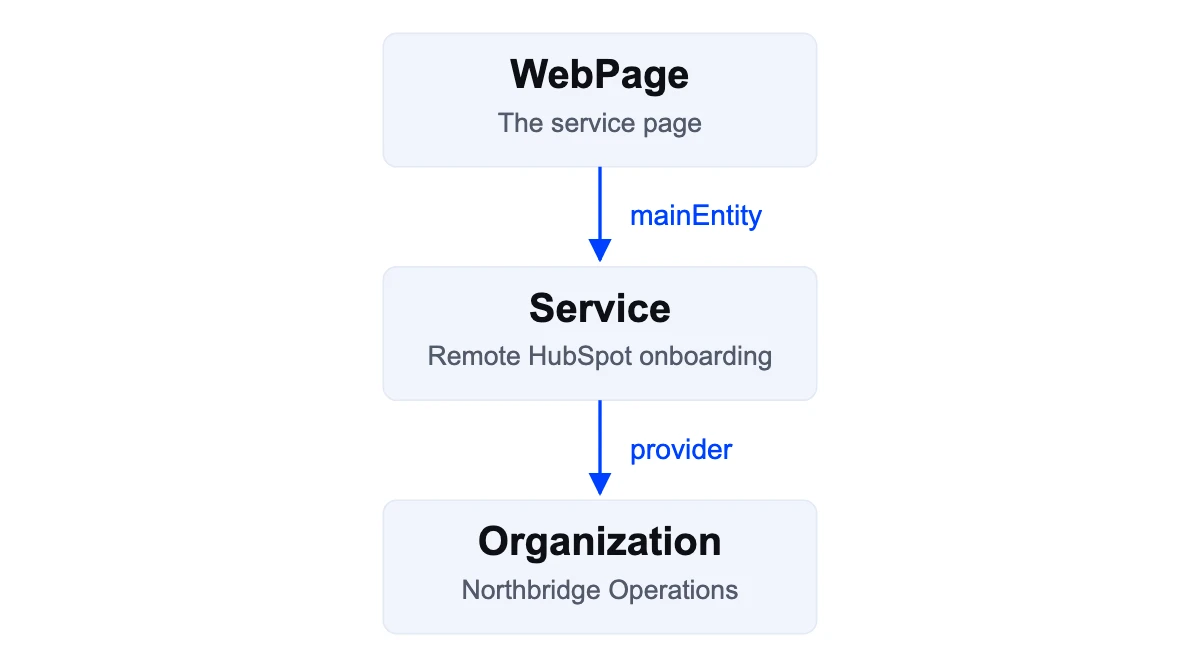
The arrows express relationships, not a sequence of implementation steps. The identifiers keep these three things distinct even when the page and service have the same name. This is a small website graph, not evidence that an external search engine has adopted its facts.
## Add locations and offers only when they clarify the model
An organization's office and a service's delivery area answer different questions. A company may have an office in one city and deliver remotely across a country. Use the [locations and service-area guide](https://superschema.ai/schema-markup/location-schema-vs-service-area-schema) before copying an address into every service.
When a real offer is published, connect it to the relevant service and preserve the conditions a buyer needs. Do not create a zero-price offer for work that requires a quote. The [pricing-page guide](https://superschema.ai/hubspot-aeo/hubspot-pricing-page-content-template) explains how visible terms and structured data should agree.
## Map the graph to a maintainable HubSpot implementation
Assign each fact to an owner and source. Shared business facts may belong in maintained shared fields; service-specific facts belong with the relevant service content. Choose the actual implementation after inspecting the site's templates and existing code.
Avoid pasting a growing copy of the whole graph onto every page. Include the entities and relationships relevant to the page, keeping shared identities consistent. If multiple systems emit markup, resolve ownership using the [duplicate-schema workflow](https://superschema.ai/hubspot-aeo/duplicate-schema-markup-in-hubspot).
## Verify the graph as both code and business information
Parse the JSON, inspect the types and references, and compare each claim with visible content. Confirm that referenced identities represent the intended entities and that no example values remain. Test the published output using the [validation workflow](https://superschema.ai/hubspot-aeo/schema-validation).
Then ask whether the connected pages answer the original buyer question. A technically coherent graph cannot compensate for an unexplained service or unsupported claim. Keep the entity map and change record with the [maintenance plan](https://superschema.ai/hubspot-aeo/hubspot-schema-maintenance).
[See SuperSchema for HubSpot](https://superschema.ai/hubspot-aeo).
## Sources
Reviewed October 20, 2026. The modeling workflow and fictional graph are editorial examples.
- [W3C: JSON-LD 1.1](https://www.w3.org/TR/json-ld11/)
- [Schema.org: Service](https://schema.org/Service)
- [Schema.org: WebPage](https://schema.org/WebPage)
- [Schema.org: Offer](https://schema.org/Offer)
---
---
title: "Location Schema vs Service Area Schema"
description: "Compare business locations with service areas using two JSON-LD examples. Model a real office and service coverage without inventing branches."
url: https://superschema.ai/schema-markup/location-schema-vs-service-area-schema
author: "Clint Johnson"
date_published: 2026-10-20
---
# Location Schema vs Service Area Schema
**What is the difference between a business location and a service area?**
A business location describes where the organization operates. A service area describes where a particular service is available. Keep those facts separate in your HubSpot page content and structured data, especially when you serve customers remotely or operate across several markets.
A company based in one city can serve customers nationally without maintaining an office in every city. Publishing a delivery area does not establish a local branch. The right model begins with the actual operating arrangement, not a list of geographic keywords.
## Separate the questions a buyer is asking
“Where are you based?” and “Can you help a company in my market?” need different answers. A third question, “Can I visit you?”, may have a different answer again.
| Buyer question | Fact to establish | Relevant modeling concept |
|---|---|---|
| Who is providing the service? | Organization or person responsible | Service `provider` |
| Where does the business operate? | Real office, branch or other location | Organization `location`, as appropriate |
| Where is this service available? | Approved delivery geography | Service `areaServed` |
| How do we access the service? | Online, telephone or physical channel | Service `availableChannel`, where relevant |
| Is this a separate company? | Actual legal or organizational relationship | Separate entity and appropriate relationship |
These concepts are not mandatory fields for every page. Use them when they help describe the real arrangement. A street address should not be invented to make a remote service appear local.
## Write the geography in ordinary language first
For a fictional example, Northbridge Operations is based in Toronto and provides remote HubSpot onboarding to Canadian businesses. Its service page could say: “We deliver this onboarding service remotely for businesses in Canada. Our team is based in Toronto; this service does not include on-site delivery.”
That description distinguishes the team's base, customer eligibility and delivery method. If an office does not receive visitors, do not imply that it is a walk-in location. If on-site work is available only by separate agreement, explain that condition beside the service.
Check each service independently. A company may provide remote consulting nationally but on-site training only in a defined area. Copying a company-wide coverage claim into every service can erase that distinction.
## Model the service area without creating a fictional branch
Schema.org's [`areaServed`](https://schema.org/areaServed) property describes the geography served. It can use a relevant place or administrative area. For the fictional service, a small example is:
```json
{
"@context": "https://schema.org",
"@type": "Service",
"@id": "https://example.com/services/onboarding#service",
"name": "Remote HubSpot onboarding",
"provider": {
"@type": "Organization",
"@id": "https://example.com/#organization",
"name": "Northbridge Operations"
},
"areaServed": {"@type": "Country", "name": "Canada"},
"description": "Remote onboarding for Canadian businesses. On-site delivery is not included."
}
```
The code expresses service coverage. It does not assert an office in every Canadian city. Replace all fictional values and keep the public page consistent with the markup. See the [Service schema guide](https://superschema.ai/schema-markup/service-schema) for a fuller description of the service itself.
## Add the office as a Place, not as the service area
Suppose the fictional company also publishes an accurate statement that its office is in Toronto. Keep that office separate from the Canadian service coverage. The following is an excerpt to merge into the existing graph, not a second competing company record:
```json
{
"@context": "https://schema.org",
"@graph": [
{
"@type": "Organization",
"@id": "https://example.com/#organization",
"name": "Northbridge Operations",
"location": {"@id": "https://example.com/#toronto-office"}
},
{
"@type": "Place",
"@id": "https://example.com/#toronto-office",
"name": "Northbridge Operations Toronto office",
"address": {
"@type": "PostalAddress",
"addressLocality": "Toronto",
"addressCountry": "CA"
}
}
]
}
```
Combined with the Service example, the model says: the organization has a Toronto location; that organization provides the service; and the service is available in Canada. It does not create a Canadian network of branches or promise walk-in access. The location is a Place, so it does not need `parentOrganization`. The abbreviated address illustrates locality only; it is not a complete LocalBusiness rich-result example.
Replace the fictional facts and confirm the visible office information before using the pattern. Follow the [schema-validation workflow](https://superschema.ai/hubspot-aeo/schema-validation) to check syntax, relationships, page agreement and applicable search-feature requirements separately.
## Decide whether a location needs its own entity
For a real local branch, record the name, address, contact route, opening information where applicable and relationship to the organization. Choose a specific LocalBusiness subtype only when it accurately describes the business. A local branch and a separately incorporated subsidiary may need different models.
Do not automatically assign `parentOrganization` to a building. That property describes a relationship between organizations. A physical place can be a location without being a separate company. Schema.org's [`location`](https://schema.org/location) and [`parentOrganization`](https://schema.org/parentOrganization) definitions help distinguish these roles.
The [business graph guide](https://superschema.ai/hubspot-aeo/business-knowledge-graph-for-hubspot) shows how to give distinct entities stable identities. Keep a note explaining why each location or organization exists in the model so future editors do not merge them by name alone.
## Give location pages a distinct job
Create a dedicated page when a location or market has distinct information of its own: a real branch, different delivery conditions, local contact details or other substantial facts. Do not create dozens of near-identical pages simply by swapping city names.
When several pages discuss the same service, identify which page owns the general scope and which explains the location-specific conditions. Link between them. Keep the shared service facts consistent while making genuine differences clear.
For a HubSpot site, check whether location content comes from shared modules, page fields or a data-driven template. A copied page can retain an old phone number or office description even after its heading changes. Review the full output, including schema and contact links.
## Verify the customer journey for each location
Ask someone to use the live page to determine eligibility, delivery method and the next contact step. Confirm that the contact destination serves the location or service described. Review third-party profiles where they affect the same buying decision, following the [business-fact consistency guide](https://superschema.ai/hubspot-aeo/business-information-consistency-for-aeo).
After a move, closure or coverage change, update the affected pages and markup together. Record unresolved external corrections. Technical validity cannot establish that an office is real or that a service is available in a market; those facts need an accountable owner.
[Discuss a HubSpot implementation with SuperSchema](https://superschema.ai/managed).
## Sources
Reviewed October 20, 2026. The fictional example and page-planning advice are editorial recommendations.
- [Schema.org: areaServed](https://schema.org/areaServed)
- [Schema.org: location](https://schema.org/location)
- [Schema.org: parentOrganization](https://schema.org/parentOrganization)
- [Schema.org: LocalBusiness](https://schema.org/LocalBusiness)
- [Schema.org: ServiceChannel](https://schema.org/ServiceChannel)
---
---
title: "HubSpot Schema Maintenance"
description: "Maintain HubSpot schema after service, pricing, location and template changes. Set ownership, review triggers, repair tasks and live checks."
url: https://superschema.ai/hubspot-aeo/hubspot-schema-maintenance
author: "Clint Johnson"
date_published: 2026-10-20
---
# HubSpot Schema Maintenance
**What should a HubSpot schema maintenance checklist cover?**
Review affected markup when services, prices, locations or contact routes change, and check the live output after template or integration updates. Use scheduled checks to catch missed changes. Assign an owner so a detected problem becomes a resolved change.
A one-time validation result records a point in time. It does not establish that the page is still accurate after a new offer launches or a shared module changes. The [validation guide](https://superschema.ai/hubspot-aeo/schema-validation) covers initial checks; this guide explains the ongoing work.
## Separate factual changes from technical breakage
Two common problems need different responses. The code may remain valid while describing an old price. Or the approved facts may be correct while a template stops emitting the markup.
| Change or observation | What to review | Who needs to act? |
|---|---|---|
| Service renamed or discontinued | Service page, references and Service nodes | Service owner and editor |
| Price or package changed | Visible terms and related offer descriptions | Commercial owner and implementer |
| Office moved or closed | Location pages, addresses and external profiles | Operations owner and editor |
| Theme or module updated | Representative pages and shared markup output | Developer or CMS owner |
| New integration enabled | Overlapping or conflicting markup sources | Integration owner and developer |
| Validation or delivery check fails | Actual output, affected scope and recent changes | Technical owner |
Do not treat every detected difference as an error. A business can change intentionally. Compare the difference with an approved change before deciding whether to correct the page or update the expected record.
## Keep a baseline that someone can use
For each maintained page, record its canonical URL, main entities, source of markup, fact owner and last verification date. Retain the approved business facts and enough of the published output to explain a later change.
The baseline should answer practical questions: which source owns the company phone number, which template emits the service description, and who approves the delivery area? A screenshot of a green validator result cannot answer all three.
For related entities, keep the small map from the [business knowledge graph guide](https://superschema.ai/hubspot-aeo/business-knowledge-graph-for-hubspot). For repeated public claims, keep the dependency list from the [business-facts guide](https://superschema.ai/hubspot-aeo/business-information-consistency-for-aeo). These records can live in the team's existing tracker or repository.
## Review on change, with a scheduled backstop
The most useful review trigger is often an actual business or website change. Add schema and related facts to the release checklist for offer updates, location changes and template deployments. That lets the team correct the description while the change is already being discussed.
Use a scheduled review as a backstop for missed changes. Choose the cadence according to how often the business changes and the consequences of stale information. A frequently changing offer may need closer attention than a stable company description. There is no universal frequency that proves a site is ready for AI.
For an agency retainer, name the covered pages, review cadence, included corrections and escalation path. Distinguish detection from human review and implementation. A monitoring service does not automatically include every repair it identifies.
## Turn an observation into a small repair task
Suppose a fictional service page changes from “migration included” to “migration quoted separately,” while a copied JSON-LD description retains the original promise. The repair task should name both claims, the approved answer and the pages affected.
A useful task record contains:
1. The URL, observation date and evidence.
2. The previous expected value and current output.
3. Whether the change was intentional, incorrect or unresolved.
4. The owner who approves the business fact.
5. The source to edit and dependent pages to recheck.
6. The live acceptance check and result.
Fix the source that produces the stale value. Editing a generated output once will not help if the next automated run restores the old version. If two systems compete, use the [duplicate-schema workflow](https://superschema.ai/hubspot-aeo/duplicate-schema-markup-in-hubspot) to resolve ownership.
## What does a completed maintenance task show?
A closed task shows the approved fact, the source repaired and the public verification result. This completed fictional record illustrates evidence to retain; the URLs, dates and events are examples, not a customer case study.
| Field | Completed fictional record |
|---|---|
| Task | NB-MAINT-014: remove stale migration inclusion |
| Detected | October 14, 2026, during the service-package release check |
| Affected URL | `https://example.com/services/onboarding` |
| Observed mismatch | Visible page says migration is quoted separately; JSON-LD description says migration is included |
| Approved fact | Migration is separately quoted, confirmed by the service owner in scope note `NB-onboarding-scope-v3` on October 12 |
| Source repaired | Service description field used by the onboarding page's schema module |
| Change | Replace “includes data migration” with “data migration is quoted separately” |
| Dependency review | Homepage and pricing-page copy checked; neither emits a separate stale Service description |
| Verification | October 15: public page source contains the approved description; old phrase absent; JSON parses; vocabulary check recorded; provider and service IDs unchanged |
| Evidence retained | Before/after source excerpts and validation output, labeled with URL and verification date |
| Closure | Website editor closed October 15 after service-owner approval and live verification |
| Next trigger | Any onboarding package change or update to the module emitting its markup |
If a public check had not run, the status would remain awaiting verification. If an external listing still contradicted the offer, record it as a separate open correction rather than implying this website repair fixed the listing too.
## Verify the repair on the public page
After publication, confirm that the intended content and markup reach the public URL. Compare the business facts, parse the JSON and run the relevant vocabulary or search-feature checks. Recheck representative pages when a shared template was changed.
Record exceptions honestly. “Correction requested from directory” differs from “directory corrected.” “Passed syntax check” differs from “confirmed offer matches approved terms.” Keep failed or untested checks visible until the responsible person resolves them.
Google's [structured-data policies](https://developers.google.com/search/docs/appearance/structured-data/sd-policies) require relevant, current information for its rich-result use. Following a maintenance workflow does not guarantee a search appearance; it gives your team a defensible record of what it publishes.
## Report maintenance separately from visibility
A useful maintenance report shows the pages covered, changes found, fixes completed, unresolved issues and who owns them. Add before-and-after examples where they clarify the work. Avoid filling the report with repeated tool scores that do not explain a customer consequence.
If you also track AI answers, report that separately: questions sampled, engines, dates, mentions, citations, recommendations and factual accuracy. A repaired page and a new recommendation can occur in the same period without establishing causation. Use the [measurement guide](https://superschema.ai/hubspot-aeo/measuring-ai-visibility) to keep those observations comparable.
For agencies, this creates a concrete maintenance proposition: agreed coverage, accountable review and verified corrections. The [project-scope guide](https://superschema.ai/hubspot-aeo/hubspot-aeo-project-scope) explains how to separate the initial implementation from that ongoing work.
[Explore SuperSchema Managed](https://superschema.ai/managed), or [discuss maintaining client sites](https://superschema.ai/agency#book).
## Sources
Reviewed October 20, 2026. The maintenance process and reporting structure are editorial recommendations, not a specification of SuperSchema subscription entitlements.
- [Google: General structured data guidelines](https://developers.google.com/search/docs/appearance/structured-data/sd-policies)
- [HubSpot: Use code snippets with HubSpot content](https://knowledge.hubspot.com/website-and-landing-pages/use-code-snippets-with-hubspot-content)
---
# Getting started with SuperSchema
> SuperSchema is the AI-facing layer of your business: it helps you stay visible, understood, and recommended by AI systems like ChatGPT, Perplexity, Google AI, and Claude. The fastest path to value is to run a free Site Scan, then structure and deploy your most important pages.
*Category: Getting Started · Last updated: 2026-07-07*
---
SuperSchema helps AI systems understand and recommend your business. It measures how clearly AI sees your site, generates the schema markup and AI-readable files that AI relies on, gets them deployed and verified, then watches for changes and tracks whether AI actually recommends you. The fastest way to get value is to run a free Site Scan, then structure and deploy your top pages. SEO gets you found; SuperSchema gets you understood.
### What SuperSchema is (and is not)
SuperSchema is an AI-visibility platform, not a copy-paste tag generator. Other tools stop at spitting out a JSON-LD snippet. SuperSchema gives AI a clear, consistent picture of who you are, what you do, and where you operate, and keeps that picture accurate as your website changes. Schema markup is one part of that. The rest is measuring, deploying, verifying, and monitoring the whole AI-facing layer of your business.
- It reads your public pages the way an AI crawler does and scores how ready they are for AI.
- It generates the schema markup and the AI-readable .md and .txt versions of your content that AI systems lean on.
- It helps you deploy those to your live pages and confirms they are actually live.
- It tracks which AI bots crawl you and whether AI answers recommend you, then watches for changes over time.
### The fastest path to value
1. Run a free Site Scan on your domain. Enter your domain on the SuperSchema homepage and let it read a sample of your key pages the way an AI crawler would.
2. Read your SuperSchema Score. You get a single 0 to 100 read on your AI visibility plus a breakdown across five categories, so you know what is helping and hurting you.
3. Pick your highest-value pages. Start with your homepage and your top product, service, or content pages, where clearer AI understanding pays off first.
4. Structure those pages. Generate the schema markup and AI-readable files SuperSchema recommends for each one.
5. Deploy and verify. Get the files onto your live pages by copy-paste or one-click to HubSpot, then let SuperSchema confirm they are live.
6. Turn on monitoring when you are ready. A monitoring plan keeps everything aligned as your site changes and tracks AI bots and citations over time.
> **Note:** The Site Scan is free and needs no account to run. It reads only your public pages: it never logs in, changes anything, or touches your live site. Creating a free account (no card required) unlocks your full report and your included Page Setup.
> **Tip:** Do not try to fix your whole site at once. Structure and deploy your handful of highest-value pages first, confirm they verify, then widen from there. That is where clearer AI understanding turns into real recommendations soonest.
### What the free scan checks
Your SuperSchema Score is a weighted blend of five categories, each measuring a different part of how machines read your content. It tells you where to spend your effort first:
| Category | Weight | What it measures |
| --- | --- | --- |
| Access | 15% | Whether AI crawlers can reach your content at all. |
| Content | 25% | Whether there is substantial, real content for AI to learn from. |
| Structure | 15% | Whether your HTML hierarchy is clean and easy to parse. |
| Schema | 25% | Whether JSON-LD gives AI explicit, structured context. |
| Alternate | 20% | Whether AI-readable .md and .txt versions of your pages exist. |
> **Note:** Content and Schema carry the most weight (25% each) because they are what AI leans on most: real substance to cite, plus explicit structured data that tells AI what a page is about.
### Where to go next
**See the whole loop:** The SuperSchema workflow article walks through Scan, Structure, Deploy, Verify, Watch, and Monitor end to end, and points to the article for each stage.
**Run your first scan:** The running a free scan article covers exactly how the scan works, what it checks, how long it takes, and what to do if it gets blocked.
**Understand your report:** The reading your AI readiness report article explains your score, the category breakdown, and the prioritized list of fixes.
**Compare plans:** Plans at a glance covers the free Site Scan, the monitoring subscriptions, and the one-time audits, with a link to current pricing.
## Questions this answers
- What does SuperSchema actually do?
- Is SuperSchema just a schema markup generator?
- How do I get started with SuperSchema?
- What is the fastest way to get value from SuperSchema?
- Will this help me show up in ChatGPT, Perplexity, Google AI, or Claude?
- What can I do for free, and do I need a credit card?
- Do I need an account to run a scan?
- Where should I go after my first scan?
## Related
- https://superschema.ai/docs/the-superschema-workflow
- https://superschema.ai/docs/running-a-free-scan
- https://superschema.ai/docs/reading-your-ai-readiness-report
- https://superschema.ai/docs/plans-at-a-glance
---
# How SuperSchema works: Scan, Structure, Deploy, Verify, Watch, Monitor
> SuperSchema is a loop that keeps AI systems reading the right facts about your business over time. You Scan to see where you stand, Structure the schema and AI-readable files AI needs, Deploy them to your live pages, Verify they are live, Watch which AI bots and citations you earn, and Monitor for changes. A one-time Audit is an optional deep dive.
*Category: Getting Started · Last updated: 2026-07-07*
---
SuperSchema is more than schema generation. It is a continuous loop that keeps AI systems reading the right facts about your business as your website changes. The loop has six stages: Scan, Structure, Deploy, Verify, Watch, and Monitor. A one-time Audit is an optional deep dive you can add at any point. You do not have to use every stage, but here is the full picture and which article covers each part.
### The loop at a glance
| Stage | What it does | Where to read more |
| --- | --- | --- |
| Scan | Measures how well AI understands your site today and gives you a SuperSchema Score. | Running a free scan |
| Structure | Generates the schema markup and AI-readable .md and .txt files AI relies on. | Schema generation |
| Deploy | Gets those files onto your live pages by copy-paste or one-click to HubSpot. | Deployment options overview |
| Verify | Confirms your schema and AI-readable files are actually live on the page. | How verification works |
| Watch | Tracks which AI bots crawl you and whether AI answers recommend you. | Bot tracking and citation tracking |
| Monitor | Re-checks pages on a schedule and flags changes that make signals go stale. | What monitoring does |
### Stage by stage
**Scan:** Measure how well AI understands your site right now. A free Site Scan reads a sample of your key pages the way an AI crawler would and returns your SuperSchema Score, a 0 to 100 read across five categories: Access, Content, Structure, Schema, and Alternate (AI-readable files). This is where you find out what is helping and hurting you before you touch anything.
**Structure:** Build what AI needs. SuperSchema auto-generates the schema markup (JSON-LD) and the AI-readable .md and .txt versions of your content for the pages you choose. The right schema types are detected from your content, so you are not guessing which ones to use.
**Deploy:** Get it onto your live pages. You can copy-paste the generated code into your page head, or connect HubSpot and deploy with one click. Deploying puts the files in place so AI crawlers can read them.
**Verify:** Confirm it is actually live. Deploying is not the same as being live: a republish can silently drop your schema, or a paste can land in the wrong place. Verification re-reads the live page and confirms your schema and AI-readable files are really there before the page counts as done.
**Watch:** See what AI is doing. Bot tracking shows which AI crawlers, like GPTBot, ClaudeBot, PerplexityBot, and Google-Extended, are visiting your pages and how often. Citation tracking runs real customer-style questions through AI assistants and measures how often your business shows up in the answers.
**Monitor:** Keep it accurate over time. Once a page is verified, monitoring saves a baseline and re-checks the page on a schedule (weekly or daily by plan). When something meaningful changes, like schema getting dropped, pricing moving, or a page going stale, it raises a change event so you can fix it before AI reads the wrong facts.
### The optional Audit
A SuperSchema Audit is a one-time, expert-delivered deep dive that you can add at any point in the loop. Where a free Site Scan is a fast automated read of a sample of pages, an Audit is a thorough diagnostic that finds the biggest gaps between what your site says and what AI can reliably understand, then hands you a prioritized fix plan (a Decision Pack). Many teams scan first, then commission an Audit when they want a scoped plan of what to fix and in what order.
> **Note:** The Audit and monitoring are independent. You can start with any monitoring plan without an Audit, and you can buy an Audit without a subscription. Either one can stand alone.
> **Warning:** Deploying is not the finish line. A page only counts as done once it verifies. If you skip verification, a page can look deployed in SuperSchema while the schema is missing or misplaced on the live site, and AI will keep reading the old version.
### Why it is a loop, not a one-time fix
Websites change constantly. Someone edits a page, a template update drops your schema, a price moves, a page starts returning an error. Any of those can quietly leave AI reading stale or wrong facts about you. Scanning and structuring once gets you clean signals today. Watching and monitoring keep them clean tomorrow, which is what actually protects how AI represents and recommends you over time.
> **Tip:** New here? Start small. Run a free Site Scan, structure and deploy your handful of highest-value pages, verify them, then turn on monitoring to keep them that way. You can widen coverage and add citation and bot tracking as you go.
## Questions this answers
- What are the main stages of SuperSchema?
- How do the parts of SuperSchema fit together?
- What is the SuperSchema workflow from start to finish?
- What happens after I scan my site?
- What is the difference between deploying and verifying?
- What does watching versus monitoring mean?
- Where does the SuperSchema Audit fit in?
- Do I have to use every stage?
## Related
- https://superschema.ai/docs/getting-started
- https://superschema.ai/docs/running-a-free-scan
- https://superschema.ai/docs/what-monitoring-does
- https://superschema.ai/docs/superschema-audit
---
# Free, monitoring plans, and audits at a glance
> A quick orientation to how SuperSchema is priced: start free with a Site Scan, subscribe to a monitoring plan (Essential $49, Growth $129, Portfolio $299, or Enterprise custom) to stay AI-ready over time, and optionally add a one-time Audit. Save 20% with annual billing. There are no credits. Full detail lives in Billing and on the pricing page.
*Category: Getting Started · Last updated: 2026-07-07*
---
SuperSchema has three things to know about: a free entry point, recurring monitoring subscriptions, and one-time audits. Start free with a Site Scan, subscribe to a monitoring plan to keep your AI-readable layer current over time, and optionally add an audit for an expert-delivered deep dive. There are no credits and no separate "Pro" subscription to figure out. Monitoring plans are flat monthly (or annual) subscriptions.
### The three things to know
**Free Site Scan:** Run a free Site Scan on your domain to get your SuperSchema Score and a prioritized read on what AI does and does not understand about your site. No card required. This is the front door for everyone.
**Monitoring plans:** Recurring subscriptions that keep your AI-readable layer accurate over time. Essential ($49/mo), Growth ($129/mo), Portfolio ($299/mo), and Enterprise (custom). They add monitored pages, citation scans, bot tracking, change history, and more as you move up.
**SuperSchema Audit:** A one-time, expert-delivered diagnostic that shows exactly what AI does and does not understand about your business and hands you a prioritized fix plan (a Decision Pack). Priced and purchased separately from monitoring.
### Monitoring plans
Every monitoring plan includes hosted AI-readable files, the SuperSchema Score, citation scans, and change monitoring. Higher tiers add more monitored pages, more domains, more team members, longer change history, more frequent checks, and features like HubSpot Sync and a SuperSchema Registry listing. Schema and AI-readable file generation is unlimited on every plan.
| Plan | Monthly | Best for | Monitored pages |
| --- | --- | --- | --- |
| Essential | $49 | One business with one site | 50 |
| Growth | $129 | Growing teams and small agencies | 200 |
| Portfolio | $299 | Agencies and multi-site operators | 500 |
| Enterprise | Custom | Complex, multi-brand organizations | Custom |
> **Note:** Save 20% with annual billing on all plans. You can switch between monthly and annual, or upgrade and downgrade, at any time from your billing settings.
### Audits are separate and one-time
An Audit is a point-in-time diagnostic, not a subscription. A monitoring plan is the ongoing stream that keeps AI understanding current after the fact. You do not need an audit to use monitoring, and you do not need a subscription to buy an audit. Either one can stand alone, and many teams pair them: audit to get a prioritized fix plan, monitoring to keep the fixes in place.
### No credits, no Pro subscription
SuperSchema does not use credits, and there is no per-URL charge to generate schema. Generation is unlimited on every plan. "Pro" is the name of one of the Audit packages, not a subscription tier. If you are comparing SuperSchema against older schema tools, this is the main difference: you subscribe to monitoring capacity, not to a bucket of credits.
### Where to go for detail
- Current prices, limits, and the full feature comparison are always on superschema.ai/pricing.
- For how billing, upgrades, downgrades, and annual switches work, see the billing and plans article.
- Not sure which tier fits? Run the free Site Scan first, then see choosing a monitoring plan.
> **Tip:** Prices shown here can change. When in doubt, treat superschema.ai/pricing as the source of truth for the latest numbers and plan limits.
## Questions this answers
- What do I get for free?
- What are the paid monitoring plans and how much do they cost?
- What is the difference between a monitoring plan and an audit?
- Are there credits or a Pro subscription?
- Do I get a discount for paying annually?
- Do I need an audit before I can use monitoring?
- Which monitoring plan is right for me?
- Where do I find current prices and limits?
## Related
- https://superschema.ai/docs/billing-and-plans
- https://superschema.ai/docs/choosing-a-monitoring-plan
- https://superschema.ai/docs/monitoring-plans-whats-included
- https://superschema.ai/docs/superschema-audit
---
# What is schema markup (JSON-LD)?
> Schema markup is a small block of structured data that tells search engines and AI exactly what a page is about: this is a Product with this price, this is an Article by this author. SuperSchema writes it in JSON-LD, the format Google recommends, and it does not change how your page looks or slow it down.
*Category: Core Concepts · Last updated: 2026-07-07*
---
Schema markup (also called structured data) is a small block of code that spells out what a page is about in a way machines can read without guessing. A human looking at your page sees a headline, a price, and a photo and understands "this is a product for sale." A machine sees a wall of HTML. Schema markup labels the important facts explicitly: this is a Product, its name is X, its price is Y, its rating is Z. SuperSchema writes that block for you in JSON-LD, the format Google recommends, and it never changes how your page looks or how fast it loads.
The labels come from a shared, public vocabulary called schema.org, maintained by Google, Microsoft, and others. Because everyone agrees on the same terms (Product, Article, FAQPage, Organization, LocalBusiness, and hundreds more), a search engine or an AI assistant can read your markup and know exactly what each fact means, the same way it reads every other site that uses the vocabulary.
### A quick example
Say you have a page for a recipe. A person reads the title and the ingredient list and understands it instantly. Structured data hands the same facts to a machine as clearly labeled data:
```json
{
"@context": "https://schema.org",
"@type": "Recipe",
"name": "Classic Margherita Pizza",
"author": { "@type": "Person", "name": "Jane Doe" },
"prepTime": "PT20M",
"recipeIngredient": ["Flour", "Tomatoes", "Fresh mozzarella", "Basil"]
}
```
Nothing here is new information: it all comes straight from what is already on the page. The markup just states it plainly so a machine does not have to infer the recipe name, the author, or the prep time from the surrounding layout.
### Why it matters for AI and search
Search engines and AI answer engines both work better when they are certain about your facts. When your page carries accurate schema, you make two things possible:
**Rich results in search:** Google can show enhanced listings (star ratings, prices, FAQ dropdowns, recipe cards) instead of a plain blue link. These come from the structured data on your page.
**Accurate AI answers and citations:** When an AI assistant like ChatGPT, Perplexity, or Google’s AI overviews answers a question, it is safer for it to state and cite a fact it can read explicitly than one it has to guess from raw HTML. Clear schema reduces the chance AI describes you wrong or reaches for a competitor instead.
> **Note:** Schema makes rich results and AI citations possible; it does not guarantee them. Search engines and AI systems decide what to show. Your job is to give them accurate, machine-readable facts so that when they do choose, they get you right.
### Why JSON-LD, not microdata
There are a few ways to write structured data. The two you will hear about are JSON-LD and microdata. SuperSchema uses JSON-LD, and so does Google’s official guidance. The difference is where the data lives.
**JSON-LD:** A single self-contained block of data, added inside a
```
> **Tip:** Need just the raw JSON without the script wrapper? The editor holds the JSON-LD directly, so you can select and copy it from there. For most sites, though, the wrapped block from "Copy Schema" is exactly what you want to paste.
### Your AI-readable files
When SuperSchema generates schema, it also produces Markdown (.md) and plain-text (.txt) versions of the page for AI answer engines. The alternate files panel gives you two ways to use them:
**Copy Tags:** Copies the tags that point to your hosted Markdown and plain-text files. Paste these into your page so AI crawlers can find the clean versions.
**Download:** A menu to save the files directly: "Markdown (.md)" and "Plain Text (.txt)". Use this to hand the files off or host them yourself.
> **Note:** The AI-readable Markdown and plain-text files are part of paid plans. If you do not see the alternate files panel, it is not available on your current plan.
### Push to HubSpot
If you have a HubSpot connection, the "Push to HubSpot" button deploys your schema and AI-readable files to a matched HubSpot page, blog post, or landing page without any copy-and-paste. Its tooltip reads "Push schema and AI-readable files to HubSpot" when a connection is active, or "Connect HubSpot first" if you still need to link an account.
> **Tip:** For exactly where to paste a copied block on common platforms, see the copy-paste and deployment guides in Deploying Schema.
## Questions this answers
- What do I copy to put schema on my site?
- Does the copied code include the script tag?
- If a page has multiple schema types, does copying include all of them?
- How do I get the AI-readable Markdown and plain-text files?
- What are the alternate-file link tags for?
- Can I download my schema as a file?
- How do I send my schema to HubSpot?
## Related
- https://superschema.ai/docs/copy-paste-into-head
- https://superschema.ai/docs/schema-implementation
- https://superschema.ai/docs/ai-readable-alt-files
- https://superschema.ai/docs/hubspot-integration
---
# Managing your pages
> There is no separate Library anymore. Every page you scan, set up, or monitor lives on its domain page under Your Pages, with a coverage ring, lifecycle sections, search, and per-page actions.
*Category: Generating Schema · Last updated: 2026-07-07*
---
SuperSchema no longer has a separate Library page. The old /library route now sends you to your dashboard. Instead, every page you scan, set up, or monitor lives on its own domain page under a section called Your Pages. That is your control center for a site: a coverage ring at the top, your pages grouped by what needs attention, search to find anything fast, and the actions to verify, re-generate, review, or remove each page.
### Your coverage at a glance
The top of the domain page shows a coverage card so you always know where you stand:
**Coverage ring:** A percentage labeled "covered", showing the share of your pages that have schema.
**Total pages:** How many pages SuperSchema knows about for this domain.
**Schema ready:** How many of those pages already have schema.
**Composition bar:** Splits your covered pages into SuperSchema (AI-readable files generated) and Existing/alt (basic schema detected).
**Gap counters:** A Schema gap and an AI file gap, each shown as a page count, plus how many pages are Monitored.
> **Tip:** Use the gap counters as your to-do list. The Schema gap tells you exactly how many pages still need schema; work that number down to zero.
### Your Pages, grouped by lifecycle
Under the coverage card, the Your Pages list shows a count of your pages and splits them into sections based on their state, so the pages that need you are always at the top:
**Needs Attention:** Pages with a problem to resolve, such as drift on a live page or a page still waiting to be verified.
**Deployed, not monitored:** Schema is confirmed live on the page, but active monitoring is not on for it yet (for example, when your plan cap is full).
**Active & Healthy:** Verified pages that are actively monitored with no problems detected.
### Reading a page row
Each page row shows its path plus a set of columns: Page, Health, Status, Schema, Alt, Updated, and Action. The badges tell you at a glance what state a page is in:
| Column | What it shows |
| --- | --- |
| Health | A 0 to 100 page health score, or a dash if the page has not been scored yet. |
| Status | Access flags such as Blocked, Noindex, JS Required, an HTTP error code, Redirect, or OK. |
| Schema | A "Super" badge when SuperSchema files exist, a "Basic" badge when only basic schema was detected, or a dash. |
| Alt | A marker when AI-readable alternate files (Markdown and plain text) exist for the page. |
| Updated | When the page was last updated, shown as a relative time. |
| Action | A context button: Verify, Review changes, a re-generate menu, or a dash. |
**Verified & Monitored:** A green shield-check icon means schema is confirmed on the live page and the page is actively monitored.
**Pending:** An amber clock means the page is set up but its schema still needs to be verified on the live page.
**Monitored URL:** A green shield means the page is a monitored URL, which you can re-generate for free.
### Finding pages
A "Search pages..." box at the top of Your Pages filters the list by path as you type. If nothing matches, you will see "No URLs match" with your search term. If a domain has no pages yet, the empty state reads "No pages yet" and points you to paste a URL and use Page Setup.
### What you can do from a page row
- Verify: on a Pending page, confirm the schema is live on the page. The button shows "Checking..." while it runs.
- Review changes: on a page where SuperSchema detected drift, jump to the page detail to see what changed.
- Re-generate schema: on a healthy page, open the row menu to regenerate its schema.
- Open the page: click a row to open its full page detail.
- Add a new page: paste a URL at the top and use Page Setup to bring another page in.
> **Note:** Generating schema for a page also produces AI-readable Markdown and plain-text versions of it, which is why covered pages can show both a Schema badge and an Alt marker.
### Cleaning up leftover URLs
Some domains show a collapsible "Saved for Later" card below Your Pages. These are leftover URLs from the retired Discover-URLs crawl. Each row has a Set Up button (start Page Setup to promote it into Your Pages) and a Remove button. Select several rows and a bulk bar appears with Clear and Remove Selected so you can clear a backlog at once. Removing a URL shows "Removed from Saved for Later". The card disappears once the list is empty.
> **Tip:** Set Up the leftover URLs you still care about, then bulk-remove the rest. The goal is a clean Your Pages list where coverage reflects the pages you actually maintain.
## Questions this answers
- Where do my generated schemas and pages live?
- What happened to the Library page?
- How do I find pages that still need schema?
- What do the page statuses mean?
- How do I see my schema coverage for a domain?
- How do I search my pages?
- How do I remove pages I no longer need?
- How do I verify or re-generate schema on a page?
## Related
- https://superschema.ai/docs/url-discovery
- https://superschema.ai/docs/schema-generation
- https://superschema.ai/docs/domain-detail-page
- https://superschema.ai/docs/how-verification-works
---
# Ways to get your schema live
> Once your schema is generated, there are two ways to put it on your page: paste the block into your , or push it straight to HubSpot. The Page Setup wizard walks a page through generate, deploy, verify, and monitor in one place.
*Category: Deploying Schema · Last updated: 2026-07-07*
---
After a schema is generated, you add it to your live page. SuperSchema gives you two ways to do that, and both put the same JSON-LD on your page: paste the generated block into your page's , or push it directly into HubSpot. Pick whichever fits how your site is built. If you would rather be walked through it, the Page Setup wizard takes a single page all the way from generating schema to deploying, verifying, and (on paid plans) monitoring it.
### Your two deploy paths
**Copy-paste into your :** Copy the generated block from SuperSchema and paste it into the of the page you generated it for. This works on every platform: WordPress, Shopify, Webflow, custom HTML, or anything else that lets you edit head code. It is the universal option.
**Deploy to HubSpot:** If you use HubSpot, connect your portal and push schema straight into a blog post, page, landing page, or knowledge article. No copy-paste, and SuperSchema places the block for you. The button reads "Deploy to HubSpot" (and "Redeploy to HubSpot" once a page has already been deployed).
> **Note:** SuperSchema does not host the schema itself as a remote file. Schema is always embedded directly on your page as an inline
```
## Questions this answers
- What are my options for getting schema onto my site?
- Which deployment method should I use?
- Can I push schema to HubSpot instead of copy-pasting?
- Does SuperSchema host my schema for me?
- What is the Page Setup wizard?
- What are the steps to take a page from schema to monitoring?
- Do I need to know how to code to deploy schema?
- Where does the schema code actually go on my page?
## Related
- https://superschema.ai/docs/copy-paste-into-head
- https://superschema.ai/docs/schema-implementation
- https://superschema.ai/docs/hubspot-integration
- https://superschema.ai/docs/how-verification-works
---
# Copy-paste schema into your site's
> The universal way to deploy: copy the generated block from SuperSchema and paste it into your page's . It works on every platform, does not change how your page looks, and is safe to remove or re-paste any time.
*Category: Deploying Schema · Last updated: 2026-07-07*
---
Copy-paste is the universal deploy method: it works on every platform. You copy a block of code from SuperSchema and paste it into the section of the exact page you generated it for. The schema is invisible metadata, so it does not change how your page looks, and it is safe to remove or re-paste at any time.
### Copy the block
In the schema editor, the copy button label tells you what you are about to copy:
**Copy schema for :** You get the JSON-LD
```
- The opening comment carries a version id and the schema types in the block. That id is how SuperSchema recognizes which exact version is live on your page.
- The markers are what make Verify and monitoring work. If you strip them out, search engines still read your schema fine, but SuperSchema can no longer confirm the page is up to date or alert you when it drifts.
- When you regenerate or refine the schema, re-copy and re-paste the whole block so the version id on your page matches the current one.
### Good to know
- Schema is invisible metadata. It does not change how your page looks and has no meaningful effect on load speed.
- You can edit the schema later in SuperSchema; just re-copy and re-paste the updated block over the old one.
- To remove schema, delete everything from the opening SuperSchema comment through the closing one, then save and publish.
> **Tip:** Using WordPress, Shopify, Webflow, or another CMS? See Adding schema to your website for exactly where each platform keeps its head code.
## Questions this answers
- Where exactly do I paste the schema code?
- Which button do I click to copy my schema?
- Will adding schema slow down or break my site?
- Can I edit or remove the schema after pasting it?
- What are the SuperSchema comment lines around my schema?
- Why does my copy include tags?
- Do I paste the schema on one page or the whole site?
- What is the difference between "Copy schema for " and "Copy everything for "?
## Related
- https://superschema.ai/docs/deployment-options-overview
- https://superschema.ai/docs/schema-implementation
- https://superschema.ai/docs/how-verification-works
- https://superschema.ai/docs/ai-readable-alt-files
---
# Adding schema to your website
> Once your schema is generated, add the JSON-LD to your page's . Step-by-step guides for HubSpot, WordPress, Shopify, Webflow, and custom HTML, plus how to verify it went live.
*Category: Deploying Schema · Last updated: 2026-07-07*
---
Once you have generated schema, you add it to your website. SuperSchema produces JSON-LD, an inline
```
> **Note:** Removing the comment markers does not stop search engines from reading your schema, but it does stop SuperSchema from confirming the page is current or alerting you when the schema drifts.
### Verify your schema
After you deploy, confirm the schema is actually live. The fastest way is Verify inside SuperSchema, which fetches your page as the SuperSchemaBot crawler and checks that the current version is present. You can also use Google's free tool:
1. Go to Google's Rich Results Test at search.google.com/test/rich-results.
2. Enter your page URL.
3. Click "Test URL".
4. Check for any errors or warnings and confirm your schema types are detected.
> **Tip:** Always verify after deploying. Verification in SuperSchema also unlocks page monitoring on paid plans, so you get alerted if the schema later breaks or disappears. See How verification works for details.
## Questions this answers
- Where do I paste the schema code?
- How do I add schema in WordPress?
- How do I add schema in Shopify?
- How do I add schema in Webflow?
- How do I push schema to HubSpot?
- Will adding schema hurt my site or slow it down?
- How do I confirm my schema is valid and live?
- What are the SuperSchema comment lines in my code?
## Related
- https://superschema.ai/docs/deployment-options-overview
- https://superschema.ai/docs/copy-paste-into-head
- https://superschema.ai/docs/hubspot-integration
- https://superschema.ai/docs/how-verification-works
---
# How deployment verification works
> After you deploy, SuperSchema re-crawls your live page, finds its own install block, and confirms the exact schema package you generated is really published. It matches by version id first, then by a content hash, then by schema type, and reports one clear status so you know whether you are done.
*Category: Verifying Deployment · Last updated: 2026-07-07*
---
Verification is how SuperSchema confirms the schema you generated is really on your live page, not just saved in your Library. When you verify, SuperSchema visits the exact URL, reads the JSON-LD it finds, looks for its own install block, and compares what is live against the package on file. It reads your public page the same way a search or AI crawler would. It never logs in and never changes your site.
### What verification checks, in order
A page counts as verified only when every part of the deployed package is present and current. SuperSchema runs these checks each time it looks:
1. Reach the page: it fetches your live URL and confirms the page loads, is not blocked, and did not redirect somewhere else.
2. Find the install block: it looks for the SuperSchema install block you pasted into the page head.
3. Match the schema package: it compares the live schema against the package you generated.
4. Check the AI-readable files: if your package includes Markdown and plain-text alternate versions, it confirms those tags are present and point at the current files.
> **Note:** If your deployment is schema only (no AI-readable alternate files in the package), the alternate-file check is skipped and verification passes on the schema alone.
### How the schema match is made
SuperSchema tries the most precise signal first and falls back to broader ones. This is why a page can verify even when your CMS reformats or adds to your markup:
**Version id (most precise):** Every install block SuperSchema generates carries a version id. If the live block carries the version id of the package on file, that is an exact, unambiguous match.
**Content hash:** If the version id is not present, SuperSchema hashes the live schema content and compares it to the hash of your generated package. A matching hash means the same schema is live even if the id was stripped.
**Schema type match:** As a final fallback, SuperSchema checks that every schema type you generated is present on the page. Because some platforms auto-emit a broader parent type (for example Article on top of BlogPosting, or WebPage), a compatible parent or subtype still counts as a match.
> **Tip:** The type match is bidirectional. If you generated BlogPosting and HubSpot or WordPress also emits a generic Article, verification still recognizes them as the same thing rather than flagging a mismatch.
### What each result status means
**Verified:** Your exact generated package was found on the page, matched by its version id or content hash, and any AI-readable files are present and current. You are done.
**Verified (compatible):** A matching schema is on the page from a compatible older install block. It still works. Re-deploy the current package if you want an exact, version-matched result.
**Schema is live, AI-readable files still being confirmed:** Your schema matched, but the hosted .md or .txt file could not be fetched during this check. This is usually a short CDN or cache delay. Wait a moment and check again.
**Schema found, but it is not the current package:** A SuperSchema block with the right types is on the page, but the content differs from the package on file (an older version is deployed). Re-deploy the current package, then verify again.
**Not detected:** After re-checking, the expected schema was not found on the live page. Nothing was matched. The troubleshooting guide walks through the usual causes.
> **Warning:** Verification confirms your schema is published and readable. It does not by itself score how good the schema is. Your schema quality score is a separate measure of completeness and correctness.
### What happens after a page verifies
When a page verifies, SuperSchema captures the live page as a baseline. That baseline is the reference point for monitoring: later crawls compare the current page against it and open a drift event if your schema changes or disappears. On a subscription, verifying is also the point where you can activate monitoring on the page, which starts regular re-checks.
> **Note:** The crawler that verifies (and later monitors) your page identifies itself as SuperSchemaBot, with the user agent Mozilla/5.0 (compatible; SuperSchemaBot/1.0; +https://superschema.ai/bot). Allow it in robots.txt and any CDN, firewall, or security plugin so verification can read the page.
## Questions this answers
- How does SuperSchema know my schema is actually live?
- What does "verified" mean versus "verified (compatible)"?
- What does "not detected" mean and is my schema working?
- What exactly does verification check on my page?
- How does SuperSchema match the schema on my page to what I generated?
- Does verification check my AI-readable Markdown and plain-text files too?
- What happens after a page verifies?
- Why does it say the schema is not the current package?
- Which crawler does verification use to read my page?
## Related
- https://superschema.ai/docs/verification-polling
- https://superschema.ai/docs/verification-troubleshooting
- https://superschema.ai/docs/copy-paste-into-head
- https://superschema.ai/docs/crawler-and-access-reference
---
# Why verification takes a minute or two
> Verification is not always instant. A change has to republish and clear your CDN before it shows up on the live page, so SuperSchema re-checks several times over a few minutes and only reports "not detected" after every attempt comes back empty.
*Category: Verifying Deployment · Last updated: 2026-07-07*
---
When you deploy a change, it does not always appear on the live page the instant you save. Content platforms have to republish the page, and content delivery networks (CDNs) serve a cached copy for a short while before they pick up the new version. So instead of checking once and giving up, SuperSchema re-checks your page several times over a few minutes and waits for the schema to show up.
### How the re-checking works
Verification starts with an immediate check, then spaces out follow-up checks so quick setups pass fast while slower ones still get caught. Each attempt re-crawls the live page from scratch. The moment an attempt finds your schema, it stops and reports Verified. It only settles on Not detected after every attempt in the schedule comes back empty.
- The first check runs immediately, which catches instant-publish setups (for example HubSpot pages that go live right away).
- Follow-up checks run at widening gaps so a page that needs a few seconds to republish or clear its CDN still gets picked up.
- The gaps widen on purpose: a page that has not appeared after a minute usually needs longer, so there is no point hammering it every second.
- As soon as any check succeeds, verification stops early and shows Verified.
> **Note:** The deploy wizard shows which attempt is running (for example "attempt 3 of 7") so you can see it is still working rather than stuck. The full schedule runs about seven checks spread across roughly four minutes before it gives a final answer.
### Why the wait exists
**Republish delay:** Your CMS may need a few seconds to rebuild and serve the page after you save and publish. Until it does, the old version is what the crawler sees.
**CDN and cache propagation:** CDNs like Cloudflare serve a cached copy of your page at edge locations. New markup only appears once that cache refreshes, which can take a little time.
**One re-crawl per attempt:** Every attempt fetches the live page fresh rather than reusing an earlier read, so a check that lands after the cache clears sees the real, current page.
> **Tip:** You can leave the verification screen while it runs. The status keeps updating on its own, and the page status is saved the moment the schema is confirmed live.
> **Warning:** A "not detected" result at the end of the schedule does not always mean the deploy failed. If your CDN cache is slow to clear, the schema can appear just after the last attempt. Give it a moment and run verification again before troubleshooting.
If verification still comes back empty after a fresh run, it is no longer a timing issue. At that point the troubleshooting guide covers the real causes: the code not being on the live page, a wrong URL, a blocked crawler, or a redirect.
## Questions this answers
- How long does verification take?
- Why is verification not instant?
- It says checking, should I keep waiting?
- Why did verification not find my schema right away?
- How many times does SuperSchema check before giving up?
- Can I leave the page while it verifies?
- Why does it take about a minute even though I already deployed?
- Does closing the wizard stop verification?
## Related
- https://superschema.ai/docs/how-verification-works
- https://superschema.ai/docs/verification-troubleshooting
- https://superschema.ai/docs/copy-paste-into-head
---
# Verification says "not detected": how to fix it
> If SuperSchema cannot confirm your schema on the live page, it is almost always one of a handful of causes: the code is not published yet, a wrong URL, a blocked crawler, a redirect, or an older package on the page. Work through them in order using the exact status message SuperSchema showed you.
*Category: Verifying Deployment · Last updated: 2026-07-07*
---
A failed verification means SuperSchema visited your live page and could not confirm the expected schema package. The status message tells you which check failed, and each one points at a different fix. Start with the message you saw, then work down this list roughly in order of likelihood.
> **Tip:** Publishing and CDN caches can lag, so first re-run verification once. It re-checks several times over a few minutes on its own. If it still fails after a fresh run, it is a real issue and the causes below apply.
### The schema is not on the live page yet
This is the most common cause. If the message is "Schema was not found" or notes that no JSON-LD was found on the page, the install block is not reaching the live HTML.
- Confirm you both saved and published the page in your CMS, not just saved a draft.
- Open the live page, view its source, and search for "SuperSchema" or "application/ld+json" to confirm the block is really in the .
- If your CMS or a security plugin strips inline scripts, the block may be removed after you paste it. Re-paste it and re-check the source.
### You verified the wrong URL
Verify the exact URL you deployed to. A trailing slash, http versus https, or a www versus non-www difference can point at a different page that does not carry your block.
> **Note:** If the message is "We checked a different page," the URL redirected somewhere else, so the schema was not found at the address you entered. Verify the final destination URL that the redirect lands on.
### SuperSchema cannot access the page
If the message is "SuperSchema can’t access this page yet," the crawler never got to read your HTML. This is a robots.txt, CDN, firewall, or bot-protection issue, not a schema problem. The verification screen shows the robots.txt it checked and whether the crawler was allowed. Common variants:
**Blocked by robots.txt:** Your robots.txt disallows the crawler for this page path. Add a rule that allows SuperSchemaBot (see the exact rule below), then verify again.
**HTTP 401, 403, or 429:** The page returned an authentication, forbidden, or rate-limit response. A firewall, security plugin, or rate limiter is blocking automated readers. Allow SuperSchemaBot in those rules.
**Bot challenge (Cloudflare or similar):** A challenge or captcha page blocked the crawler even though the page loads fine in a normal browser. Allow SuperSchemaBot through the challenge, or lower bot protection for that URL.
**The page timed out:** A very slow page can exceed the read window. Retry in a moment, and check your site’s performance if it keeps timing out.
To let the crawler through, allow the SuperSchemaBot user agent in robots.txt and in any CDN, firewall, or security plugin bot rules:
```text
User-agent: SuperSchemaBot
Allow: /
# Full crawler user agent:
# Mozilla/5.0 (compatible; SuperSchemaBot/1.0; +https://superschema.ai/bot)
```
> **Warning:** If you cannot allow the crawler (for example on a locked-down staging or gated site), use the copy-paste deploy method and confirm the schema another way, such as Google’s Rich Results Test. SuperSchema still cannot auto-verify a page it is not allowed to read.
### An older package is on the page
If the message is "Schema found, but it is not the current package," SuperSchema found its block with the right schema types, but the content differs from the package on file. An earlier version is deployed. Copy or deploy the current package from SuperSchema once more so the live block matches, then verify again.
> **Note:** This can also show as an older install block id in the details. Re-deploying the current package resolves it and turns the result into a clean, version-matched Verified.
### The AI-readable files need attention
If your schema matched but the message mentions the AI-readable files, the schema is live and only the Markdown or plain-text alternate versions failed the check.
**Files still being confirmed:** The tags are on the page, but the hosted .md or .txt file could not be fetched during this check. This is usually a short CDN or cache delay. Wait a moment, then verify again.
**Links missing or stale:** The alternate links are absent or point at outdated content. Re-deploy the current package, which includes the up-to-date Markdown and plain-text link tags.
### The page has unrelated schema
If SuperSchema found JSON-LD on the page but none of it matches the types you generated, the block may never have been pasted, or your CMS replaced it with its own schema. Re-deploy the SuperSchema package into the page head so your generated types are present.
> **Tip:** Still stuck after a fresh verification and these checks? Reach out to support with the URL and the exact status message you saw. The specific wording tells us which check failed and how to help fastest.
## Questions this answers
- Why does it say "not detected" when I already pasted the code?
- How do I let the SuperSchema crawler read my page?
- What robots.txt rule allows SuperSchema to verify my page?
- Why is my page blocked, challenged, or timing out during verification?
- What does "we checked a different page" mean?
- What does "schema found, but it is not the current package" mean?
- My AI-readable files failed but the schema passed, what do I do?
- Why does verification say it could not access my page?
- Does Cloudflare or a firewall block SuperSchema verification?
## Related
- https://superschema.ai/docs/how-verification-works
- https://superschema.ai/docs/verification-polling
- https://superschema.ai/docs/copy-paste-into-head
- https://superschema.ai/docs/crawler-and-access-reference
---
# What monitoring does
> Once a page is verified, monitoring saves a baseline of its current state, re-checks the page on a schedule, and raises a drift event when something meaningful changes so your schema and AI-readable layer stay accurate as your site evolves.
*Category: Monitoring & Drift · Last updated: 2026-07-07*
---
Websites change constantly. Someone edits a page, a template gets updated, a republish silently drops your schema, a price moves, a page starts returning a 404. Monitoring watches your verified pages on a regular schedule so you find out when something changes, instead of discovering months later that your schema disappeared or no longer matches the page. It reads your public pages only. It never logs in and never changes your live site.
### How monitoring works
1. A page is verified. Once SuperSchema confirms your schema and AI-readable files are live on the page, that page becomes eligible for monitoring.
2. A baseline is captured. SuperSchema saves a snapshot of the page as it is right now: its structured data, its content fingerprint, and its AI readability signals.
3. The page is re-checked on a schedule. SuperSchema re-reads the page and compares it against the baseline.
4. Drift events are raised. If something meaningful changed, SuperSchema records a drift event with a before and after view so you can see exactly what moved.
5. You review and clear events. You decide whether each change was intentional, needs a fix, or can be ignored.
> **Note:** A page is only monitored after it is verified. If verification has not confirmed your schema is live yet, monitoring has nothing to baseline. That is why the roster only lists verified pages.
### What a baseline captures
The baseline is the reference point every future check compares against. It is a fingerprint of the page at the moment it was verified, not a full copy of your content. It records:
- Structured data: the JSON-LD on the page, the schema types present, and a hash of the whole block so changes are easy to detect.
- Content fingerprint: the page title, meta description, the H1 heading, a hash of the body text, the author, and the published and modified dates.
- AI readability signals: an AI readability score plus whether the page has a definition-first structure, self-contained sections, and clear entity references.
- Access signals: the HTTP status, the canonical URL, and robots directives.
> **Note:** When you accept a new baseline, or when you re-generate schema for a page, the old baseline is retired and the current state becomes the new reference point. Future checks compare against the latest active baseline.
### What monitoring checks for
Each check runs several detectors against the page. Together they cover the changes most likely to hurt how AI systems read and cite you:
**Schema changes:** Structured data removed entirely, a schema type dropped, or individual properties added, removed, or changed since the baseline.
**Content changes:** A new page title, an edited meta description, a changed H1, a rewritten body, a different author, or important page entities disappearing.
**Freshness changes:** Published or modified dates going stale, or a title that references a year now more than a year in the past.
**Commercial changes:** For Product, Service, and similar types: pricing or offers removed, a price change, an availability shift, a service area removed, or ratings dropped.
**Access changes:** The page returning an HTTP error, redirecting, being set to noindex or nofollow, or its canonical URL changing.
### How often pages are checked
Check frequency depends on your plan. Essential and Growth re-check monitored pages weekly. Portfolio and Enterprise re-check daily. You can also run a check yourself at any time with "Check for changes now" on a page, which re-reads the live page immediately and compares it against the baseline.
| Plan | Check frequency | Drift history kept |
| --- | --- | --- |
| Essential | Weekly | 30 days |
| Growth | Weekly | 90 days |
| Portfolio | Daily | 1 year |
| Enterprise | Daily | Unlimited |
> **Tip:** Just made a big edit to an important page? Run "Check for changes now" instead of waiting for the next scheduled check. If the change was intentional, save the current state as the new baseline so it becomes the new normal.
### What monitoring does not do
- It does not edit or fix your site. When a page changes, monitoring tells you and recommends an action, but you decide what to do.
- It does not log in. It reads your public pages the same way a search or AI crawler would.
- It does not monitor pages that are not verified. Verify a page first, then it can be added to your monitoring roster.
> **Note:** Monitoring is included on every paid plan. The number of pages you can watch at once scales by plan (50 on Essential, 200 on Growth, 500 on Portfolio, custom on Enterprise). See the roster and capacity article for how slots work.
## Questions this answers
- What does monitoring actually watch on my pages?
- What is a monitoring baseline?
- How often does SuperSchema re-check my monitored pages?
- What kinds of changes does monitoring catch?
- Does monitoring change my live site?
- When does a page start being monitored?
- What happens when a page changes after it was verified?
- Is monitoring included in my plan?
## Related
- https://superschema.ai/docs/understanding-drift-events
- https://superschema.ai/docs/resolving-drift-events
- https://superschema.ai/docs/monitoring-roster-and-capacity
- https://superschema.ai/docs/how-verification-works
---
# Understanding drift events
> A drift event means a monitored page changed since its baseline. Events are ranked Critical, High, Medium, Low, or Info so you can tell an emergency (schema gone, page returning an error) from a routine edit at a glance.
*Category: Monitoring & Drift · Last updated: 2026-07-07*
---
A drift event is SuperSchema telling you that a monitored page is different from its baseline. Each event includes what changed, a before and after view, and a recommended action. Not every change is a problem, so events are ranked by how much they matter. A missing schema block or a page returning an error is urgent. A tweaked meta description usually is not.
### Severity levels
Every drift event carries a severity. This is the fastest way to know whether to act now or just take note. The label and color shown on each event map directly to these levels:
| Severity | Meaning | Typical example |
| --- | --- | --- |
| Critical | The page is broken for AI. Fix right away. | All structured data removed from the page, or the page returning an HTTP error. |
| High | A real problem that misleads AI. Fix soon. | A schema type removed, an identity property changed, pricing removed from a Product, or the page set to noindex. |
| Medium | Worth a look. May need a schema refresh. | Title, meta description, or H1 changed; a price changed; canonical URL changed. |
| Low | Informational. Usually just a heads-up. | Body content changed on its own, author changed, or a published date shifted. |
| Info | Noted, not stored as an open issue. | A brand-new schema type added to the page. |
> **Note:** Info-level changes are logged but do not become open issues you have to clear. Only Critical, High, Medium, and Low changes are stored as drift events that appear in your open list.
### What each detector watches
Each check runs several detectors. Knowing which one fired tells you what actually changed:
**Schema:** Compares the JSON-LD on the page to the baseline. All structured data removed is Critical. A whole schema type removed, or an identity property (@type, name, url, @id) changed, is High. Other property edits are Medium or Low. A newly added type is Info.
**Content:** Watches the page title, meta description, H1 heading, body text, author, and key entities. A title change is High if your schema name or headline still referenced the old title; otherwise it is Medium. Meta and H1 changes are typically Medium; a body-only change is Low.
**Freshness:** Flags stale dates and outdated year references. A title that names a past year while the content is old is High. A page not modified in over six months is Medium. A changed published date is Low.
**Commercial:** Runs on Product, Service, LocalBusiness, and similar types. Pricing or offers removed is High. A price change, availability change, or service area removed is Medium. Ratings removed is Low.
**Access:** Page-level reachability. An HTTP 4xx or 5xx error is Critical. A new redirect or a new noindex directive is High. A new nofollow or a changed canonical URL is Medium.
### The most important event: schema missing
The single most urgent event is "All structured data removed from page." It means the JSON-LD you deployed is no longer on the live page, most often because a republish or template change stripped it. When this happens, AI systems lose the explicit context that told them what your page is about. The recommended action is to re-generate and re-deploy the schema, then verify it is live again.
> **Warning:** A missing schema does not fix itself. If a republish dropped your JSON-LD, re-deploying is the only way to restore it. Marking the event resolved without re-deploying just clears the alert while the page stays bare to AI.
### Alerts for changes you made on purpose
If you edited a monitored page yourself, you may see a drift event confirming exactly the change you made. That is expected. Monitoring cannot tell an accidental edit from a deliberate one, so it reports both. When the change was intentional and the page is correct as it stands, save the current state as the new baseline so future checks treat it as the new normal. See the resolving drift events article for how each choice behaves.
> **Tip:** A run that finds nothing new is a good sign. When a scheduled check matches the baseline again and no new changes are found, any open events left over from a fix you already made are cleared automatically.
## Questions this answers
- What is a drift event?
- What counts as a significant change?
- How serious is a given drift event?
- What do Critical, High, Medium, and Low mean?
- Why did my schema get flagged as missing?
- Why am I getting an alert for something I changed on purpose?
- What is the difference between a schema change and a content change?
- Why do some changes not create an alert?
## Related
- https://superschema.ai/docs/what-monitoring-does
- https://superschema.ai/docs/resolving-drift-events
- https://superschema.ai/docs/monitoring-roster-and-capacity
---
# Resolving drift events
> When you review a drift event you have three choices: save the current page as the new baseline, mark it resolved, or dismiss it. Here is exactly what each one does and when to use it.
*Category: Monitoring & Drift · Last updated: 2026-07-07*
---
Open a drift event to see what changed and the recommended action, then decide how to handle it. There are three ways to clear an open event, and they are not interchangeable. Picking the right one keeps your baseline honest so future checks stay meaningful.
### Your three choices
**Save baseline (accept the current state):** Treat the live page as correct going forward. SuperSchema captures the current page as the new baseline, and all open change alerts for that page are cleared. Use this when the change was intentional and the page is right as it stands.
**Mark resolved:** Mark the event as handled while keeping your original baseline. Use this after you have fixed the page back to how it should be, so it once again matches the baseline.
**Dismiss:** Clear the alert without changing anything. It will not appear in your open issues. Use this to acknowledge a minor, expected change you do not need to act on.
> **Note:** Save baseline is a per-page action: it clears every open change alert for that page at once and resets the reference point. Mark resolved and Dismiss are per-event: they clear the single event you are viewing.
### Which one should I pick?
| Situation | Do this |
| --- | --- |
| You edited the page on purpose and it is correct now | Save baseline |
| A republish dropped your schema; you re-deployed and verified it | Mark resolved |
| A price or title changed and you regenerated the schema to match | Mark resolved (or save baseline) |
| A tiny, expected change you do not care about | Dismiss |
| You are not sure yet | Leave it open and investigate |
### Fixing a page that lost its schema
For a "schema missing" event, do not just mark it resolved. The schema is genuinely gone from the live page, and clearing the alert will not put it back. Fix it in the right order so monitoring can confirm the fix is actually live:
1. Re-generate the schema for the page if needed, then re-deploy it (paste it back into the page head, or redeploy through your integration).
2. Verify the deployment so SuperSchema confirms the schema is live on the page again.
3. Mark the event resolved, or run "Check for changes now" so the next check sees a clean page.
> **Warning:** Marking a "schema missing" event resolved without re-deploying just hides the alert. The page stays bare to AI systems until the schema is actually back on it and verified.
### When events clear themselves
Some events resolve automatically, so you do not always have to act:
- Re-generate schema for a page and its open drift events are auto-resolved, marked "Auto-resolved when schema was re-generated."
- When a scheduled or manual check finds the page back in line with its baseline, any leftover open events for that page are cleared automatically.
> **Tip:** After you handle events, filter your list by status. Events move from open to resolved, dismissed, or auto-resolved, each stamped with when it happened, so you can always see what you did and when.
> **Note:** You can run "Check for changes now" on a single page, or "Check all pages now" across a domain, to re-read the live pages immediately instead of waiting for the next scheduled check. There is a short cooldown between manual checks on the same page.
## Questions this answers
- How do I clear a drift alert?
- What does saving a new baseline do?
- What is the difference between resolve and dismiss?
- How do I fix a page that lost its schema?
- What happens if I dismiss an event?
- How do I confirm a fix actually went live?
- Do drift events ever clear themselves?
## Related
- https://superschema.ai/docs/understanding-drift-events
- https://superschema.ai/docs/what-monitoring-does
- https://superschema.ai/docs/how-verification-works
- https://superschema.ai/docs/monitoring-roster-and-capacity
---
# Monitoring roster and capacity
> Your plan includes a set number of monitored-page slots (50 on Essential, 200 on Growth, 500 on Portfolio, custom on Enterprise). Here is how to see what is monitored, free up a slot by swapping or stopping a page, and what happens when you hit your limit.
*Category: Monitoring & Drift · Last updated: 2026-07-07*
---
The monitoring roster is the list of pages you are actively watching. Each row shows the page, its status, and when it was last checked. Your plan sets how many pages you can monitor at once, shown as "Monitored Pages" with a count like "3 of 10." When you are at your limit, you free up a slot by swapping a page out or stopping monitoring on one, then start another.
### How many pages each plan monitors
| Plan | Monitored pages | Check frequency |
| --- | --- | --- |
| Essential | 50 | Weekly |
| Growth | 200 | Weekly |
| Portfolio | 500 | Daily |
| Enterprise | Custom | Daily |
> **Note:** Monitoring slots are shared across your team, not per person. Adding, swapping, or stopping a monitored page affects monitoring for everyone on the team.
### Adding a page to the roster
A page can be monitored only after it is verified. Once SuperSchema confirms your schema is live, you can start monitoring that page. If you have several verified pages waiting, use the picker to choose which ones to watch, up to your plan limit.
1. Verify the page so its schema is confirmed live.
2. Start monitoring it, or use "Pick URLs to monitor" to select from your verified pages.
3. A baseline is captured and the page joins your roster with a "Healthy" status.
**Healthy:** The page matches its baseline. No open changes.
**Changes:** The page drifted from its baseline and has one or more open drift events to review.
### When you hit your limit
When every slot is in use, adding a new page is blocked until you free one up. You will see that your monitored-page count matches your plan cap (for example "10 of 10") and a prompt that your URL limit is reached. You have two ways to make room.
### Swapping a page
Swapping trades one monitored page for another in a single step. It pauses a page you are currently monitoring, freeing its slot, and starts monitoring the new page in its place.
1. Start monitoring the new page. If you are at your limit, the "Swap monitored page" dialog opens.
2. Choose which currently-monitored page to pause.
3. Confirm with "Swap." The paused page leaves the active roster and the new page takes its slot.
> **Note:** The paused page stays verified. Its schema is still live on your site; it is just no longer being re-checked on a schedule. You can bring it back later when a slot opens up.
### Stopping monitoring on a page
Use "Stop monitoring" on a roster row when you want to free a slot without immediately replacing the page. Stopping monitoring keeps the page verified; only the scheduled checks stop. You can re-activate it from the Monitoring tab anytime.
> **Warning:** Stopping monitoring means SuperSchema no longer watches that page for drift. If the page later loses its schema or breaks, you will not get an alert until you start monitoring it again.
### Getting more slots
If you consistently need to watch more pages than your plan allows, upgrade to a higher tier for more monitored-page slots (and, on Portfolio and Enterprise, daily checks). Pricing and current limits are always on the pricing page.
> **Tip:** Spend your slots on the pages that change often or matter most: product, pricing, and cornerstone content. A static page that never changes rarely needs a monitoring slot.
## Questions this answers
- How many pages can I monitor on my plan?
- Why can I not add more monitored pages?
- How do I swap one monitored page for another?
- How do I stop monitoring a page?
- What happens to a page when I stop monitoring it?
- How do I free up a monitoring slot?
- Does the monitoring limit apply to my whole team?
- Which pages should I prioritize monitoring?
## Related
- https://superschema.ai/docs/what-monitoring-does
- https://superschema.ai/docs/choosing-a-monitoring-plan
- https://superschema.ai/docs/adding-and-managing-domains
- https://superschema.ai/docs/plans-at-a-glance
---
# AI-readable alternate files (.md and .txt)
> For each page you generate, SuperSchema builds a clean Markdown (.md) and plain-text (.txt) version of your content, hosts them, and gives you two link tags to add to your page head so AI systems can read your content without fighting your layout.
*Category: AI-Readable Files · Last updated: 2026-07-07*
---
A normal web page is mostly wrapper: navigation, menus, scripts, styling, cookie banners, and ads. AI systems have to dig your actual content out of all that, and they often get it wrong. AI-readable alternate files fix this. For each page you generate, SuperSchema produces two stripped-down copies of the real content, one in Markdown (.md) and one in plain text (.txt), hosts them, and gives you two small link tags to drop into your page head. AI crawlers that support alternate content can then read the clean version instead of parsing your full HTML.
> **Note:** These files are separate from your JSON-LD schema. Schema is always placed inline in your page as a script block. Alternate files are the clean text of the page itself, hosted by SuperSchema and pointed to with a link tag. They work together: schema tells AI what the page is, the alternate file gives AI the readable content.
### Markdown vs plain text
You do not have to choose between them. SuperSchema always generates both and gives you a link tag for each. They contain the same content in two shapes:
**Markdown (.md):** Keeps light structure: headings, lists, tables, quotes, and links. Most AI systems handle Markdown cleanly, and it preserves the outline of your page so an AI can tell a heading from a body paragraph.
**Plain text (.txt):** The simplest possible form, with a labeled header block (title, summary, author, dates, keywords, source URL) followed by the content. Maximum compatibility for anything that just wants raw text.
### What is inside each file
The files are not a raw HTML dump. SuperSchema structures them for AI comprehension. Each file includes:
- A metadata header: title, description, content type, publisher, author (with job title and organization when detected), publish and modified dates, reading time, word count, keywords, and the canonical source URL.
- A Key Takeaways section pulled from your main section headings.
- A table of contents for longer pages (three or more H2 sections).
- The full cleaned body content: headings, paragraphs, lists, tables, quotes, and images, in reading order.
- A Frequently Asked Questions section when the page has question-style headings with answers below them.
- An About This Content citation block linking back to your original page.
> **Tip:** Because the files carry a proper title, dates, and a source link back to your page, an AI that quotes them has a clean, attributable version of your content to cite. That is the whole point: accurate quotes that point back to you.
### How to add them to your page
SuperSchema gives you two link tags. Add them to the of your page, alongside your schema. They look like this:
```html
```
1. Generate schema for the page (the alternate files are built at the same time).
2. Copy the two alternate link tags SuperSchema provides for that page.
3. Paste them into the of your page, next to your schema script.
4. Publish. The tags point to files SuperSchema already hosts, so there is nothing else to upload.
> **Note:** The files are hosted for you at https://llm.superschema.workers.dev. You are only adding two lightweight link tags to your page. Your visible page, its layout, and its content do not change, and the link tags do not affect how your page ranks in normal search.
### Availability
Hosted alternate files are part of the AI-readability feature, which is on for paid plans. On the Free Trial the files still get generated for each of your included generated pages, so you can see exactly what they contain, and hosting turns on when you move to a paid plan.
| Plan | Alternate files |
| --- | --- |
| Free Trial | Generated for your included pages so you can preview them; hosting enabled on upgrade. |
| Essential and up | Generated and hosted, with the live link tags ready to paste. |
> **Note:** You can also generate alternate files for a page that already has good schema and does not need new schema, as long as the page still counts within your plan. This is useful when you only want the clean AI-readable version.
### How updates and versions work
Each file reflects your page content at the moment it was generated. When you regenerate a page, SuperSchema builds a fresh version, increments the version number, and re-hosts it. The file URL carries a version parameter (for example ?v=2) so AI systems and caches pick up the new copy instead of a stale one.
- The files do not silently re-crawl your page on their own. Regenerating the page is what produces a new version.
- After a meaningful content change on your page, regenerate so the clean version matches what visitors now see.
- SuperSchema tracks a content hash per file, which is what lets monitoring flag when your live alternate file has drifted from what it generated.
> **Warning:** If you edit your page but do not regenerate, the hosted alternate file will describe the older content. Regenerate after real content changes to keep the AI-readable version honest.
### How this shows up in your scores
The Alternate category is one of the five parts of your SuperSchema Score, and it is worth 20% of the total. It checks whether an AI-readable Markdown version exists, whether a plain-text version exists, and whether both are reachable. Adding the alternate link tags is the most direct way to lift that category.
> **Tip:** Alternate is 20% of your SuperSchema Score, so publishing both files and their link tags can move your overall score noticeably. Pair it with valid schema (another 25%) for the biggest gain.
## Questions this answers
- What are AI-readable alternate files and why would I want them?
- What is the difference between the .md and .txt version?
- Where does SuperSchema host these files?
- How do I add the alternate files to my page?
- Do the alternate files update automatically when my page changes?
- Are AI-readable files available on the free plan?
- Do these files change my live page or affect SEO?
- Do I need to regenerate the files after I edit my content?
- Can I generate alternate files for a page that already has schema?
- How do alternate files affect my SuperSchema Score?
## Related
- https://superschema.ai/docs/domain-llms-txt
- https://superschema.ai/docs/copy-paste-into-head
- https://superschema.ai/docs/your-superschema-score
- https://superschema.ai/docs/how-ai-reads-your-website
---
# Your domain llms.txt file
> llms.txt is a single markdown file at your site root that tells AI systems what your site is about and which pages matter most: a title, a one-line summary, and short sections of described links. SuperSchema does not generate it for you today. This article covers the format, the rules that make one worth reading, and how to write your own.
*Category: AI-Readable Files · Last updated: 2026-08-14*
---
Where alternate files give AI the clean content of a single page, llms.txt describes your whole site. It is one markdown file at your site root that gives AI systems a curated map: what your site is, and which pages are worth reading. Think of it as a short guided tour written for a machine, not a list of every URL you have.
> **Note:** SuperSchema does not generate llms.txt for you today. This article explains how to write your own. Generation is on the roadmap, and this page will be updated when it ships.
### Who reads it, honestly
llms.txt is a convention, not a standard that every AI company has agreed to. Anthropic has confirmed support and Perplexity has said it retrieves llms.txt to help decide which pages to look at. Coding agents such as Cursor and the Claude desktop app read it. Independent server-log studies suggest most published llms.txt files are rarely requested, so it is worth being clear-eyed: this is a low-cost file that helps in specific situations, not a switch that changes how often AI mentions you.
It is most useful when an AI system arrives at your domain without prior context and has to work out what you do and where to look. It costs a few minutes to write and nothing to host, which is why it is worth doing even while adoption is still settling.
### How it differs from a sitemap
A sitemap.xml is a complete list of URLs built for crawlers to discover pages. It says where your pages are, not what they contain, and it aims for coverage. llms.txt is the opposite: it is short, curated, and written to be read. It leaves most of your site out on purpose.
| | Sitemap.xml | llms.txt |
| --- | --- | --- |
| Audience | Search-engine crawlers | AI systems and agents |
| Format | XML list of URLs | Markdown, readable by a person |
| Goal | Complete coverage | Curated selection |
| Typical size | Every page you have | 5 to 20 pages |
| Contains | URLs and last-modified dates | Site summary plus described links |
### The format
The file is plain markdown and the structure is fixed. A single H1 with your site name, a blockquote summary, then H2 sections containing lists of links. Each link is a markdown link, optionally followed by a colon and a description.
```markdown
# Acme Robotics
> Industrial pick-and-place arms for warehouse automation.
> Last reviewed 2026-08-14.
## Products
- [AR-7 Arm](https://acmerobotics.com/products/ar-7): 7-axis arm, 12kg payload, 1.4m reach. Spec sheet and CAD downloads.
- [Gripper Kits](https://acmerobotics.com/products/grippers): Vacuum and two-finger end effectors in four sizes.
## Documentation
- [Install Guide](https://acmerobotics.com/docs/install): Mounting, power and network setup for AR-series arms.
- [ROS 2 Driver](https://acmerobotics.com/docs/ros2): Package install, topics and services.
## Optional
- [Company History](https://acmerobotics.com/about/history)
```
- The H1 is the only required element. Use exactly one, and put it first.
- The blockquote directly under the title is your summary. This is the line an AI is most likely to reuse when describing your company, so make it accurate rather than promotional.
- Every list item must be a real markdown link. A bare URL on its own line is the single most common mistake and it makes the file unreadable to a parser.
- A section named exactly "Optional" is reserved by the convention. It means these links can be skipped when a shorter answer is needed.
### What makes one worth reading
The descriptions are the part that does the work. An AI deciding which of your pages to read decides on the description, not the URL. "Product page" tells it nothing. "7-axis arm, 12kg payload, spec sheet and CAD downloads" tells it exactly when this page is the right answer.
- Include 5 to 20 links. Past about 50 the file stops being a curated map and each entry gets diluted.
- Keep the whole file under about 10kB so it stays cheap to read.
- Write specifically. If a description could be pasted onto any other company's site, it is not earning its place.
- Skip marketing language. Taglines and metaphors rely on context an AI does not have.
- Date the file. A line such as "Last reviewed 2026-08-14" tells a reader whether to trust it.
- Group links under headings that mean something: Products, Documentation, Pricing, Support.
### Common mistakes
- Bare URLs instead of markdown links. The file will not parse as llms.txt.
- More than one H1, or an H1 that is not the first line.
- Dumping your whole sitemap into it. Volume is the opposite of what this file is for.
- Links that have moved or 404. Stale links make a reader distrust everything else in the file.
- Outdated product names or prices. An llms.txt with wrong information is worse than none, because the wrong information travels.
> **Warning:** Never list staging or preview URLs, and never list a URL with a token, key or signature in its query string. Your llms.txt is public and anyone can read it. If you find one, remove the link and rotate the credential.
### Where to put it
The file belongs at the root of your domain, served as plain text or markdown at https://yourdomain.com/llms.txt. On most platforms that means dropping it in the folder that serves static files: public/ for Next.js, Nuxt and Vite, static/ for Hugo and SvelteKit, the site root for WordPress, and the Files area for Webflow or Squarespace. Confirm it worked by visiting the URL and checking you get the raw text back rather than a styled page or a 404.
> **Tip:** Pair llms.txt with per-page alternate files. llms.txt gives AI the map of your site, and each alternate file gives AI the clean content of one page without the navigation, banners and scripts around it.
## Questions this answers
- What is an llms.txt file?
- What is the correct llms.txt format?
- How is llms.txt different from a sitemap?
- Which AI systems actually read llms.txt?
- How many links should my llms.txt have?
- Where do I put my llms.txt file?
- What are the most common llms.txt mistakes?
- Does SuperSchema generate llms.txt for me?
- How is llms.txt different from per-page alternate files?
## Related
- https://superschema.ai/docs/ai-readable-alt-files
- https://superschema.ai/docs/how-ai-reads-your-website
- https://superschema.ai/docs/crawler-and-access-reference
- https://superschema.ai/docs/what-is-aeo
---
# Adding & managing domains
> SuperSchema organizes every feature by domain. Add a site once, watch its Site Scan, Bot Tracking, and Schema status from one portfolio view, and know exactly how many domains your plan allows.
*Category: Domains & Subdomains · Last updated: 2026-07-07*
---
SuperSchema organizes everything you do around domains. Each site you work on lives as its own card in your portfolio, and every feature (your Site Scan report, Bot Tracking, schema generation, and monitoring) hangs off that domain. Adding a domain is the first step for any new site: you enter it once, and from then on you open the domain to reach all of its tools in one place.
### The Your Domains portfolio
Your Domains is the portfolio view. It shows every domain your team is tracking as a card, with the site favicon, its name, and three feature badges that light up as you set things up. A badge is bright green when that feature has data for the domain and dimmed when it does not:
**Site Scan:** The domain has been scanned and has an AI visibility report you can open.
**Bot Tracking:** The domain is recording visits from AI crawlers like ChatGPT, Claude, and Perplexity.
**Schema:** The domain has schema generated for at least one of its pages.
The card footer tells you how many features are active (for example "2 features active" or "No features set up") and when the domain was added. Clicking anywhere on a card opens that domain to its detail page.
- The header shows your usage as a running count, like "2 / 3 domains", so you always know how much room you have left.
- A search box filters the list by domain name as you type.
- Filter pills (All, Site Scan, Bot Tracking, Schema) narrow the grid to domains that have that feature set up.
### Adding a domain
1. On Your Domains, click "Add Domain" in the top right (or "Add Your First Domain" if the portfolio is empty).
2. Type the domain into the "Domain name" field, for example example.com.
3. Click "Add Domain" in the dialog to confirm.
4. The new domain appears in your portfolio right away, ready to scan or generate schema.
> **Tip:** You do not need to be precise about formatting. SuperSchema normalizes what you type automatically: it strips https://, a leading www., any path, and the trailing slash. Typing https://www.example.com/pricing and example.com both register as example.com.
> **Note:** The domain has to be a real hostname with at least one dot (example.com, not example). If the format is off, the dialog shows "Please enter a valid domain (e.g., example.com)" and does not submit.
### How many domains you can add
Every plan includes a set number of domains. The limit scales up as you move to a larger plan:
| Plan | Domains included |
| --- | --- |
| Free Trial | 1 |
| Essential | 1 |
| Growth | 3 |
| Portfolio | 10 |
| Enterprise | Custom (unlimited) |
The count in the header ("2 / 3 domains") reflects your current plan. When you reach the limit, the "Add Domain" button greys out and a "Domain limit reached" note appears next to it. Hovering the button explains it plainly: your plan allows that many domains, and you can remove one to add a new one.
> **Note:** If you try to add past your limit, SuperSchema opens an upgrade prompt ("Ready for more AI coverage?") that shows how many domains you are using and links to the subscription plans. Pricing questions are answered on the pricing page.
### Removing a domain
1. On the domain card in Your Domains, click the three-dot menu in the top right of the card.
2. Choose "Remove Domain".
3. Confirm in the dialog that appears.
Removing a domain frees up a slot against your plan limit, so you can add a different site in its place. On success you see a confirmation that the domain was deleted, and the portfolio count updates immediately.
### Who can add and remove domains
Managing the domain registry is limited to workspace owners and admins. If you are a member without those permissions, you will see "Ask a workspace admin to add domains" in place of the Add Domain button, and the remove menu will not appear on cards. You can still open any domain and work inside it.
> **Tip:** Use the filter pills to triage a large portfolio: switch to "Schema" to see which domains already have markup, or "Site Scan" to find the ones you have measured but not yet worked on.
## Questions this answers
- How do I add a domain to SuperSchema?
- How many domains can I add on my plan?
- What do the Site Scan, Bot Tracking, and Schema badges on a domain mean?
- How do I remove or delete a domain?
- Why is the Add Domain button greyed out?
- Do I need to type www or https when I add a domain?
- Who on my team is allowed to add domains?
- How do I find a specific domain in a long list?
## Related
- https://superschema.ai/docs/domain-detail-page
- https://superschema.ai/docs/subdomains
- https://superschema.ai/docs/plans-at-a-glance
- https://superschema.ai/docs/how-teams-work
---
# Working with subdomains
> A subdomain like blog.example.com is grouped under the root domain you added, but you can view and work on it separately with its own pages, schema, and monitoring. No extra domain slot required.
*Category: Domains & Subdomains · Last updated: 2026-07-07*
---
Plenty of sites spread content across subdomains: a blog on blog.example.com, documentation on docs.example.com, a marketing microsite on go.example.com. In SuperSchema you do not add each of these as a separate domain. You add the root domain (example.com) once, and any subdomains SuperSchema finds are grouped under it automatically. They do not count against your plan domain limit, and you can still drill into any one subdomain on its own when you want a focused view.
### How subdomains are grouped under your domain
SuperSchema uses the registrable root of a hostname to decide what belongs together. It relies on the public suffix list, which correctly handles multi-part endings like .co.uk, so blog.example.com and www.example.com both resolve to the root example.com. Anything whose root matches a domain you added is folded in under that domain.
- A hostname is treated as a subdomain only when it ends in ".yourdomain" (for example anything.example.com under example.com), and is not the root itself.
- The www. prefix is stripped everywhere, so www.example.com is treated as the root domain, not a separate subdomain.
- Because grouping is by registrable root, you manage one entry for the whole family of hostnames instead of adding each subdomain by hand.
> **Note:** Subdomains are discovered, not added manually. There is no "add subdomain" button. A subdomain appears in your domain the moment SuperSchema has data for it from one of the sources below.
### Where subdomains come from
SuperSchema builds the list of a domain's subdomains by aggregating across the features you have already used. A subdomain shows up if it appears in any of these, and each source is tagged so you can see why it was found:
**scan:** A Site Scan was run against that subdomain.
**bot_tracking:** Bot Tracking is active on that subdomain.
**schema:** Schema has been generated for pages on that subdomain.
**hubspot:** The subdomain is one of the domains associated with a connected HubSpot account.
### Viewing a single subdomain
When a domain has at least one subdomain, a switcher appears in the domain's overview stats bar. It is a globe-icon button showing the current host, with a small count of how many subdomains were found. Use it to scope the whole page to one host at a time.
1. Open the domain from Your Domains.
2. Click the host switcher in the stats bar (it shows the root domain by default, with the subdomain count beside it).
3. Pick the root domain (labeled "root") to see everything, or pick a subdomain to focus on just that host.
4. The pages, schema coverage, and monitoring on the page all re-scope to your selection.
While a subdomain is selected, the page shows only that host's pages and stats. Switch back to the root at any time to see the full picture across every host under the domain.
> **Tip:** A busy subdomain like a blog is often where your most AI-visible content lives. Selecting it in the switcher lets you check its schema coverage and monitoring in isolation, without the root site's pages mixed in.
> **Note:** Subdomains share your domain slot but not your per-page limits. Pages on blog.example.com still count toward the generated-page and monitored-page allowances on your plan, the same as pages on the root site.
## Questions this answers
- Do I need a separate account or domain slot for my subdomains?
- How does SuperSchema decide a subdomain belongs to my domain?
- Can I see just my blog subdomain separately from the main site?
- Is www treated as a separate subdomain?
- Where do subdomains come from in my domain view?
- How do I switch between the root domain and a subdomain?
- Does generating schema on a subdomain use another domain from my plan?
## Related
- https://superschema.ai/docs/adding-and-managing-domains
- https://superschema.ai/docs/domain-detail-page
- https://superschema.ai/docs/library-management
---
# Understanding the domain detail page
> Opening a domain lands you on its detail page: the control center for that site. It pulls your Site Scan score, AI recommendations, Bot Tracking, schema coverage, and a lifecycle-grouped list of your pages into one view, with tabs to every feature.
*Category: Domains & Subdomains · Last updated: 2026-07-07*
---
When you click a domain in Your Domains, you land on its detail page. This is the control center for that one site: it gathers your Site Scan score, AI recommendations, Bot Tracking activity, schema coverage, and the full list of your pages into a single overview, with a row of tabs across the top that take you into each feature. Everything on the page can be scoped to the root domain or to any one subdomain.
### The overview at a glance
The top of the page is a stats bar with quick facts about the domain: when it was last scanned (or when it was added, if you have not scanned yet), how many pages SuperSchema knows about, and how many of them are monitored. If you have connected an integration like HubSpot, its badge shows here too. When the domain has subdomains, the host switcher lives in this bar.
Below the stats bar are the feature summary cards, each a snapshot with a link into the full feature:
**AI Recommendations:** How often AI models (ChatGPT, Claude, Gemini) recommend or mention your site when asked buyer questions about your category.
**AI Visibility:** Your SuperSchema Score summary from the latest Site Scan, measuring how ready the site is for AI answer engines.
**Bot Tracking:** Recent AI crawler activity on the site, so you can see which bots are inspecting your content.
**Schema Coverage:** A ring showing the percentage of your pages that have schema, plus the top schema types in use.
### The schema coverage ring
The Schema Coverage card is your progress meter. The ring shows the share of the domain's pages that already have schema generated. Alongside it you can see the top schema types SuperSchema has created for the site and how many distinct types are in play. Use the ring as a to-do list: the gap between where it sits and 100% is the set of pages still waiting for schema.
### Your pages, grouped by lifecycle
The heart of the detail page is the list of your pages. Instead of one flat table, SuperSchema splits it into buckets by where each page sits in its lifecycle, surfacing the things that need you above the pages that are already fine. You can search the list by URL or path, and each section shows its own count.
**Needs Attention:** Pages that need action: waiting to be verified after deployment, or showing a drift event where the live page has changed. These sit at the top so you see them first.
**Deployed, not monitored:** Pages that already have schema live but are not in active monitoring, typically because your plan's monitoring cap is full. SuperSchema shows these so it does not falsely prompt you to re-deploy an already-live page, and offers a swap so you can choose what to monitor.
**Active & Healthy:** The steady state: pages with schema deployed and monitored, with no open issues. Nothing to do here.
**Saved for Later:** Pages you set aside earlier. They appear in their own section below the main list and can be removed in bulk to clean up a backlog. Generating schema for one promotes it into the monitored list.
> **Note:** The "Deployed, not monitored" section only appears when your team is at its plan's monitoring cap. That section notes how many pages your plan monitors and points to upgrading (or swapping) if you want to bring more pages into active monitoring.
> **Tip:** Work top to bottom. Clear the Needs Attention section first, decide what to do with anything Deployed but not monitored, and treat the Active & Healthy list as confirmation that those pages are handled.
### Getting to every feature from here
A tab bar sits under the domain header and stays put as you move between features. The tabs are:
| Tab | What it opens |
| --- | --- |
| Overview | This detail page: stats, feature cards, and your pages. |
| AI Recommendations | Whether AI models recommend your site, and the questions checked. |
| Site Scan | Your full AI visibility report for the domain. |
| Page Setup | Generate schema and AI-readable files for a page. |
| Monitoring | Manage which pages are monitored and review drift. |
| Bot Tracking | AI crawler visits and trends for the domain. |
| Defaults | Settings for the domain. |
> **Note:** The Monitoring tab shows a small badge when there are open drift events you have not looked at yet, so you can spot new issues without opening the tab.
### Scoping to a subdomain
If the domain has subdomains, the host switcher in the stats bar lets you narrow the entire page to a single host. Select a subdomain and the coverage ring, the page list, and the feature snapshots all re-scope to just that host. Switch back to the root ("root" in the menu) to see everything together. The switcher only appears when subdomains were found for the domain.
## Questions this answers
- What am I looking at when I open a domain?
- Where do I see which of my pages have schema live?
- What do the Needs Attention, Active & Healthy, and Deployed sections mean?
- How do I get from here to generating schema, monitoring, or settings?
- What does the schema coverage ring measure?
- What is the Saved for Later section?
- How do I switch to a subdomain view?
- Why does a page say "Deployed, not monitored"?
## Related
- https://superschema.ai/docs/adding-and-managing-domains
- https://superschema.ai/docs/subdomains
- https://superschema.ai/docs/library-management
- https://superschema.ai/docs/what-monitoring-does
---
# HubSpot integration
> Connect your HubSpot portal once, map it to the domains it hosts, then push schema and AI-readable files straight into your blog posts, pages, and landing pages with one click. No copy-paste, no touching HubSpot code.
*Category: Integrations · Last updated: 2026-07-07*
---
The HubSpot integration lets SuperSchema write schema directly into your HubSpot content instead of you copying JSON-LD and pasting it into head HTML by hand. You connect your portal once, tell SuperSchema which domains that portal hosts, then use the "Push to HubSpot" button on any generated schema. SuperSchema finds the matching blog post, page, or landing page and adds the schema (and your AI-readable files) to that content's head HTML. It works for one page or for an entire monitored site.
### Before you start
- You need a HubSpot account with CMS access. Pushing schema into pages and blog posts requires Marketing Hub Professional or Enterprise, or CMS Hub Professional or Enterprise.
- Knowledge Base articles are separate: pushing to them requires Service Hub Professional or Enterprise, and you have to grant the optional Knowledge Base permissions when you connect (see below).
- You connect at the portal level. One SuperSchema account can connect several HubSpot portals, and each portal is mapped to the domains it hosts.
### Connect your HubSpot account
1. Open the HubSpot page in SuperSchema.
2. Click "Connect HubSpot Account".
3. You are sent to HubSpot to review the requested permissions. Log in if needed and choose the account (portal) you want to connect.
4. Approve the permissions. HubSpot sends you back to SuperSchema and your portal appears on the HubSpot page.
SuperSchema requests two required permissions, "content" (read and write access to your CMS pages and blog posts, which is where schema is injected) and "oauth" (the standard sign-in permission). It also asks for optional Knowledge Base permissions. Those are optional because they only work on Service Hub Professional or Enterprise, so granting or skipping them never blocks the core connection.
> **Note:** HubSpot authorization codes expire about 60 seconds after you approve. If you refresh the page, use the back button, or stall on the HubSpot screen, the connection can fail with an expired-code error. If that happens, just click "Connect HubSpot Account" again and move through the screens without pausing.
### Associate a domain with your portal
SuperSchema matches a schema to HubSpot content by URL, so it needs to know which domains live in which portal. If you only have one portal, associating your domain also flips the portal to "ready" for one-click deploys.
1. On the HubSpot page, find your connected portal.
2. In the "Associated Domains" section, click "Add Domain" (or "Add Domain to Complete Setup" if none is mapped yet).
3. Enter the domain that this HubSpot portal hosts. You can paste a full URL or just the domain; SuperSchema strips the protocol and path for you.
4. Click Add. The domain now shows under that portal.
> **Tip:** A portal is only ready for one-click deploys once it is active and has at least one associated domain. Until then you may see a "Domain Not Associated" warning when you try to push. Associating the domain clears it.
### Push schema to HubSpot
Once a portal is connected and its domain is associated, you can push from a couple of places. The button label depends on where you are: "Push to HubSpot" on a generated schema, and "Deploy to HubSpot" (or "Redeploy to HubSpot" after the first deploy) in the monitoring deploy step.
1. Generate schema for a URL, or open an existing one from your Library.
2. Click "Push to HubSpot" (its tooltip reads "Push schema and AI-readable files to HubSpot"). If the button is greyed out, the portal is not connected or not active yet; the tooltip will read "Connect HubSpot first".
3. SuperSchema opens the content matcher and looks up the matching HubSpot content by URL. It searches your blog posts, pages, landing pages, and (if enabled) Knowledge Base articles.
4. Pick the matching content, or search by title, or paste the HubSpot URL directly if it is not in the list.
5. Click "Confirm & Push Schema". SuperSchema adds the JSON-LD to that content's head HTML, keeping any head HTML that was already there.
**What gets written:** SuperSchema extracts the valid JSON-LD from your schema and injects it into the head HTML of the matched HubSpot content. Existing head HTML is preserved, not overwritten.
**Content types it can match:** Blog posts, site pages, landing pages, and Knowledge Base articles. Matching is by URL, so the URL you generated schema for has to line up with the content's live URL and domain.
**After a successful push:** SuperSchema records the deployment so it can track that page for schema drift, and it refreshes its baseline shortly after so the next monitoring cycle does not misread your fresh schema as an unexpected change.
### Which HubSpot plan you need
| You want to push to | HubSpot plan required | Permission granted at connect |
| --- | --- | --- |
| Pages and blog posts | Marketing Hub Pro/Enterprise or CMS Hub Pro/Enterprise | content (required) |
| Landing pages | Marketing Hub Pro/Enterprise or CMS Hub Pro/Enterprise | content (required) |
| Knowledge Base articles | Service Hub Professional or Enterprise | Knowledge Base permissions (optional) |
> **Note:** If you did not grant the Knowledge Base permissions when you first connected, or your plan did not support them, SuperSchema shows an "Enable Knowledge Base Access" option in the content matcher so you can add just those permissions without disconnecting.
### Managing and disconnecting a portal
**Validate:** Click "Validate" on a portal to test the saved connection against HubSpot and refresh its status. Use this if a portal starts showing as inactive.
**Reconnect:** If a connection cannot be validated, SuperSchema marks it inactive and shows a "Reconnect" action. Reconnecting re-runs the HubSpot approval and restores one-click deploy access.
**Disconnect:** Click Disconnect, then confirm in the "Disconnect HubSpot Account" dialog. This deactivates the connection in SuperSchema. Schema you already pushed stays live in HubSpot; it is not removed. To push to that portal again you will need to reconnect and reassociate its domains.
### Troubleshooting
**Getting a "Domain Not Associated" warning:** The portal is connected but the domain of the page you are pushing has not been mapped to it. Add the domain in the "Associated Domains" section, then push again.
**The content matcher cannot find your page:** Matching is by URL, so the page URL and the HubSpot content URL (including domain) have to line up. Check that the right domain is associated with this portal, search by the content title, or paste the HubSpot URL directly into the matcher.
**Blog posts (or another type) could not be loaded:** This is usually a temporary HubSpot hiccup. You can still switch to another content type, search, or paste the HubSpot URL directly, then try the failing type again in a moment.
**Connection showing as "Inactive":** Click "Validate" to re-test and refresh it. If it stays inactive, the token was likely expired or revoked on HubSpot's side; use "Reconnect" to re-authorize.
**A push fails with a reconnect message:** If you see "HubSpot connection expired or was revoked. Please reconnect HubSpot and try again." the saved token is no longer valid. SuperSchema deactivates the connection automatically; click "Reconnect HubSpot" and push again.
**A push fails with a permissions error:** A message about permissions being denied means the connected token is missing a CMS permission for that action. Reconnect and make sure you approve all requested permissions, including the Knowledge Base ones if you are pushing to KB articles.
**Content not found in HubSpot:** The message "Content not found in HubSpot. It may have been deleted or moved." means the page or post you selected no longer exists at that ID. Re-open the matcher and pick the current content.
> **Note:** HubSpot is one of several ways to get schema onto your site. If you are not on a supported HubSpot plan, you can still copy the schema and paste it into your head HTML by hand, or host AI-readable files. See the deployment options overview for the full picture.
## Questions this answers
- How do I connect my HubSpot account to SuperSchema?
- How do I push schema to a HubSpot blog post, page, or landing page?
- What HubSpot permissions does SuperSchema ask for and why?
- What is a domain association and why do I need one?
- Why can the content matcher not find my HubSpot page?
- Why does my HubSpot connection show as Inactive and how do I fix it?
- Which HubSpot plan do I need to push schema?
- Can I push schema to HubSpot Knowledge Base articles?
- What happens to my schema if I disconnect HubSpot?
- Why did my push to HubSpot fail?
## Related
- https://superschema.ai/docs/deployment-options-overview
- https://superschema.ai/docs/copy-paste-into-head
- https://superschema.ai/docs/library-management
- https://superschema.ai/docs/resolving-drift-events
---
# API, MCP, CLI & other integrations
> HubSpot is the one shipping integration today. A developer platform (a REST API, an MCP server, and a CLI) is planned but not publicly available yet. Here is what is real now, what is coming, and how to get early access.
*Category: Integrations · Last updated: 2026-07-07 · Status: Coming soon*
---
Right now, HubSpot is the only shipping integration. It lets you push schema and AI-readable files straight into your HubSpot content with one click. A broader developer platform, a REST API, an MCP server for AI agents, and a command-line tool, is planned but is not publicly available yet. There are no public API keys and no live endpoint docs. This article is honest about what exists today so you do not build against something that is not there.
> **Warning:** The SuperSchema API, MCP server, and CLI are not live. Do not plan a production workflow around them yet. If you need programmatic access now, request early access (below) rather than assuming an endpoint exists.
### What ships today
**HubSpot integration:** Connect your HubSpot portal and push schema (plus AI-readable files) directly into your blog posts, pages, and landing pages. This is fully available now. See the HubSpot integration guide.
**Copy and paste:** For any site, you can copy the generated JSON-LD and paste it into your page head yourself. This is the universal fallback and works on any platform.
**AI-readable files:** SuperSchema can produce Markdown and plain-text versions of a page so AI systems can read it cleanly. These can be hosted alongside your schema.
### What is planned
The developer platform is being shaped with a small set of design partners before any public docs go live. The plan covers three surfaces:
| Surface | Status | What it is intended to do |
| --- | --- | --- |
| SuperSchema API | Coming soon | REST access to trigger scans for authorized domains, read score breakdowns by category, and subscribe to material site-change events. |
| SuperSchema MCP server | Design partner preview planned | A Model Context Protocol server so compatible AI agents can ask SuperSchema what a site means and where its evidence breaks, with agent-safe account scoping. |
| SuperSchema CLI | Coming soon | A command-line workflow for scan summaries, diffs between scan runs, and future AI-readiness gates closer to CI/CD. |
> **Note:** These statuses are the current roadmap, not a release schedule. Access is invitation-only while the interfaces are being designed, and everything is built around authenticated account scope. No public API keys or endpoint docs are live yet.
### Use cases design partners are exploring
- Agency reporting: pull SuperSchema findings into recurring client dashboards and executive summaries.
- Internal monitoring: route material page changes into your own review and operations workflows.
- Agent workflows: let internal AI agents reference trusted SuperSchema context before making recommendations.
- Platform integrations: connect scan and monitoring signals into CMS, analytics, or customer-success systems.
### How access will roll out
1. Private design partners: the team collects concrete integration needs before publishing any public API docs.
2. Scoped early access: selected teams test authenticated API, MCP, or CLI workflows with real data.
3. Public documentation: once the interfaces are stable, the developer docs become the live reference.
### Request early access
If you have a concrete workflow in mind, tell the team the workflow you want to build, the systems you want to connect, and whether API, MCP, or CLI access matters most. Early access is best suited to teams that can give product feedback and test with real data. Reach out through the Contact or Support channel to raise your hand.
## Questions this answers
- Does SuperSchema have a public API?
- Is there a SuperSchema MCP server?
- Is there a SuperSchema CLI?
- Can I automate scans or schema generation programmatically?
- Can I pull my scan results and monitoring events into my own systems?
- How do I get early access to the developer platform?
- What integrations are available right now?
## Related
- https://superschema.ai/docs/hubspot-integration
- https://superschema.ai/docs/deployment-options-overview
- https://superschema.ai/docs/ai-readable-alt-files
---
# How teams work in SuperSchema
> Every SuperSchema account starts as a team of one. On a paid plan you can invite teammates into a shared workspace where domains, scans, schema, monitoring, and the plan itself are shared. The owner holds the subscription, and everyone works from the same data.
*Category: Teams & Collaboration · Last updated: 2026-07-07*
---
A team is a shared workspace. Everyone on the team sees the same domains, site scans, generated schema, monitoring, and scores, and works from the same library instead of separate personal accounts. Every SuperSchema account starts as a team of one: your own workspace, with you as the owner. You do not have to set anything up. When you are ready to collaborate, you invite teammates into that same workspace on a paid plan.
## The team-of-one default
When you create your account, SuperSchema creates a team for you automatically and makes you its owner. If you never invite anyone, that team stays a team of one and behaves exactly like a normal single-user account. You will only really notice the team layer when you open Team Settings or invite someone.
> **Note:** You can own only one team, but you can be a member of several. Your account always has one active team at a time, and that active team decides which workspace you are looking at.
## What is shared across a team
The point of a team is a single shared source of truth. When teammates join, they see and work on the same resources rather than duplicating them:
- Domains added to the workspace
- Site scans and their SuperSchema Scores
- Discovered URLs and generated schema (the shared library)
- Monitoring and drift history
- AI visibility and citation data for the shared domains
- The subscription and plan entitlements, which are held by the team owner
**Owner:** The person who created the team. The owner holds the subscription for the whole team, so the plan the owner is on decides what the team can do and how many seats it has.
**Members and admins:** Everyone else you invite. They work inside the shared workspace under the owner’s plan. They do not need their own paid subscription to use the team’s features.
> **Warning:** HubSpot connections are tied to the individual user who connected them, not to the team. Connecting HubSpot on your account does not connect it for your teammates, and it does not move with you when you switch teams.
## Teams and your plan
Inviting teammates requires an active paid plan. On the Free Trial your workspace is limited to a single seat, which is you. Once the owner is on a paid plan, the number of people the team can hold depends on which plan that is:
| Plan | Team members included |
| --- | --- |
| Free Trial | 1 (you only) |
| Essential | 2 |
| Growth | 5 |
| Portfolio | 20 |
| Enterprise | Unlimited |
The member count includes the owner. So on Growth, for example, the owner plus four teammates fills the five seats. For current plan prices and what else each plan includes, see the pricing page.
> **Tip:** Because the owner holds the plan, upgrading the owner’s subscription is what unlocks more seats. A teammate cannot add seats by upgrading their own account.
## What happens to your data
When you invite someone into your team, they gain access to the workspace you already own; your existing domains, scans, and schema stay put. When you join someone else’s team as a member, you start working inside their shared workspace. Leaving a team removes your access to that team’s shared resources, but it does not delete your own owned team, which is always waiting for you to switch back to.
> **Note:** Find all of this under Team Settings, reachable from the team switcher in the top navigation. From there you can view members, manage invites, and (for owners and admins) manage the team.
## Questions this answers
- What is a team in SuperSchema?
- Do I automatically have a team?
- What is shared across a team?
- Is my HubSpot connection shared with my team?
- How many people can be on my team?
- Who pays for the team?
- Can I be part of more than one team?
- Do I need a paid plan to use teams?
- What happens to my work when I invite someone or join a team?
## Related
- https://superschema.ai/docs/inviting-team-members
- https://superschema.ai/docs/joining-a-team
- https://superschema.ai/docs/team-roles-and-permissions
- https://superschema.ai/docs/leaving-and-switching-teams
---
# Team roles and permissions
> Teams have three roles: Owner, Admin, and Member. Everyone can use the shared workspace. Admins can invite and remove members and manage billing. Only the Owner can change roles and holds the team’s plan.
*Category: Teams & Collaboration · Last updated: 2026-07-07*
---
Every team has exactly one owner plus any number of admins and members. The owner is whoever created the team and holds its subscription. Admins help run the team. Members use the shared workspace but cannot manage the team. All three roles have full access to the core features: generating schema, the shared library, AI analytics, and HubSpot tools.
## The three roles
**Owner:** Full control over the team, its billing, and all features. The owner holds the plan for everyone. There is one owner per team, and ownership is tied to the account that created the team.
**Admin:** Can manage billing, invite and remove team members, and use all features. Admins can remove members but not other admins or the owner, and they cannot change roles.
**Member:** Can generate schemas and use all core features in the shared workspace. Members cannot invite, remove, change roles, or touch billing.
## What each role can do
| Capability | Owner | Admin | Member |
| --- | --- | --- | --- |
| Use core features (generate, library, AI analytics, HubSpot) | Yes | Yes | Yes |
| View and manage invites | Yes | Yes | No |
| Invite new members | Yes | Yes | No |
| Remove members | Yes | Members only | No |
| Change member roles | Yes | No | No |
| View and manage billing / purchase | Yes | Yes | No |
| Delete the team | Yes | No | No |
| Leave the team | No (owns it) | Yes | Yes |
> **Note:** An admin can remove members but not other admins. Only the owner can remove an admin or change anyone’s role. This keeps admins from overriding each other or promoting themselves.
## Changing a role
Only the owner can change roles. On the Team Members page the owner sees a role dropdown next to each other member and can switch them between Admin and Member.
1. Open Team Settings and go to Team Members.
2. As the owner, find the member and click the role dropdown next to their name.
3. Choose Admin or Member.
- You cannot change your own role.
- You cannot assign the owner role to anyone; ownership is set by who created the team.
- The owner’s own role always shows as Owner and cannot be changed.
> **Warning:** The owner cannot leave their own team. To fully step away, the owner would have to delete the account, which removes the team. Admins and members can leave whenever they want.
> **Tip:** Roles are about managing the team, not about who can do the actual schema work. Even a member has full access to generate, edit, and use the shared library.
## Questions this answers
- What roles does a team have?
- What can each role do?
- Who can invite or remove members?
- What is the difference between an admin and a member?
- Can an admin remove another admin?
- Who can change a member’s role?
- Who controls billing and the plan?
- How do I change someone’s role?
- Can there be more than one owner?
## Related
- https://superschema.ai/docs/inviting-team-members
- https://superschema.ai/docs/how-teams-work
- https://superschema.ai/docs/leaving-and-switching-teams
- https://superschema.ai/docs/joining-a-team
---
# Inviting team members
> Owners and admins invite teammates by generating a single-use invite link. Pick a role, copy the link, and share it yourself. Links expire in 7 days and each one works for one person only.
*Category: Teams & Collaboration · Last updated: 2026-07-07*
---
You invite teammates by generating an invite link and sharing it yourself. There is no automatic email step: SuperSchema creates the link, you copy it, and you send it however you like (Slack, email, a message). Each link is single-use and expires in 7 days. Only team owners and admins can create invites; members cannot.
## How to invite someone
1. Open the team switcher in the top navigation and go to Team Settings.
2. Open the invitations area (the Invite center), or from Team Members click Invite member.
3. Under Select role, choose Member or Admin.
4. Click Invite Member to generate the link.
5. In the Invite Link Created popup, click Copy Invite Link.
6. Send the copied link to the person you are inviting.
> **Note:** The first time an owner creates an invite, SuperSchema may ask for an organization name. That name is what teammates see as the workspace name on the join screen. Enter it once and the invite is created right after.
## Choosing the role
You pick the new person’s role when you generate the link, and it is applied automatically when they accept:
**Member:** Can generate schemas and use core features in the shared workspace. Cannot manage the team or billing.
**Admin:** Everything a member can do, plus invite and remove members and manage billing. Cannot change ownership.
> **Tip:** You cannot invite someone as an owner. There is exactly one owner per team, set to whoever created it. See team roles and permissions for the full breakdown.
## How invite links behave
- Single-use: each link works for exactly one person. Invite three people, generate three links.
- Expiry: a link expires 7 days after you create it. The invite list shows text like "Expires in 5 days" or "Expires tomorrow".
- Shareable: the link is not emailed for you. You copy and send it.
- Trackable: active links show under Active Invites; used or expired ones move to Past Invites, where a used invite shows who joined.
To cancel a link before someone uses it, find it under Active Invites and click the delete (trash) icon, then confirm. Deleting a link means anyone holding it can no longer use it to join. You cannot delete an invite that has already been used; you would remove that person from Team Members instead.
## Seats and the Team Full state
The invite panel shows how many seats are open. Seats come from the owner’s plan (for example 2 on Essential, 5 on Growth, 20 on Portfolio, unlimited on Enterprise), and the count includes people already on the team plus any pending invite links you have not used yet.
> **Warning:** If there are no seats left, the button shows Team Full and invites are blocked. Free up a seat by removing a member or deleting an unused pending invite, or have the owner move to a plan with more seats. On the Free Trial, inviting is not available at all because the workspace is limited to one seat.
> **Note:** Invites also require the team to be on an active paid plan. If the plan lapses, new links cannot be generated or accepted until the subscription is active again.
## Questions this answers
- How do I invite someone to my team?
- Who can send team invites?
- Are invites emailed automatically?
- How long is an invite link valid?
- Can an invite link be used more than once?
- What roles can I invite people as?
- How do I cancel or revoke an invite?
- Why is the invite button disabled or showing Team Full?
- Why do I need to add an organization name before inviting?
## Related
- https://superschema.ai/docs/joining-a-team
- https://superschema.ai/docs/team-roles-and-permissions
- https://superschema.ai/docs/how-teams-work
- https://superschema.ai/docs/team-features-require-pro
---
# Joining a team and what happens to your data
> Open the invite link, sign in or create an account, and accept. You join the team’s shared workspace and get access to its domains, scans, schema, and monitoring. Your own owned team stays intact and you can switch back to it any time.
*Category: Teams & Collaboration · Last updated: 2026-07-07*
---
You join a team by opening the invite link a teammate sends you. The link points to a join page that verifies the invite and walks you through the rest. If you are signed out, you create an account or sign in first; if you are already signed in, you just confirm. Once you accept, you are working inside that team’s shared workspace.
## How to accept an invite
1. Open the invite link you were sent. It goes to a "Team invitation" page that checks the invite.
2. If you are signed out, sign in with your work email, or switch to Sign up to create an account first.
3. Review the invite details: the organization, who invited you, the current team size, and when the invite expires.
4. Click Accept invitation.
5. A welcome popup confirms you have joined. Click Go to Dashboard to start in the shared workspace.
> **Note:** If you sign up or sign in through the invite page (including with a social login), SuperSchema remembers the pending invite and accepts it for you automatically once you are authenticated, so you do not have to reopen the link.
## What you get access to
Joining puts you inside the team’s shared workspace. From that point you and the rest of the team see the same resources:
- The team’s domains, site scans, and SuperSchema Scores
- The shared library of discovered URLs and generated schema
- Monitoring, drift history, and AI visibility data for the shared domains
- The team’s plan and its features, which are provided by the owner’s subscription
The role you get (member or admin) is set by the person who created the invite, so what you can manage depends on that role. See team roles and permissions for the details.
## What happens to your own data
Joining another team does not delete your own team. Your account still owns the team it was created with, and accepting an invite simply makes the new team your active workspace. You can switch back to your own team at any time from the team switcher; the two workspaces stay separate.
> **Note:** You can belong to more than one team (up to 10), but you always work in one active team at a time. Switching between them is covered in leaving and switching teams. Remember that a HubSpot connection stays with your user account and does not move into a team you join.
## If the invite will not work
When an invite cannot be used, the join page shows "This invite cannot be used" with a specific reason. The common ones are:
**This invitation has already been used:** Invite links are single-use. Once someone accepts, the link is spent. Ask the team owner or an admin for a fresh link.
**This invitation has expired:** Links expire 7 days after they are created. Ask for a new one.
**Invalid invitation token:** The link is wrong or incomplete, often from a copy-paste that dropped characters. Get the full link again.
**This team has reached maximum capacity:** Every seat on the team’s plan is taken. The owner needs to free a seat or move to a plan with more seats before you can join.
**This team needs an active subscription before new members can join:** The team is not on an active paid plan right now, so joining is paused until the owner’s subscription is active.
> **Warning:** If you are already a member of the team, accepting again does nothing new: SuperSchema tells you that you are already a member and sends you to the dashboard.
## Questions this answers
- How do I accept a team invitation?
- Do I need an account to join a team?
- What do I get access to when I join a team?
- What happens to my own data when I join someone else’s team?
- Can I be in more than one team?
- Why does my invite link say it is invalid or has expired?
- Why can I not join, it says the team is at maximum capacity?
- What if I am already a member of the team?
## Related
- https://superschema.ai/docs/inviting-team-members
- https://superschema.ai/docs/leaving-and-switching-teams
- https://superschema.ai/docs/how-teams-work
- https://superschema.ai/docs/team-roles-and-permissions
---
# Leaving and switching teams
> You can belong to several teams and switch which one is active from the team switcher. Members and admins can leave a team, which removes their access to that team’s shared work. The owner cannot leave their own team.
*Category: Teams & Collaboration · Last updated: 2026-07-07*
---
Your account can belong to more than one team, but you always work in one at a time: your active team. Switching just changes which workspace you are looking at. Leaving is different: it removes you from a team entirely and takes away your access to that team’s shared work.
## Switching your active team
If you belong to more than one team, the team switcher appears in the top navigation and shows your current team name with a dropdown arrow.
1. Click the team name in the top navigation to open the switcher.
2. Under Switch Team, pick the team you want to work in. Teams you own show a crown icon.
3. The dashboard reloads showing that team’s domains, library, scans, and monitoring.
> **Note:** Your own team is labeled "My Team" (or your organization name if you set one). Teams you joined show the owner’s name or organization. A checkmark marks the team you are currently in.
## Leaving a team
Admins and members can leave a team from the Team Members page. Because leaving cuts your access to shared resources, SuperSchema asks you to confirm first.
1. Switch to the team you want to leave, then open Team Settings and go to Team Members.
2. In the Leave Team section, click Leave Team.
3. Confirm in the popup.
When you leave, you lose access to:
- All of that team’s generated schemas and URLs
- The team’s subscription benefits and plan features
- Shared integrations and settings for that team
> **Warning:** Leaving does not delete your own account or your own owned team. But to get back into a team you left, you need a fresh invitation from that team’s owner or an admin; you cannot rejoin on your own.
## The owner cannot leave
The owner cannot leave their own team, because ownership is tied to the account that created it. If you own a team and want to fully step away, you would delete your account, which removes the team along with it. Admins and members do not have this restriction.
> **Note:** Being removed by an owner or admin has the same effect as leaving: your access to that team’s shared resources ends, and you would need a new invite to return.
## Creating your own separate team
If you joined someone else’s team and do not yet own one, the team switcher offers "Create a new Team". You can own only one team, but you can be a member of up to 10 teams total. Creating a team does not pull you out of the team you are currently in; you switch into the new one when you want it.
## Questions this answers
- How do I switch between teams I belong to?
- How do I leave a team?
- What do I lose when I leave a team?
- Can the team owner leave their own team?
- Can I rejoin a team after leaving?
- How many teams can I be in?
- How do I create my own separate team?
- What happens if I am removed from a team?
## Related
- https://superschema.ai/docs/joining-a-team
- https://superschema.ai/docs/team-roles-and-permissions
- https://superschema.ai/docs/how-teams-work
- https://superschema.ai/docs/deleting-your-account
---
# Team features and your plan
> Team collaboration is included with paid plans. On the Free Trial your workspace is a single seat, so inviting and managing teammates is locked. Moving to a paid plan unlocks it right away, and your plan sets how many seats you get.
*Category: Teams & Collaboration · Last updated: 2026-07-07*
---
Team collaboration, inviting teammates, assigning roles, and sharing a workspace, is included with the paid plans. Team availability is set by the owner’s plan, not by any separate add-on. On the Free Trial the workspace is limited to a single seat (just you), so the invite and team-management controls are locked with a prompt to see subscription plans. Note that there is no "Pro" subscription: "Pro" only appears as the name of a one-time audit package, and it is unrelated to teams.
## Why it is locked on the Free Trial
The Free Trial is built for one person to test the core setup flow, so it includes one seat. Because inviting a teammate would need a second seat, the invite flow is unavailable until the owner is on a paid plan. When you open the team area on the trial, you will see a message that paid plans unlock shared workspace access, with links to review plans.
> **Note:** Once the owner is on a paid plan, team management unlocks immediately. There is no separate team setup: the workspace you already have simply gains the ability to invite people.
## Seats by plan
How many people your team can hold depends on the owner’s plan. The count includes the owner:
| Plan | Team members included |
| --- | --- |
| Free Trial | 1 (you only) |
| Essential | 2 |
| Growth | 5 |
| Portfolio | 20 |
| Enterprise | Unlimited |
For current prices and the rest of what each plan includes, see the pricing page. Annual billing is available at a discount.
## Who pays
Only the owner needs a paid subscription. The owner holds the plan for the whole team, and everyone they invite works under it. Teammates do not each buy their own subscription to collaborate.
**Team is full:** Every seat on the current plan is taken (existing members plus any pending invite links). Remove someone, delete an unused invite, or move to a plan with more seats.
**Subscription lapsed:** If the owner’s plan becomes inactive, new members cannot be invited or join until the subscription is active again. Existing members keep working, but the team cannot grow.
> **Tip:** Upgrading the owner’s plan is what adds seats. A teammate cannot raise the team’s seat count by upgrading their own account, because entitlements come from the owner.
## Questions this answers
- Why is the team or invite section locked?
- Do I need to pay to use teams?
- What plan do I need to invite teammates?
- How many team members do I get on each plan?
- Why does it say the team is full?
- What happens to my team if my plan lapses?
- Does a teammate need their own subscription?
- How do I unlock team collaboration?
## Related
- https://superschema.ai/docs/how-teams-work
- https://superschema.ai/docs/inviting-team-members
- https://superschema.ai/docs/choosing-a-monitoring-plan
- https://superschema.ai/docs/plans-at-a-glance
---
# Billing and plans overview
> How SuperSchema pricing works: a free Site Scan to start, recurring monitoring subscriptions (Essential, Growth, Portfolio, Enterprise) to stay AI-ready, and separate one-time audits for a deep diagnostic. There are no credits.
*Category: Billing & Plans · Last updated: 2026-07-07*
---
SuperSchema pricing has two independent parts. Monitoring subscriptions are recurring plans that keep your AI-readable layer current as your site changes, and they are what most people mean by "your plan." A SuperSchema Audit is a separate one-time purchase: a deep, point-in-time diagnostic of how AI understands your site. You can buy either one without the other. There are no credits: that older per-generation model has been retired, and every paid plan generates schema and AI-readable files without counting them.
### Free to start
You do not need to pay to see where you stand. Run a free Site Scan for an instant read on how AI understands your site, no card required. A free account also includes a small number of page setups so you can generate and deploy schema and AI-readable files for a few pages before you decide on a plan.
### Monitoring plans (recurring)
Monitoring plans are tiered by how many pages and domains you watch and how often SuperSchema checks them. Every tier generates unlimited schema and AI-readable files; the limits below are about how many pages you actively monitor.
| Plan | Monthly price | Pages monitored | Domains | Check cadence | Best for |
| --- | --- | --- | --- | --- | --- |
| Essential | $49 | 50 | 1 | Weekly | One site, a solo operator or small business |
| Growth | $129 | 200 | 3 | Weekly | Growing teams that want more pages and the Registry listing |
| Portfolio | $299 | 500 | 10 | Daily | Agencies and multi-brand operators |
| Enterprise | Custom | Custom | Custom | Daily or custom | Complex orgs needing SSO, SLA, and onboarding |
Annual billing saves 20 percent versus paying monthly, and you can switch between monthly and annual at any time. Essential, Growth, and Portfolio are self-serve: you subscribe, upgrade, downgrade, or cancel yourself from the billing page. Enterprise is contact-us pricing with custom limits.
**Included on every paid plan:** Unlimited schema and AI-readable file generation, hosted AI-readable files, your SuperSchema Score, citation scans, AI bot tracking, change monitoring, and team seats.
**What higher tiers add:** More monitored pages, more domains and bot-tracking domains, more monthly citation scans, longer change history, HubSpot Sync, a SuperSchema Registry listing (Growth and up), and priority support (Portfolio and up).
**Citation scans:** A monthly allowance that checks whether AI answers cite you. Essential includes 2 per month, Growth 5, Portfolio 20, Enterprise unlimited.
> **Note:** A monitored page is any URL where SuperSchema tracks AI readability, schema coverage, AI-readable files, and change signals. Pages you have already activated keep working even if you later reach your limit; the limit only applies to turning on new pages.
### Audits (one-time, separate)
A SuperSchema Audit is a one-time expert diagnostic, not a subscription. It shows the gap between what your website says and what AI can reliably understand today, and hands you a Decision Pack with prioritized fixes and a monitoring recommendation. Audits are billed once and are purchased separately from your monitoring plan.
| Audit package | Price | For |
| --- | --- | --- |
| Core | $2,500 one-time | One business with a straightforward website |
| Pro | From $5,000 one-time | Larger, multi-location, multi-brand, or multi-site businesses |
| Agency | $10,000 one-time | Agencies and MSPs (includes 5 audits to deliver to clients) |
> **Warning:** The word "Pro" here names an audit package only. It is not a subscription tier. If you are looking for recurring monitoring, the plans are Essential, Growth, Portfolio, and Enterprise.
> **Tip:** You do not need an audit before subscribing to monitoring, and you do not need a subscription to buy an audit. Many people run the free Site Scan first, then decide whether an audit, a monitoring plan, or both makes sense.
> **Note:** Prices and limits here are a summary and can change. The pricing page at superschema.ai/pricing is always the source of truth. You manage your plan under Settings, then Billing, where billing changes are reserved for workspace owners and admins.
## Questions this answers
- How does SuperSchema pricing work?
- What monitoring plans are there and what do they cost?
- What is the difference between a monitoring plan and an audit?
- Do you still use credits?
- Is there a free trial or free plan?
- How much do I save with annual billing?
- What is included with every paid plan?
- What is a monitored page?
- Where do I manage my plan and see pricing?
## Related
- https://superschema.ai/docs/choosing-a-monitoring-plan
- https://superschema.ai/docs/monitoring-plans-whats-included
- https://superschema.ai/docs/superschema-audit
- https://superschema.ai/docs/managing-your-subscription
---
# Choosing a monitoring plan
> Pick a monitoring tier by the most demanding thing you need to cover: number of monitored pages, number of domains, team size, or how much bot and citation tracking you want. Essential fits one small site, Growth fits a growing team, Portfolio fits agencies and multi-site operators, and Enterprise fits complex organizations.
*Category: Billing & Plans · Last updated: 2026-07-07*
---
The right plan is whichever tier clears your most demanding requirement. Look at four numbers for your situation: how many pages you need monitored, how many separate domains you run, how many teammates need access, and how much bot and citation tracking you want. Then pick the lowest tier that covers all of them. You can change tiers anytime, so it is fine to start close to your current needs and upgrade as you grow.
### Start with your pages and domains
Monitored pages are usually the first limit people hit, and domains are the second. Count the pages that actually matter for AI visibility (your key product, service, pricing, and content pages), and count how many distinct websites you manage.
| If you need... | Choose |
| --- | --- |
| One site, up to 50 key pages | Essential |
| Up to 3 domains, up to 200 pages | Growth |
| Up to 10 domains, up to 500 pages, daily checks | Portfolio |
| More domains or pages than Portfolio, or custom governance | Enterprise |
### The four tiers at a glance
**Essential, $49/mo:** Solo and small business. One site, up to 50 monitored pages, 2 team seats, weekly checks, 30-day history, 2 citation scans per month, and 1 bot-tracking site.
**Growth, $129/mo:** Growing teams and small agencies. Up to 3 domains, 200 monitored pages, 5 team seats, weekly checks, 90-day history, 5 citation scans per month, 3 bot-tracking sites, plus a SuperSchema Registry listing.
**Portfolio, $299/mo:** Agencies and multi-site operators. Up to 10 domains, 500 monitored pages, 20 team seats, daily checks, 1-year history, 20 citation scans per month, 10 bot-tracking sites, and priority support.
**Enterprise, custom:** Complex organizations. Custom page, domain, and seat volumes, unlimited citation scans and bot tracking, daily or custom checks, plus SSO, SLA, and dedicated onboarding.
> **Note:** The step up from weekly to daily checks happens at Portfolio. If catching changes within a day matters to you, that is the tier to pick even if your page count would fit Growth.
### Match a plan to your situation
**You run one business website:** Essential covers a single site with up to 50 monitored pages. Move up to Growth if you have more than 50 pages worth watching, need a second or third domain, or want the Registry listing.
**You are a growing marketing team:** Growth gives you 5 seats, 200 pages, up to 3 domains, and longer 90-day history, which suits a team that manages a main site plus a couple of related properties.
**You are an agency or run many brands:** Portfolio is built for this: up to 10 domains, 500 pages, 20 seats, daily checks, and a full year of history so you can show clients what changed over time.
**You need more scale or governance:** Enterprise removes the page, domain, and seat caps and adds SSO, SLA, and dedicated onboarding. Choose it when Portfolio limits are not enough or your organization requires custom controls.
> **Tip:** Not sure how many pages you actually need? Run a free Site Scan first. It gives you an immediate read on your site and helps you gauge how many pages are worth monitoring before you commit to a tier.
### Consider bot and citation tracking
If watching AI crawler activity or measuring citations is central to your work, let those allowances influence your choice. Bot-tracking sites scale 1, 3, 10, then unlimited across Essential, Growth, Portfolio, and Enterprise. Citation scans scale 2, 5, 20, then unlimited per month across the same tiers. An agency that reports on AI citations for many clients will often land on Portfolio or Enterprise for the citation-scan headroom alone.
### How to subscribe
1. Go to Settings > Billing.
2. Choose the plan that fits your site, and toggle monthly or annual billing.
3. Complete checkout. Payments are handled securely by Stripe.
4. Your plan updates instantly and your new limits apply right away.
> **Note:** Annual billing saves 20% on every plan. You can switch between monthly and annual at any time from Settings > Billing. Current prices and limits are always on superschema.ai/pricing.
> **Tip:** Start close to your current needs. Upgrades take effect immediately and are prorated, so you are never penalized for starting smaller and moving up when you grow.
## Questions this answers
- Which monitoring plan is right for me?
- How do I know how many monitored pages I need?
- Which plan should an agency or multi-site operator choose?
- Which plan do I need for multiple domains?
- Which plan do I need for my team size?
- Which plans include daily checks?
- How do I subscribe or upgrade?
- Is there an annual discount?
- Can I change plans later?
- When should I choose Enterprise?
## Related
- https://superschema.ai/docs/monitoring-plans-whats-included
- https://superschema.ai/docs/billing-and-plans
- https://superschema.ai/docs/managing-your-subscription
- https://superschema.ai/docs/refunds-and-plan-changes
---
# What’s included in a monitoring plan
> Every paid monitoring plan includes the same core toolkit: unlimited schema and AI-readable file generation, hosted files, your SuperSchema Score, change monitoring, citation scans, bot tracking, HubSpot Sync, and teams. Higher tiers raise the limits on pages, domains, seats, scans, history, and check frequency.
*Category: Billing & Plans · Last updated: 2026-07-07*
---
A monitoring plan gives you a set number of monitored pages plus a full toolkit that is the same on every paid tier. SuperSchema no longer uses credits: schema generation and AI-readable file creation are unlimited on all paid plans. What differs from one tier to the next is scale (how many pages, domains, and team members you can cover) and cadence (how often pages are re-checked and how much change history is kept). There are four monitoring tiers: Essential, Growth, Portfolio, and Enterprise.
### Included on every paid plan
- Unlimited schema generation and AI-readable file creation across all detected types (Article, Product, FAQ, HowTo, BreadcrumbList, and more)
- Hosted AI-readable files, served from SuperSchema so AI systems can fetch them
- Your SuperSchema Score and per-page readability scores
- Change monitoring, so you are alerted when a page drifts away from what AI last understood
- A monthly allowance of citation scans that check whether AI answers recommend you
- AI bot tracking on at least one site
- HubSpot Sync and team collaboration
> **Note:** A monitored page is any URL where SuperSchema checks AI readability, schema coverage, AI-readable content files, and change signals. Already-monitored pages keep working even if you later hit your limit; the limit only applies to activating new pages.
### Plan-by-plan comparison
This table shows how the limits scale across the four tiers. Enterprise limits are custom, set during onboarding to fit your page volume and governance needs.
| What you get | Essential | Growth | Portfolio | Enterprise |
| --- | --- | --- | --- | --- |
| Price (monthly) | $49 | $129 | $299 | Custom |
| Monitored pages | 50 | 200 | 500 | Unlimited |
| Domains | 1 | 3 | 10 | Unlimited |
| Team members | 2 | 5 | 20 | Unlimited |
| Citation scans | 2 / month | 5 / month | 20 / month | Unlimited |
| AI bot tracking sites | 1 | 3 | 10 | Unlimited |
| Check frequency | Weekly | Weekly | Daily | Daily or custom |
| Change history | 30 days | 90 days | 1 year | Custom |
| Schema + AI-readable files | Unlimited | Unlimited | Unlimited | Unlimited |
| Hosted AI-readable files | Yes | Yes | Yes | Yes |
| HubSpot Sync | Yes | Yes | Yes | Custom |
| SuperSchema Registry listing | No | Yes | Yes | Custom |
| Priority support | No | No | Yes | Yes |
| SSO / SLA / dedicated onboarding | No | No | No | Yes |
> **Note:** Prices and limits here are a summary. superschema.ai/pricing is always the source of truth for current numbers.
### What each line means
**Monitored pages:** The number of URLs SuperSchema actively watches. This is the main thing you are sizing when you pick a plan.
**Domains:** How many separate websites you can add. Essential covers one site; Growth covers up to three; Portfolio up to ten; Enterprise is unlimited.
**Team members:** How many people can be in your workspace. Essential includes 2 seats, Growth 5, Portfolio 20, and Enterprise is unlimited.
**Citation scans:** A monthly allowance of checks that ask AI answer engines real questions and measure whether your business is cited. The allowance resets each month.
**AI bot tracking sites:** How many sites you can track for AI crawler visits (which bots are reading you, and how often). Essential covers 1 site, Growth 3, Portfolio 10, Enterprise unlimited.
**Check frequency:** How often SuperSchema re-reads your monitored pages. Essential and Growth run weekly; Portfolio runs daily; Enterprise runs daily or on a custom cadence.
**Change history:** How far back your record of page changes and drift events is kept: 30 days on Essential, 90 days on Growth, 1 year on Portfolio, custom on Enterprise.
**SuperSchema Registry listing:** A public AI-readable listing of your key business facts, schema coverage, and important pages. Included on Growth and higher.
**HubSpot Sync:** Keeps SuperSchema and your HubSpot records aligned. Included on every paid tier; Enterprise can add custom integration work.
**Priority support:** Faster support handling, included on Portfolio and Enterprise.
> **Tip:** If your only constraint is page volume, upgrade one tier at a time. Essential to Growth roughly quadruples your monitored pages (50 to 200) and adds two more domains plus the Registry listing.
### Audits are separate
A SuperSchema Audit is a one-time expert diagnostic, not part of a monitoring subscription. You can buy an audit with or without a monitoring plan, and monitoring works on its own without one. Audits are priced separately (Core, Pro, and Agency packages).
## Questions this answers
- What do I get with a monitoring plan?
- What is the same across every plan, and what changes by tier?
- How many pages, domains, and team members does each plan include?
- How many citation scans do I get per month on each plan?
- How often does SuperSchema check my pages on each plan?
- How long is my change history kept on each plan?
- Which plans include the SuperSchema Registry listing?
- Which plans include HubSpot Sync and priority support?
- Is schema generation still limited by credits?
- What counts as a monitored page?
## Related
- https://superschema.ai/docs/choosing-a-monitoring-plan
- https://superschema.ai/docs/billing-and-plans
- https://superschema.ai/docs/what-monitoring-does
- https://superschema.ai/docs/superschema-audit
---
# Managing your subscription
> Upgrade, downgrade, switch between monthly and annual, pause, cancel, or reactivate your monitoring plan from Settings, then Billing. Upgrades prorate immediately; downgrades and cancellations take effect at the end of your billing period.
*Category: Billing & Plans · Last updated: 2026-07-07*
---
You manage everything about your monitoring plan from Settings, then Billing. That page shows your current plan and usage under "Plan and Usage," a set of plan cards under "Plan Options" for switching tiers, a "Subscription" card for pausing and cancelling, a "Payment Method" card, and "Invoice History." Billing actions are reserved for workspace owners and admins. If you are a team member without billing access, the page shows a "Workspace admin required" notice and asks you to have an admin make changes.
### Change your plan (upgrade or downgrade)
1. Open Settings, then Billing.
2. Scroll to the plan cards under Plan Options.
3. Use the Monthly and Annual toggle at the top to pick a billing period. The Annual option shows "Save 20%".
4. On the tier you want, click "Upgrade to " to move up, or "Schedule downgrade" to move down.
5. Review the confirmation, which shows the estimated prorated charge, then confirm.
**Upgrades:** Take effect immediately and are prorated. Stripe calculates the prorated difference for the rest of your current period and charges it right away, so you only pay for the upgrade you use.
**Downgrades:** Are scheduled, not instant. Your current plan stays active until the end of the billing period, and the lower tier begins at renewal. Until then the billing page shows "Downgrade scheduled to ."
**Cancel a scheduled downgrade:** If you scheduled a downgrade and change your mind, you can cancel that pending change before it takes effect and stay on your current plan.
> **Note:** If a downgrade would put you below your current usage, the change can still be scheduled. After renewal, activating new pages may be blocked until you reduce usage or upgrade again. Pages you already monitor keep working.
### Switch between monthly and annual
Annual billing saves 20 percent versus monthly. Use the Monthly and Annual toggle in Plan Options and confirm the plan on the billing period you want. Switching to annual applies to your subscription so your next renewal is billed for the year.
### Pause instead of cancel
If you want a short break without losing your setup, you can pause. Pausing stops billing for one billing period and then resumes automatically, and your data stays safe while paused. The Subscription card shows a "Paused" badge and the date billing resumes. You can resume early with the "Resume Billing" button. You cannot pause a subscription that is already set to cancel.
### Cancel and reactivate
1. Open Settings, then Billing.
2. In the Subscription card, click "Cancel Subscription."
3. In the dialog, confirm with "Cancel at end of period." Your plan stays active until the end of the current billing period.
4. Changed your mind? Before the period ends, use "Keep Subscription" (also shown as "Keep my plan") to reactivate and continue without interruption.
> **Warning:** Cancelling ends the plan at the close of the current period. When access ends, monitoring, bot tracking, smart scans, schema generation, and AI-readable file generation turn off, and workspace data tied to the subscription is deleted after access ends. Reactivate before the period ends if you want to keep everything.
### If a payment fails
If a charge fails, your subscription is marked Past Due. You will see a red banner across the app that reads "Payment failed. Update your payment method to keep Pro access," with an "Update payment method" link, and the Subscription card shows a "Past Due" badge. Update the card on file on the billing page to clear it and keep your plan from lapsing at the end of the cycle.
> **Note:** Hitting your monitored-page limit is not a billing problem. Pages you have already activated keep working; the limit only applies to turning on new pages. You will simply be prompted to upgrade when you want more.
## Questions this answers
- How do I upgrade or downgrade my plan?
- Can I switch between monthly and annual billing?
- How do I cancel my subscription?
- Can I get my subscription back after I cancel?
- Can I pause my subscription instead of cancelling?
- What happens if my payment fails or my plan is past due?
- What happens if I hit my monitored-page limit?
- Who on my team is allowed to change billing?
- What happens to my data when I cancel?
## Related
- https://superschema.ai/docs/choosing-a-monitoring-plan
- https://superschema.ai/docs/payment-methods-and-billing-info
- https://superschema.ai/docs/invoices
- https://superschema.ai/docs/billing-and-plans
---
# Payment methods and billing info
> Update the card on file and add the company name, address, and tax or VAT details that print on your invoices. Both live under Settings, then Billing. Cards are processed securely by Stripe, and SuperSchema never stores your full card number.
*Category: Billing & Plans · Last updated: 2026-07-07*
---
Your payment method and the company details printed on your invoices are both managed under Settings, then Billing. Payments run through Stripe. SuperSchema never stores your full card number: only the card brand and last four digits are shown so you can recognize the card on file. Billing changes are reserved for workspace owners and admins.
### Update or add your card
The "Payment Method" card on the billing page shows the card currently on file, for example "Visa ending in 4242" with its expiry. If a card is already saved, the button reads "Update"; if none is saved, it reads "Add Card."
1. Open Settings, then Billing.
2. Find the Payment Method card.
3. Click "Update" (or "Add Card" if no card is on file yet).
4. Enter the new card details in the secure Stripe form and save.
> **Note:** The Payment Method card appears once you have an active paid subscription. Updating the card here also clears a Past Due state caused by a failed charge.
### Add your company and tax details
Company and tax details for your invoices are edited from the "Edit Billing Info" button at the top of the Invoice History section. The form is grouped into Company Information, Billing Address, Tax Information, and Invoice Notes.
**Company Information:** Your company name, for example the legal entity that appears on the invoice.
**Billing Address:** Street address, city, state or province, postal code, and country. The form validates postal code format for many countries.
**Tax Information:** A Tax ID Type (VAT, EIN, GST, ABN, TIN, or Other) and the matching Tax ID or VAT Number. When you pick VAT, the field checks the number against the format for your selected country.
**Invoice Notes:** Free-text notes such as a PO number, department, or project code that should appear on your invoices.
1. Open Settings, then Billing.
2. In the Invoice History section, click "Edit Billing Info."
3. Fill in Company Information, Billing Address, Tax Information, and any Invoice Notes.
4. Click "Save Billing Information."
> **Tip:** Add these details before your next invoice generates. They appear on all future invoice PDFs, which keeps your expense and tax records clean, but they are captured at the moment an invoice is created.
> **Warning:** When your Tax ID Type is VAT, the VAT number must match your country format or the form blocks saving. For example, a United Kingdom VAT number looks like GB123456789 and a German one like DE123456789. Postal codes are checked the same way for supported countries.
> **Note:** Company and tax details apply to future invoices only. They do not retroactively rewrite invoices that were already issued.
## Questions this answers
- How do I update or change the card on file?
- How do I add a card if none is on file?
- Is my card information stored securely?
- How do I add my company name and address to invoices?
- How do I add a VAT number or tax ID to my invoices?
- Can I add a PO number or note to my invoices?
- Where do these company details show up?
- Who can update payment and billing details?
## Related
- https://superschema.ai/docs/managing-your-subscription
- https://superschema.ai/docs/invoices
- https://superschema.ai/docs/billing-and-plans
---
# Finding your invoices and receipts
> Every subscription charge and one-time purchase, such as an audit, has an invoice you can view and download as a PDF from the Invoice History section under Settings, then Billing. PDFs include the company and tax details you set in Billing Info.
*Category: Billing & Plans · Last updated: 2026-07-07*
---
Your full billing history lives in the Invoice History section under Settings, then Billing. It lists both your recurring subscription charges and any one-time purchases, sorted newest first. Invoice History is available to workspace owners and admins who manage billing.
### View and download an invoice
- Each entry shows what the charge was for, its status, the period or date, and the amount.
- Subscription invoices show the plan name and the billing period they cover.
- To save a copy, click the download icon on an invoice to generate and download a PDF.
1. Open Settings, then Billing.
2. Scroll to Invoice History.
3. Find the invoice you want and click its download icon.
4. The PDF is generated on demand and downloads as invoice-.pdf.
> **Note:** Invoice PDFs include the company name, address, and tax or VAT details you have saved in Billing Info, plus any invoice notes. Set those up first if you need them on the PDF; use "Edit Billing Info" at the top of the Invoice History section.
> **Tip:** The PDF is built each time you download it, so if you update your Billing Info later, download a fresh copy to pick up the new company or tax details on future invoices.
### What the statuses mean
**Paid:** The charge was collected successfully.
**Open:** The invoice is issued but not yet paid.
**Draft:** The invoice is not finalized yet.
**Uncollectible:** Payment could not be collected. This usually pairs with a Past Due subscription; update your card to resolve it.
**Void:** The invoice was cancelled and is not owed.
### If your history looks empty
Invoices are synced from Stripe when you open the page. If you were recently billed but see nothing yet, the history may still be syncing. Depending on what the page finds, you may see one of these messages.
**Checking invoice history:** SuperSchema is checking Stripe before showing an empty history. Give it a moment.
**Invoice history is syncing:** The workspace has paid access but no local invoice records were found yet. Use "Refresh invoice history" to check Stripe again.
**No invoices were found after checking Stripe:** A paid workspace with no local invoices yet. If you were recently billed, contact support to reconcile the Stripe records.
**Invoice history needs a support check:** Syncing from Stripe could not finish. Contact support and the billing history will be repaired.
> **Note:** If you are on the free plan and have never been charged, "No invoices yet" simply means there is nothing to show. Subscription and one-time invoices appear here after your first purchase.
## Questions this answers
- Where do I find my invoices and receipts?
- How do I download an invoice as a PDF?
- Do invoices include my company name and VAT number?
- What do the invoice statuses like Paid and Open mean?
- Why is my invoice history empty after I was charged?
- Are audit and subscription invoices in the same place?
- Who can see invoice history?
## Related
- https://superschema.ai/docs/payment-methods-and-billing-info
- https://superschema.ai/docs/managing-your-subscription
- https://superschema.ai/docs/billing-and-plans
---
# Refunds and plan changes
> Upgrade any time and pay only the prorated difference right away; downgrades take effect at the end of your billing period. Annual billing saves 20% and can be switched any time. For refunds, contact support: because a free Site Scan lets you evaluate first, we handle refund requests case by case.
*Category: Billing & Plans · Last updated: 2026-07-07*
---
You can change your monitoring plan at any time from Settings > Billing. Upgrades apply immediately and are billed with prorated charges, so you only pay the difference for the rest of your current period. Downgrades and cancellations take effect at the end of your current billing period, so you keep what you paid for until then. For refunds, the fastest path is to contact support, since there is no automatic self-serve refund button.
### Upgrades, downgrades, and timing
**Upgrade:** Takes effect immediately. Stripe calculates the prorated difference for the remainder of your current period and charges your payment method on file, so your new, higher limits are available right away.
**Downgrade:** Takes effect at the end of your current billing period. You keep your current tier and limits until then, and the lower price starts on the next renewal.
**Cancel:** Ends your plan at the close of the current period rather than immediately. You can reactivate before the period ends to keep going without interruption.
> **Note:** When you upgrade, SuperSchema shows an estimated prorated charge before you confirm. In some cases Stripe calculates the exact prorated difference at the moment of invoicing rather than up front.
> **Tip:** If you are downgrading because you are over a limit, remember that already-monitored pages keep working. The limit only applies to activating new pages, so you will not lose access to existing work.
### Monthly and annual billing
Annual billing saves 20% compared to paying monthly. You can switch between monthly and annual at any time from Settings > Billing. Switching billing period follows the same proration rules as any other plan change: moving to annual is treated as an immediate change with a prorated charge, and reverting to monthly takes effect at your next renewal.
### Refunds
SuperSchema does not publish a fixed self-serve refund window, and there is no one-click refund in the app. Refund requests are handled by support on a case-by-case basis. Because a free Site Scan lets you evaluate how AI understands your site before you pay, and because you can cancel to stop future charges at the end of a period, the best first step is usually to run the free scan and start on a plan that matches your needs.
1. Open Settings > Billing and find the charge or invoice in question.
2. Contact support with the invoice details and what you would like to happen.
3. If you cannot reach the app, use the /contact page to get in touch.
> **Note:** Audits are one-time purchases that are separate from monitoring subscriptions, so their terms are not the same as a monthly plan. For anything about an audit charge, refer to your audit agreement or contact us at /contact.
> **Warning:** This article describes the general approach, not a contractual policy. For the exact, current terms that apply to your account, check Settings > Billing or reach out through /contact.
### Your work is safe through a change
Changing tiers, switching billing period, or canceling does not delete your schema, AI-readable files, or history. Cancellation simply ends active monitoring at the end of the period, and your existing work stays available to view and export. If you reactivate or resubscribe later, you pick up from where you left off.
## Questions this answers
- Can I get a refund?
- How are upgrades billed?
- How are downgrades billed?
- When does a plan change take effect?
- How do I switch between monthly and annual billing?
- What happens when I cancel my plan?
- Do I lose my work if I cancel or downgrade?
- Are audits refundable?
- How do I ask about a specific charge?
## Related
- https://superschema.ai/docs/managing-your-subscription
- https://superschema.ai/docs/choosing-a-monitoring-plan
- https://superschema.ai/docs/billing-and-plans
- https://superschema.ai/docs/invoices
---
# Signing up and signing in
> Create a SuperSchema account with an email and password or a social login, verify your email, and sign back in from any device. Your account is set up automatically the first time you sign in.
*Category: Account & Settings · Last updated: 2026-07-07*
---
You can create a SuperSchema account with an email address and password, or with a social login, whichever you prefer. Sign-in is handled by our authentication provider (Clerk), so your password and login details are managed securely on their end and never stored by SuperSchema directly. The first time you sign in, your workspace is set up automatically, so you can start scanning and generating schema right away.
### Creating an account
1. Go to the sign-up page (from the site header, or you are sent there after a free scan).
2. Choose how to sign up: enter an email address and a password, or pick one of the social login buttons shown on the form.
3. If you signed up with email, confirm your address using the verification prompt so we know the inbox is really yours.
4. You land in your dashboard with your workspace already created. No credit card is required to start.
> **Note:** The exact social login options (for example, continuing with a Google account) appear as buttons on the sign-up and sign-in forms. If a provider you want is not listed, use the email and password option instead.
### Signing back in
1. Go to the sign-in page.
2. Enter the email and password you signed up with, or use the same social login you chose the first time.
3. You are returned to your dashboard, or to whatever you were trying to reach (for example, a scan you were claiming or a checkout you started).
> **Tip:** Sign in with the same method you used to sign up. If you created your account with a social login, use that same button rather than trying to set a password, so both point at the same account.
### Email verification
When you sign up with an email address, you are asked to verify it. This is a one-time check that confirms you own the inbox and helps keep your account secure. Follow the prompt on screen (usually entering a code sent to your email). Social logins are already verified by the provider, so there is no separate step.
### Forgot your password?
On the sign-in form, use the option to reset your password. You will be guided through confirming your email and setting a new password. If you originally signed up with a social login, there is no password to reset: just use that social login button again.
### What happens the first time you sign in
- Your personal workspace is created automatically, so you have somewhere to save domains, pages, and generated schema.
- Your name and email are pulled from your sign-in details and shown in your account settings.
- If you came from a free site scan, claiming it attaches that report and the business context we already detected to your new account.
> **Tip:** Coming from a free scan? Use the claim link (or the "unlock your report" prompt after the scan) when you sign up, so the scan results are attached to the account you create instead of starting from scratch.
### Signing out
You can sign out from the account menu in the app. Signing out only ends your session on that device; it does not delete anything. To permanently remove your account and data, see deleting your account.
## Questions this answers
- How do I create a SuperSchema account?
- How do I sign in?
- Can I sign in with a social login instead of a password?
- Do I have to verify my email address?
- What happens the first time I sign in?
- I forgot my password, how do I reset it?
- How do I keep my free scan results when I create an account?
- Where do I sign out?
## Related
- https://superschema.ai/docs/getting-started
- https://superschema.ai/docs/claiming-a-scan
- https://superschema.ai/docs/account-and-profile-settings
- https://superschema.ai/docs/deleting-your-account
---
# Account and profile settings
> Everything on the Settings > Account page: your signed-in identity, your organization name, your usage statistics, and your saved Business Profiles.
*Category: Account & Settings · Last updated: 2026-07-07*
---
Your account settings live under Settings > Account. The page has four sections: your Personal Account identity, your Organization / Company Name, your Usage Statistics, and your Business Profiles. Here is what each one does and what you can change.
### Personal Account
This card shows your signed-in identity: your Name, your Email, and the Member Since date your account was created. These come from your sign-in details, not from a separate SuperSchema profile.
**Name:** Your first and last name as set on your sign-in account. If it reads "Not set", add a name in your sign-in account settings and it will flow through.
**Email:** The email address you sign in with. It is managed by your sign-in account, so you change it there rather than inside SuperSchema.
**Member Since:** The date your SuperSchema account was created. Read-only.
> **Note:** Because your name and email come from your sign-in provider, you update them in your sign-in account settings, not on this page. Once changed, they flow through to SuperSchema.
### Organization / Company Name
This is the name for your workspace. It is optional, and it appears on the team invitation links you create, so members can see which workspace they are joining. You can enter up to 100 characters.
1. On Settings > Account, find the Organization / Company Name card.
2. Click the edit (pencil) button next to the label.
3. Type your organization or company name, then press Enter or click the check button to save. A confirmation appears.
4. To discard your change, click the X to cancel instead.
> **Note:** Only the team owner can edit the organization name. If you are a member rather than the owner, the field is shown but read-only, with a note that only the owner can change it.
### Usage Statistics
This section is a quick read on your activity. When you are working inside a team workspace, it reflects the workspace as a whole rather than just you.
**Schemas Generated:** The total number of schemas generated on this account or workspace.
**URLs in Library:** How many pages you have saved in your Library.
**Schema Coverage:** The share of your Library URLs that already have schema, shown as a percentage. If none of your saved pages have schema yet, this reads 0%.
### Business Profiles
Business Profiles hold canonical facts about your business (things like your name, logo, and details) that SuperSchema reuses when it generates schema, so it does not have to guess the same facts every time. This section lists the profiles saved to your workspace.
- Each profile shows its name, a Preferred badge if it is the default, and the domains it is linked to.
- A profile that is not linked to any domain is flagged, so you can attach it where it belongs.
- You create Business Profiles from a domain’s Defaults tab, not from this page; this section is a place to review and tidy them.
> **Note:** Editing and deleting Business Profiles is limited to workspace owners and admins. Members see the profiles but are pointed to ask an owner or admin to make changes. Deleting a profile stops it being used for new schema; schema you already generated stays intact.
## Questions this answers
- Where are my account settings?
- How do I change my organization or company name?
- How do I change my name or email?
- Where can I see how many schemas I have generated?
- What is schema coverage?
- Why can I not edit the organization name?
- What are Business Profiles and where do I manage them?
- When was my account created?
## Related
- https://superschema.ai/docs/signing-in-and-accounts
- https://superschema.ai/docs/preferences
- https://superschema.ai/docs/how-teams-work
- https://superschema.ai/docs/deleting-your-account
---
# Preferences and appearance
> Set your app preferences under Settings > Preferences, including auto-saving discovered URLs to your Library and your default schema format. Switch between light, dark, and system appearance from the theme button in the header.
*Category: Account & Settings · Last updated: 2026-07-07*
---
Your app preferences live under Settings > Preferences. Appearance (light or dark mode) is set separately, from the theme button in the header, because it applies to your browser rather than your account. Here is what each control does.
### App preferences
**Auto-save to Library:** When on, URLs that SuperSchema discovers are saved to your Library automatically, so you do not have to add them one by one. Turn it off if you would rather curate which pages get saved.
### Default schema format
This sets the preferred output format for generated schema. You can choose from:
| Format | Notes |
| --- | --- |
| JSON-LD (Recommended) | The format Google and other search engines recommend. It is easy to implement, does not interfere with your HTML, and is the most widely supported. |
| Microdata | An older inline format that mixes markup into your HTML tags. |
| RDFa | Another inline format that adds attributes to your existing HTML. |
> **Tip:** Leave this on JSON-LD unless you have a specific reason not to. It is the recommended choice and the one SuperSchema is built around.
### Light, dark, and system appearance
Appearance is controlled by the theme button in the header (the sun / moon / monitor icon), not on the Preferences page. Click it to choose:
**Light:** Always use the light theme.
**Dark:** Always use the dark theme.
**System:** Follow your device or operating system setting, switching automatically between light and dark.
> **Note:** Your theme choice is saved in your browser, so it sticks on that device but does not follow you to a different browser or computer. Set it again wherever you sign in and want the same look.
## Questions this answers
- Where are my app preferences?
- How do I stop discovered URLs saving to my Library automatically?
- What is auto-save to Library?
- How do I change the default schema format?
- Which schema format should I use?
- How do I switch to dark mode?
- Where is the light and dark theme setting?
- Does the theme setting sync across my devices?
## Related
- https://superschema.ai/docs/account-and-profile-settings
- https://superschema.ai/docs/signing-in-and-accounts
- https://superschema.ai/docs/library-management
---
# Security and your data
> A plain-language look at how SuperSchema handles your sign-in, your connected services like HubSpot, and your payment details, and what happens to your data when you disconnect or delete.
*Category: Account & Settings · Last updated: 2026-07-07*
---
SuperSchema is built to keep the sensitive parts of your account (your sign-in, your connected services, and your payment details) with specialist providers rather than holding them in the open. This page explains, in plain language, how each piece is handled.
### Your sign-in and password
Signing in is handled by our authentication provider (Clerk). Your password and login are managed on their platform, which specializes in secure authentication, rather than being stored by SuperSchema directly. If you sign in with a social login, that provider handles the login and SuperSchema only receives confirmation of who you are.
### Connected services like HubSpot
When you connect a service such as HubSpot, SuperSchema stores an authorization token so it can act on your behalf. Those tokens are encrypted before they are saved, using strong, industry-standard encryption (AES-256-GCM). They are not kept as plain readable text.
- A connection only grants the access you approve when you authorize it.
- You can disconnect a service at any time from Settings > Integrations.
- When you disconnect, the stored token for that connection is removed so it can no longer be used.
### Payments and card details
Payments are processed by Stripe, a dedicated payments provider. SuperSchema does not store your full card number. Your card details are handled by Stripe, and SuperSchema works with the reference and billing information Stripe returns rather than the raw card data.
### Scanning and reading your site
A site scan only reads your public pages, the way a search engine or AI crawler would. It is read-only: it does not sign in to your site, change your content, or alter your settings. Our crawler identifies itself so you can recognize and allow it.
### When you disconnect or delete
- Disconnecting an integration removes the stored token for that connection.
- Deleting your account removes your account data and any stored connection tokens, cancels active subscriptions, and deletes your sign-in account. See deleting your account for the full list of what is removed.
> **Tip:** Have a specific security or privacy question that is not answered here? Reach out through Support and the team will help.
## Questions this answers
- Is my data safe with SuperSchema?
- How is my password stored?
- Is my HubSpot connection secure?
- Do you store my full credit card number?
- What happens to a connection when I disconnect it?
- Does scanning my site change or expose anything?
- Who handles payments?
- I have a specific security question, who do I ask?
## Related
- https://superschema.ai/docs/hubspot-integration
- https://superschema.ai/docs/payment-methods-and-billing-info
- https://superschema.ai/docs/deleting-your-account
- https://superschema.ai/docs/signing-in-and-accounts
---
# Deleting your account
> Deleting your account is permanent. It cancels active subscriptions, removes your data, deletes owned workspace data for every member, and deletes your sign-in account. You confirm by typing your account email and checking a box. Here is exactly what happens.
*Category: Account & Settings · Last updated: 2026-07-07*
---
You can delete your account yourself from Settings > Advanced, in the Danger Zone. Deletion is permanent and cannot be undone, so SuperSchema first shows you a preview of what will be removed, then asks you to confirm before anything is deleted.
### How to delete your account
1. Go to Settings > Advanced (the Danger Zone).
2. In the Delete Account section, click "Delete My Account".
3. Wait a moment while the deletion preview loads. It shows how much will be removed: domains, saved pages, schema generations, AI-readable files, HubSpot connections, and team members.
4. In the confirmation field, type your account email exactly (the same address shown in the preview).
5. Check the box acknowledging that this permanently removes your account and data.
6. Click "Permanently Delete Account". You are signed out and sent back to the homepage once it completes.
> **Note:** The confirmation is your account email, not the word DELETE. The delete button stays disabled until the email you type matches your account and the acknowledgement box is checked.
> **Tip:** Changed your mind partway through? Click Cancel in the confirmation panel. Nothing is deleted until you click Permanently Delete Account.
### What deletion does
- Cancels any active subscription immediately.
- Deletes the data in workspaces you own, including domains, saved pages, schema generations, AI-readable alternate files, and HubSpot connections.
- Removes your access to workspaces you were only a member of, without deleting those workspaces.
- Deletes your sign-in account, so you can no longer log in.
### If you own a team
If you own a team workspace, deleting your account deletes that workspace and its data for every member, not just for you. That is why the confirmation step calls it out specifically, and why the checkbox wording changes to acknowledge that owned workspace data will be removed for every member.
> **Warning:** If you own a team but only want to step away, do not delete your account. Deleting the owner account removes the shared workspace for everyone. Have members export anything they need first, or move ownership if that is an option for your team, before you delete.
### This cannot be undone
Account deletion is permanent. Once it completes, your account data and owned workspace data are gone and cannot be restored. If you are unsure, cancel out of the flow and reach out to Support before deleting.
> **Note:** If something goes wrong and the deletion cannot complete, you will see an error message and the account will not be deleted. You can try again, or contact Support and the team can remove the account for you.
## Questions this answers
- How do I delete my account?
- Where is the delete account option?
- What do I have to type to confirm deletion?
- What happens to my data when I delete my account?
- What happens to my team if I am the owner?
- Does deleting my account cancel my subscription?
- Can I undo deleting my account?
- What happens to workspaces I am only a member of?
## Related
- https://superschema.ai/docs/leaving-and-switching-teams
- https://superschema.ai/docs/managing-your-subscription
- https://superschema.ai/docs/account-and-profile-settings
- https://superschema.ai/docs/account-security
---
# Troubleshooting: find a fix by symptom
> A routing hub for every SuperSchema problem. Find the stage where you hit trouble (scanning, generating, verifying, HubSpot, plan limits, or monitoring), match your exact symptom or error message, and jump straight to the deep article that fixes it.
*Category: Troubleshooting · Last updated: 2026-07-07*
---
This page routes you to the right fix. Find the stage where you ran into trouble, match your symptom, and follow the link to the deep article. Most issues come down to two things: access (letting our crawler, SuperSchemaBot, read your page) or timing (publishing, CDN, and cache delays). If you are not sure which stage you are at, start from the top and work down.
> **Tip:** A huge share of problems are solved by allowing the user agent "SuperSchemaBot" in your firewall or bot-protection rules and making sure robots.txt does not disallow it. Full crawler user agent: Mozilla/5.0 (compatible; SuperSchemaBot/1.0; +https://superschema.ai/bot). See the crawler and access reference.
### Scan errors
You ran a Site Scan and it was blocked, found no pages, or timed out. These are almost always access blocks, not a broken site. Your site can load fine in a browser and still block automated readers.
**"Site Security Challenge":** The page loads in a normal browser, but Cloudflare or another security tool blocked SuperSchema. Fix: allow SuperSchema, lower bot protection for the URL, or try another public page. See scan troubleshooting.
**"Website Access Blocked":** SuperSchema could read 0 public pages, usually a firewall, Cloudflare rule, or bot-protection setting. Fix: same as above. See scan troubleshooting.
**DNS error, SSL error, connection refused, timeout, redirect loop, page not found:** Connection and page-level errors, each with its own cause and fix. See the full error table in scan troubleshooting.
**Rate limited or "taking longer than expected":** Free scans are capped (5 per domain per day, among others), and slow sites can exceed the wait window. See the scan limits and timeout sections in scan troubleshooting.
### Generation and URL-access errors
Schema generation reads your live page to build accurate markup. If it cannot read the page, the same access fixes as a blocked scan apply.
**Generation could not read my page:** The page is likely blocked, behind a challenge, or too slow. Allow SuperSchemaBot and confirm the URL is public. See the crawler and access reference.
**The generated schema looks wrong or incomplete:** You can edit any field or regenerate, and run AI refinement to improve it. See schema generation and editing schema.
### Verification failures
You deployed your schema and verification will not confirm it. The status message tells you which check failed. Re-run verification once first, since publishing and CDN caches can lag.
**Verification says "not detected" or "Schema was not found":** The code is not on the live page yet, or you verified the wrong URL. Confirm you published (not just saved), and view source for "application/ld+json". See verification troubleshooting.
**"SuperSchema can't access this page yet":** A robots.txt, CDN, firewall, or bot-protection block (including HTTP 401, 403, 429, or a Cloudflare challenge). Allow SuperSchemaBot. See verification troubleshooting.
**"We checked a different page":** The URL redirected elsewhere, so the schema was not found at the address you entered. Verify the final destination URL. See verification troubleshooting.
**"Schema found, but it is not the current package":** An older version is deployed. Re-deploy the current package so the live block matches, then verify again. See verification troubleshooting.
**Schema passed but AI-readable files failed:** Usually a short CDN or cache delay on the .md or .txt alternate files, or missing link tags. Wait and re-verify, or re-deploy the current package. See verification troubleshooting.
### HubSpot errors
You are connecting HubSpot or pushing schema to it and something failed. See the HubSpot integration guide for all of these.
**Connection fails with an expired-code error:** HubSpot authorization codes expire about 60 seconds after you approve. Click "Connect HubSpot Account" again and move through the screens without pausing.
**"Domain Not Associated" warning:** The domain you generated schema for is not associated with the connected portal. Reassociate the domain in HubSpot.
**The content matcher cannot find your page:** Matching is by URL, so the generated URL must line up with the content's live URL and domain in HubSpot.
**Connection showing as "Inactive" or a push asks you to reconnect:** Use "Validate" to test the saved connection, or "Reconnect" to re-run the HubSpot approval and restore one-click deploy.
**A push fails with a permissions error, or content is not found:** The connection may lack the right scopes or the content type could not be loaded. See the HubSpot troubleshooting notes.
### Plan and entitlement limits
Something is gated behind your plan or a limit. These are working as intended, not errors.
**A page or monitoring limit blocked me:** Already-monitored pages keep working; the limit only applies to activating new pages. See choosing a monitoring plan and plans at a glance for what each plan includes.
**A feature is not available on my plan:** Some features (SuperSchema Registry listing, longer history, more citation scans) start on higher tiers. See billing and plans and plans at a glance.
### Monitoring, citations, and drift
**Citation scans or bot tracking look empty:** These build up over time and depend on your plan and on scans having run. Confirm your plan and give them time. See citation tracking and bot tracking.
**A monitoring or drift alert is confusing:** Learn what triggered it and how to clear it in understanding drift events and resolving drift events.
> **Tip:** Still stuck after following the linked article? Reach out to Support with the exact message you see and the URL involved. The specific wording tells us which check failed and how to help fastest.
## Questions this answers
- Something is not working, where do I start?
- Where do I find the fix for my specific error message?
- Why did my scan fail, get blocked, or time out?
- Why does verification say "not detected"?
- Why did generation fail to read my page?
- Why did my HubSpot connection or push fail?
- What do I do when a plan or page limit blocks me?
- Why are my citation scans or bot tracking empty?
- What do drift alerts mean and how do I resolve them?
- What is the SuperSchema crawler user agent?
## Related
- https://superschema.ai/docs/scan-troubleshooting
- https://superschema.ai/docs/verification-troubleshooting
- https://superschema.ai/docs/hubspot-integration
- https://superschema.ai/docs/crawler-and-access-reference
---
# Supported schema types reference
> The full list of schema types SuperSchema can generate, what each one is for, which ones qualify for a Google rich result, and which ones need real evidence on the page before they will be added.
*Category: Reference · Last updated: 2026-07-07*
---
SuperSchema can generate the 21 schema types below, plus an Auto-Detect option that picks the right type for you. Every type is written as JSON-LD, the format Google and AI answer engines read most reliably. In most cases you should leave the type on Auto-Detect and let SuperSchema choose based on what is actually on the page. This reference is here for when you want to know exactly what each type covers, which types can earn a Google rich result, and why a type you asked for was or was not added.
## Let Auto-Detect choose
Auto-Detect is the default. SuperSchema reads the page, works out what it is (an article, a product, a local business, a list of FAQs, and so on), and generates the matching type or types. You do not have to know the schema.org vocabulary to get correct markup. Pick a specific type manually only when you have a clear reason to override what the page looks like.
> **Tip:** If you are unsure which type fits, start with Auto-Detect and review what it produced. You can always add or change a type afterward.
## The supported types at a glance
Each type has a friendly label (what you see in the picker) and an underlying schema.org type (what ends up in your JSON-LD). "Rich result" means Google can show a special search appearance for it when the required fields are present. "Needs evidence" means SuperSchema will only add the type when the page actually contains the relevant content, so it will not fabricate, for example, a Recipe on a page with no ingredients.
| Label | schema.org type | What it is for | Rich result | Needs evidence |
| --- | --- | --- | --- | --- |
| Auto-Detect | Auto | Lets SuperSchema determine the best type or types for the page. | Depends on result | No |
| Article | Article | Editorial pages, guides, and long-form content. | Yes | No |
| Blog Post | BlogPosting | A blog article or post with author and publishing context. | Yes (as Article) | No |
| News Article | NewsArticle | News stories and press releases. | Yes (as Article) | No |
| FAQ Page | FAQPage | Frequently asked questions and their answers on the page. | Yes | Yes |
| How-To Guide | HowTo | Step-by-step instructional content. | No | Yes |
| Local Business | LocalBusiness | A physical business location or local service provider. | Yes | No |
| Organization | Organization | Company, brand, nonprofit, or organization identity. | Yes (Knowledge Panel) | No |
| Product | Product | Product pages with product, offer, price, or commerce signals. | Yes | Yes |
| Event | Event | Events with dates, attendance, location, or registration details. | Yes | Yes |
| Recipe | Recipe | Recipe pages with ingredients and instructions. | Yes | Yes |
| Q&A Page | QAPage | A page built around one primary question and accepted answer. | No | Yes |
| Review | Review | Review or rating content with reviewer or rating signals. | Yes | Yes |
| Web Page | WebPage | Core page identity, description, and relationship to the site. | No | No |
| Website | WebSite | Whole-site identity with publisher and site-level details. | No | No |
| Breadcrumbs | BreadcrumbList | Site navigation breadcrumbs for the current page. | Yes | No |
| Images | ImageObject | Featured image and media metadata. | No | No |
| Videos | VideoObject | Video content and video metadata. | Yes | Yes |
| Service | Service | Service offerings, professional services, consulting, or support pages. | No | No |
| Person | Person | Individual people, authors, leaders, or professionals. | No | No |
| Course | Course | Educational courses or training programs. | No | Yes |
| Job Posting | JobPosting | Open jobs and hiring pages. | Yes | Yes |
> **Note:** Blog Post and News Article are more specific forms of Article, so Google treats them under its Article rich result guidelines.
## Types that can earn a Google rich result
A rich result is the enhanced search appearance Google can show when your markup is valid and complete: star ratings, an FAQ dropdown, a recipe card, and so on. SuperSchema flags the eligible rich result for a schema after it is generated. These are the types that map to a rich result:
**Article, Blog Post, News Article:** Article rich result. Headline, author, and publish date can surface in search.
**FAQ Page:** FAQ rich result. Your questions and answers can expand directly under your search listing.
**Product:** Product rich result. Price, availability, and ratings can appear in the listing.
**Organization:** Knowledge Panel. Your brand identity, logo, and social profiles can feed the panel on the right of search.
**Breadcrumbs:** Breadcrumb trail. The path to the page can replace the raw URL in search.
**Recipe:** Recipe rich result. Cook time, ratings, and a thumbnail can show as a recipe card.
**Event:** Event rich result. Dates and locations can appear in event listings.
**Local Business:** Local business result. Address, hours, and contact details can surface in search and Maps.
**Review:** Review rich result. Star ratings can appear next to the item being reviewed.
**Videos:** Video rich result. A thumbnail, duration, and key moments can appear for video pages.
> **Note:** A rich result is never guaranteed. Google decides whether to show one based on the query, your content quality, and its own guidelines. Valid, complete schema makes you eligible; it does not force the appearance.
## Types that need evidence on the page
Some types are only added when the page actually contains the relevant content. This keeps your markup honest, so an AI engine or Google never sees a claim your page cannot back up. If you request one of these types but the page has no matching content, SuperSchema will not add it.
- FAQ Page: needs real questions and answers present on the page.
- How-To Guide: needs step-by-step instructions.
- Product: needs product, offer, price, or commerce signals.
- Event: needs dates, location, or registration details.
- Recipe: needs ingredients and instructions.
- Q&A Page: needs one clear primary question and an accepted answer.
- Review: needs reviewer or rating signals.
- Videos: needs an actual video and its metadata.
- Course: needs a described course or training program.
- Job Posting: needs an open role and hiring details.
> **Warning:** If you asked for FAQ Page, Recipe, Product, or another evidence-required type and it was not added, the most common reason is that the page does not contain that content. Add the content to the page, then generate again.
The remaining types (Article, Blog Post, News Article, Local Business, Organization, Web Page, Website, Breadcrumbs, Images, Service, and Person) are flexible: SuperSchema can generate them from the general context of the page without requiring a specific block of content first.
## One page can carry several types
Real pages are rarely just one thing. A blog post can also carry Breadcrumbs, an Organization for the publisher, and an author Person. A product page can combine Product, Review, and Breadcrumbs. SuperSchema generates each type that fits and keeps them as separate schemas so each stays valid on its own.
> **Tip:** To understand how types stack on a single page, see adding multiple schema types. To decide which single type to lead with, see choosing a schema type.
## Questions this answers
- Which schema types does SuperSchema support?
- What is each schema type for?
- Which schema types can earn a Google rich result?
- What does Auto-Detect do?
- Why did SuperSchema not add the schema type I asked for?
- Which schema types need evidence on the page before they are added?
- Can one page have more than one schema type?
- What is the difference between Article, Blog Post, and News Article?
- Does SuperSchema support LocalBusiness or Organization schema?
- What schema type should I use for a video or a recipe?
## Related
- https://superschema.ai/docs/choosing-a-schema-type
- https://superschema.ai/docs/multiple-schema-types
- https://superschema.ai/docs/schema-generation
- https://superschema.ai/docs/rich-results-preview
---
# Scoring reference
> The tables, at a glance: the five category weights, the SuperSchema Score bands, the full letter-grade ladder, and the schema quality score tiers. For the concepts behind them, see "How scoring works" and "Understanding your scores."
*Category: Reference · Last updated: 2026-07-07*
---
This is the at-a-glance reference for every number in SuperSchema’s scoring. For what these mean and how they move, see "How scoring works" and "Understanding your scores."
### The three scores
| Score | Scale | What it measures |
| --- | --- | --- |
| Schema quality score | 0 to 100 | Completeness and quality depth of one generated schema |
| SuperSchema Score | 0 to 100 | Site AI-visibility across five weighted categories |
| Citation Score | % of answers | Share of tested AI answers that cite your domain |
### SuperSchema Score: category weights
| Category | Weight | Checks |
| --- | --- | --- |
| Access | 15% | robots.txt allows AI bots · no noindex blocking · pages load without JavaScript |
| Content | 25% | word count over 300 · good text-to-HTML ratio · meaningful paragraphs |
| Structure | 15% | proper H1 heading · logical heading order · lists and tables for data |
| Schema | 25% | valid JSON-LD present · relevant schema types · complete required fields |
| Alternate | 20% | Markdown version available · plain text alternative · files are accessible |
### SuperSchema Score: bands
| Score | Band |
| --- | --- |
| 96 to 100 | Super |
| 80 to 95 | Good |
| 60 to 79 | Fair |
| 40 to 59 | Needs Work |
| 0 to 39 | Critical |
### SuperSchema Score: letter grades
| Score | Grade | Label |
| --- | --- | --- |
| 97 to 100 | A+ | Elite |
| 93 to 96 | A | Excellent |
| 90 to 92 | A- | Great |
| 87 to 89 | B+ | Good |
| 83 to 86 | B | Above Average |
| 80 to 82 | B- | Fair |
| 77 to 79 | C+ | Needs Work |
| 73 to 76 | C | Below Average |
| 70 to 72 | C- | Poor |
| 60 to 69 | D | Critical Issues |
| 0 to 59 | F | Major Problems |
### Schema quality score: tiers
| Score | Rating |
| --- | --- |
| 90 to 100 | Excellent (A range) |
| 75 to 89 | Good (B range) |
| 60 to 74 | Fair (C to D range) |
| 0 to 59 | Needs Improvement (F) |
> **Note:** You can refine each schema up to two times for free, which typically adds points on the Quality Depth side. Aim for a strong, realistic schema score (roughly 80 and up) on important pages rather than perfection everywhere.
### What to aim for
- SuperSchema Score: reaching Good (80 to 95) already puts you ahead of most sites; 95 and up triggers the "AI Visibility Champion!" celebration.
- Schema quality score: 80 or higher on the pages that matter most.
- Citation Score: higher is better, and it tends to rise as your SuperSchema Score improves.
> **Note:** The in-app report is always the source of truth for a given page or domain. These tables describe how the numbers are bucketed, not a promise about any specific site.
## Questions this answers
- What are the category weights for the SuperSchema Score?
- What are the SuperSchema Score bands?
- What is the full letter-grade table?
- What are the schema quality score tiers?
- What are the three scores at a glance?
- What score should I aim for?
## Related
- https://superschema.ai/docs/how-scoring-works
- https://superschema.ai/docs/understanding-your-scores
- https://superschema.ai/docs/your-superschema-score
- https://superschema.ai/docs/schema-quality-and-refinement
---
# Crawler and access reference
> How SuperSchema reads your pages: the exact bot user agent, what the crawler does and does not do, and how to let it through robots.txt, Cloudflare, and other firewalls so scans, verification, and monitoring all work.
*Category: Reference · Last updated: 2026-07-07*
---
Scanning, verification, and monitoring all work by reading your public pages the way a search engine or AI bot would. If your site blocks automated readers, SuperSchema cannot see your content and those features will fail. This page tells you exactly how the crawler identifies itself and how to let it through cleanly.
## The SuperSchema crawler user agent
SuperSchema identifies itself as SuperSchemaBot. Its full user agent string is:
```text
Mozilla/5.0 (compatible; SuperSchemaBot/1.0; +https://superschema.ai/bot)
```
> **Note:** The token to look for in your logs or firewall rules is SuperSchemaBot. If you have older notes referring to a "SuperSchemaCrawler" user agent, that name is not used. The bot is SuperSchemaBot.
## What the crawler does
- It is read-only. It requests your public pages and never logs in, submits forms, changes content, or touches your settings.
- It respects robots.txt. If your rules disallow automated crawling of a path, SuperSchema will not read it.
- It only reads pages you point it at or that it discovers from your sitemap and links, starting from your public site.
- The same bot is used for the free Site Scan, for verifying that your schema is live, and for ongoing monitoring. Allow it once and all three work.
## Allowing SuperSchema through robots.txt
The most reliable rule is to not block automated crawling of your public pages in the first place. A site-wide Disallow is the most common reason a scan or verification cannot read your content. If you keep robots.txt permissive for your public pages, SuperSchema can read them.
If you want to be explicit, you can add an allow rule for the bot:
```text
User-agent: SuperSchemaBot
Allow: /
```
> **Warning:** Do not rely on a single robots.txt token as your only lever. Because of a known internal inconsistency, the site-scan check currently also keys on the legacy token AEO-Schema-Generator, while verification and monitoring key on SuperSchemaBot. The robust fix is to avoid a broad site-wide Disallow for your public pages, so no matter which token is evaluated, your pages remain readable.
> **Tip:** Make sure your public pages are not behind a blanket "Disallow: /" for "User-agent: *". A global disallow blocks SuperSchema along with every other crawler.
## Firewalls, Cloudflare, and WAFs
robots.txt only governs well-behaved crawlers. A firewall, CDN, or bot-protection service (Cloudflare, a WAF, or a security plugin) can block SuperSchema before it ever sees robots.txt. When that happens, a page that loads fine in your browser still fails to scan or verify.
1. Identify where automated traffic is being challenged or blocked: Cloudflare Bot Fight Mode, a WAF managed rule, or a security plugin.
2. Add an allow rule that permits the user agent SuperSchemaBot for your public pages.
3. If your firewall matches on the full user agent string, allow "Mozilla/5.0 (compatible; SuperSchemaBot/1.0; +https://superschema.ai/bot)".
4. Re-run the scan or verification after the rule is in place.
> **Tip:** When you allowlist by user agent in a firewall or WAF, allow SuperSchemaBot. That is the token the bot presents on every request.
> **Note:** If you cannot adjust your firewall or bot-protection rules, you can still deploy schema by copying it into your page head yourself and confirming it with an external tool such as Google’s Rich Results Test, rather than relying on automated verification.
## When a scan or verification is blocked
If SuperSchema cannot read a page, the fix is almost always one of the two access layers above. Work through them in order:
- Confirm the page is public and loads without a login.
- Confirm robots.txt does not disallow the path, and that there is no site-wide Disallow blocking crawlers.
- Confirm your firewall, CDN, or bot-protection is not challenging or blocking SuperSchemaBot.
- Re-run the scan or verification once access is open.
> **Tip:** For the full list of scan errors and how to fix each, see scan troubleshooting. For verification failures specifically, see verification troubleshooting.
## Questions this answers
- What user agent does SuperSchema use?
- Is the SuperSchema crawler read-only, or does it change my site?
- How do I let the SuperSchema crawler through robots.txt?
- My site is behind Cloudflare or a firewall. How do I let SuperSchema in?
- How do I allowlist SuperSchema in a WAF?
- Does the same bot handle scanning, verification, and monitoring?
- Why was my scan or verification blocked?
- Does SuperSchema respect robots.txt?
## Related
- https://superschema.ai/docs/scan-troubleshooting
- https://superschema.ai/docs/verification-troubleshooting
- https://superschema.ai/docs/how-verification-works
- https://superschema.ai/docs/running-a-free-scan
---
# Glossary of terms
> Plain-language definitions of the terms you will see across SuperSchema and this knowledge base, from schema markup and JSON-LD to the SuperSchema Score, Citation Score, baselines, drift, and AI-readable alt files.
*Category: Reference · Last updated: 2026-07-07*
---
This is a quick reference for the words you will run into across SuperSchema and this knowledge base. Where a term has its own article, the definition links to it so you can go deeper.
## Core concepts
**Schema markup:** Structured data that describes a page to machines, so search engines and AI answer engines can understand what the page is about instead of guessing from the words. See [[what-is-schema-markup]].
**JSON-LD:** The format SuperSchema writes your schema in: a single self-contained block that goes in your page head. It is the format Google and AI engines read most reliably.
**AEO:** Answer Engine Optimization: getting your business understood and cited by AI answer engines like ChatGPT, Perplexity, and Google AI overviews. See [[what-is-aeo]].
**GEO:** Generative Engine Optimization: being chosen as a source by generative AI engines when they compose an answer. Closely related to AEO. See [[what-is-geo-and-ai-search]].
## Scans and scores
**Site Scan:** A free scan that reads a sample of your public pages and measures how ready your site is for AI and search. No account is needed to run one, and it never changes your live site. See [[running-a-free-scan]].
**SuperSchema Score:** Your site-wide AI-visibility grade from 0 to 100, a weighted blend of five categories: Access, Content, Structure, Schema, and Alternate. It is what the Site Scan hands you. See [[your-superschema-score]].
**Schema quality score:** A score for a single schema (not the whole site) that rates how complete and correct that one piece of JSON-LD is. A page can have several schemas, each with its own quality score.
**Citation Score:** The share of AI answers that actually cite your business when people ask questions in your space. Where the SuperSchema Score measures readiness, the Citation Score measures real-world results. See [[citation-tracking]].
> **Note:** Three different scores, three different jobs: the schema quality score grades one schema, the SuperSchema Score grades your whole site for AI readiness, and the Citation Score measures whether AI engines are actually citing you.
## Monitoring terms
**Baseline:** A saved snapshot of a verified page. Monitoring compares the live page against this baseline to notice when something changes.
**Drift:** A change on a monitored page compared to its baseline, for example your schema being edited, removed, or broken. Drift is what monitoring watches for so you can fix it before it costs you visibility. See [[understanding-drift-events]].
**Monitoring:** The ongoing service that keeps checking your verified pages, records baselines, and alerts you to drift so your AI-readable layer stays current. See [[what-monitoring-does]].
**Verification:** The check that confirms your schema is actually live on a page before monitoring starts tracking it.
## AI-readable layer
**AI-readable alt files:** Clean Markdown and plain-text versions of your pages that AI engines can read without wrestling with your site layout, scripts, or styling. They give AI a tidy copy of your content to learn from. See [[ai-readable-alt-files]].
**llms.txt:** A single domain-level overview file that helps AI engines understand your whole site at a glance, listing your key pages and what they are about. See [[domain-llms-txt]].
**Bot tracking:** A view of which AI crawlers are visiting your site, how often, and which pages they read, so you can see whether AI engines are actually reaching your content. See [[bot-tracking]].
## Products and surfaces
**Audit:** A one-time, expert-delivered SuperSchema Audit: a deep diagnostic of what AI understands about your business and what to fix, separate from the self-serve scan and monitoring. See [[superschema-audit]].
**Page Setup:** The starting configuration for a page after you claim a scan: the detected business context and the prioritized fixes SuperSchema prepares so you are not starting from a blank slate.
## Questions this answers
- What does this SuperSchema term mean?
- What is schema markup?
- What is JSON-LD?
- What is the difference between AEO and GEO?
- What is the difference between the SuperSchema Score and the Citation Score?
- What is a schema quality score?
- What is a baseline and what is drift?
- What are AI-readable alt files?
- What is llms.txt?
- What is bot tracking?
- What is a SuperSchema Audit versus a Site Scan?
## Related
- https://superschema.ai/docs/understanding-your-scores
- https://superschema.ai/docs/what-is-schema-markup
- https://superschema.ai/docs/what-monitoring-does
- https://superschema.ai/docs/running-a-free-scan
---
# Frequently asked questions
> Quick, straight answers to the most common questions about SuperSchema: what it is, the free Site Scan, scoring, generating and deploying schema, verification, monitoring, audits, billing, and teams. Each answer links to the deeper guide.
*Category: FAQ · Last updated: 2026-07-07*
---
### Getting started
**What is SuperSchema, in one line?:** It is the AI-facing layer of your business. It helps AI systems like ChatGPT, Claude, Perplexity, and Google AI understand and recommend you. SEO gets you found; SuperSchema gets you understood. See getting started.
**Is there a free plan?:** Yes. Run a free Site Scan for an instant read on how AI understands your site, no account and no card required. Ongoing monitoring, citation tracking, and bot tracking are part of the paid subscription plans. See running a free scan.
**Do I need an account to run a Site Scan?:** No. You can run a free scan with no account. When it finishes, you create a free account (no card, under 30 seconds) to claim the report and unlock your full score and prioritized fixes. See claiming a scan.
**Will scanning change or break my live site?:** No. The scan is read-only. It only requests your public pages the way a search engine would, and it never logs in, changes content, or modifies settings. See running a free scan.
**Do you use credits?:** No. Credits are retired. Pricing is monitoring subscriptions (Essential, Growth, Portfolio, Enterprise) plus optional one-time audits. There is no "Pro" subscription tier; "Pro" is only the name of an audit package. See billing and plans.
### Scoring
**What is a good SuperSchema Score?:** The SuperSchema Score runs from 0 to 100 across five categories (Access, Content, Structure, Schema, and Alternate). A score in the 80s is genuinely strong, since very few sites are AI-ready today. See your SuperSchema Score and how scoring works.
**What is the difference between the SuperSchema Score and the schema quality score?:** The SuperSchema Score measures your whole site's AI visibility. The schema quality score measures a single generated schema. There is also a Citation Score, the share of AI answers that cite you. See understanding your scores.
### Generating and deploying schema
**How do I deploy schema to my site?:** Copy the generated package and paste it into your page head, or push it in one click if you have connected HubSpot. Then run verification to confirm it is live. See deployment options overview and copy-paste into head.
**Can I edit the schema after generating it?:** Yes. The editor lets you change any field with live validation. If you break something, you can regenerate or run AI refinement. See editing schema.
**Why is my schema not showing up in search results?:** Schema does not guarantee rich results; it makes them possible. Google still has to crawl and index your page, validate the schema, and decide your content deserves a rich result, which can take days or weeks. Keep your schema valid and your content strong. See schema implementation.
### Verifying and monitoring
**Why does verification say "not detected"?:** Usually the code is not published to the live page yet, you verified the wrong URL, or our crawler was blocked. Re-run verification once (caches lag), then work through the causes in order. See verification troubleshooting.
**What does monitoring actually do?:** It re-checks your monitored pages on a schedule, watches for drift (when your schema or answers change or go stale), and alerts you. Higher plans add more pages, longer history, and more citation scans. See what monitoring does.
### Audits
**What is the difference between an audit and monitoring?:** An audit is a one-time, done-for-you diagnostic delivered by the SuperSchema team: a snapshot of the gap between your website and what AI understands, with a prioritized fix plan. Monitoring is an ongoing self-serve subscription that keeps your AI-readable layer current over time. You can use either on its own. See the SuperSchema Audit.
### Billing and plans
**What happens if I hit my page limit?:** Already-monitored pages keep working; the limit only applies to activating new pages. You will be prompted to upgrade to the next plan for more. See choosing a monitoring plan.
**Can I get a refund?:** See the current refund policy in Settings, then Billing. Because a free Site Scan lets you evaluate first, we recommend starting there. See refunds and plan changes.
**Is my data secure?:** Yes. We use industry-standard encryption, HubSpot tokens are encrypted at rest, and we never store your payment details (handled by Stripe). See account security.
### Use cases and teams
**Does SuperSchema work for e-commerce?:** Yes. It auto-detects Product schema for e-commerce pages (price, availability, reviews, ratings) and works with Shopify, WooCommerce, and any platform. See supported schema types.
**Can I use SuperSchema for client work and teams?:** Yes. Agencies and operators use it across client sites. The Portfolio plan covers multiple brands and domains, the Agency audit pack is built for client delivery, and you can invite team members to share access. See how teams work and inviting team members.
## Questions this answers
- What is SuperSchema, in one line?
- Is there a free plan?
- Do I need an account to run a Site Scan?
- Will scanning change or break my live site?
- What is a good SuperSchema Score?
- What is the difference between an audit and monitoring?
- Do you use credits?
- How do I deploy schema to my site?
- Can I edit the schema after generating it?
- Why is my schema not showing up in search results?
- Why does verification say "not detected"?
- What does monitoring actually do?
- What happens if I hit my page limit?
- Can I get a refund?
- Is my data secure?
- Does SuperSchema work for e-commerce?
- Can I use SuperSchema for client work and teams?
## Related
- https://superschema.ai/docs/getting-started
- https://superschema.ai/docs/billing-and-plans
- https://superschema.ai/docs/superschema-audit
- https://superschema.ai/docs/troubleshooting-hub